Categories
Project Raspberry Pi Pico

Armachat

I have been working on the Armachat project by Peter Misenko. I rewrote the code to implement functions that Peter had not completed and added a few more. Some of the added features include:

  • Implemented detection of a long keypress
  • Dedicated keys when not in the editor
    • Q – Toggle the keyboard backlight
    • A – Toggle the display backlight
    • V – Increase volume / Long keypress to decrease volume
    • B – Increase display brightness / Long keypress to decrease display brightness
  • Ability to receive messages in all screens including editor
  • Validation of editor input
  • Confirmation prompts

I have been working on an issue with editor text input. The display update procedure takes 400 to 500 milliseconds which causes an issue as keypresses are dropped when typing quickly. Initially it was taking nearly 1 second to update the screen so some improvement has been made but it is still not good enough. I continue to work on improving the screen draw time and may deploy a few things to allow all keys to be detected and handled.

Another area for improvement is the long keypress detection. I noticed that removing the long keypress detection speed up the code enough to catch all key presses however the added functionality that the long keypress provides is too much to ignore.

GitHub locations for Peter’s code and my rewrite.

Categories
Raspberry Pi Review

SainSmart 2.8″ TFT LCD Display Touch Screen on Raspberry Pi

I have a SainSmart 2.8″ TFT LCD Display Touch Screen a couple of years ago from MicroCenter. I want to use it on the Raspberry Pi and was surprised that no one has posted how to do this. I looked into this a bit and it looks like it should be easy enough. One of the things that throws folks off is the display is 16 bit verses 8 bit that is typically used on these displays. You can still use them with only 8 bits of data. Unfortunately SainSmart does not provide information on their product pages to allow their products to be used with anything other that their adapters or other products.

Here are some useful links that will be used in this writeup.

  1. Product Page for SainSmart 2.8″ TFT LCD Display Touch Screen
  2. Discussion page on Raspberry Pi Forum
  3. Zip file mentioned in the Raspberry Pi Forum post by M15H
  4. Posts on Adafruit’s Leaning site
LCDRaspberry Pi
PinFunctionPinFunction
1GND6, 9, 14, 20, 25, 30, 34, 39GND
2VCC1, 173V3
3NC  
4RS12GPIO 18
5WR11GPIO 17
6RD 1, 173V3
7DB815GPIO 22
8DB916GPIO 23
9DB1018GPIO 24
10DB1119GPIO 10
11DB1222GPIO 25
12DB1321GPIO 9
13DB1423GPIO 11
14DB1524GPIO 8
15CS7GPIO 4
16F_CS  
17RESET26GPIO 7
18NC  
19LED-A1, 173V3
20NC  
21DB06, 9, 14, 20, 25, 30, 34, 39GND
22DB16, 9, 14, 20, 25, 30, 34, 39GND
23DB26, 9, 14, 20, 25, 30, 34, 39GND
24DB36, 9, 14, 20, 25, 30, 34, 39GND
25DB46, 9, 14, 20, 25, 30, 34, 39GND
26DB56, 9, 14, 20, 25, 30, 34, 39GND
27DB66, 9, 14, 20, 25, 30, 34, 39GND
28DB76, 9, 14, 20, 25, 30, 34, 39GND
29D_CLK-23- -GPIO 11-
30D_CS-26--GPIO 7-
31D_DIN-19--GPIO 10-
32D_BUSY  
33D_OUT-21--GPIO 9-
34D_Penirq  
35SD_OUT(F_SI)  
36SD_SCLK(F_SCK)  
37SD_DIN(F_SO)  
38SD_CS  
39F_WP  
40F_HOLD  
Raspberry Pi Pinouts
Raspberry Pi Pinouts (https://www.raspberrypi.org/)

ILI9325

http://www.anya.bagge.no/hacks/2018/02/17/tft-panel/

https://www.raspberry-pi-geek.com/Archive/2014/07/TFT-touchscreens-for-the-Raspberry-Pi

https://www.raspberrypi.org/forums/viewtopic.php?t=208264

Categories
Android Microcontroller

ATtiny85

I’m once again revisiting the ATtiny85 and wanted to see how to load sketches through USB in addition to the ICSP connection. I ran into quite a few stumbling blocks so I want to capture what I found in hopes that it will help others.


Categories
Arduino Project Project Ideas

All Electronics LCD-101 (256×128 LCD) with Arduino – Part 2

I posted about the All Electronics LCD-101 display in February 2018. The other day, I noticed that they were back in stock, so I decided to dust off where I last left off with the display. I had designed an I2C backpack with a contrast voltage driver for the display and modified the test Arduino code that I had to work with the backpack. The code was incomplete, so I needed to pick up where I left off, start over, or look at extending another library. I did look at the U8g2 library (https://github.com/olikraus/U8g2_Arduino) but it does not work well with the display. It may be because it is expecting the display to be 240 x 128 rather than 256 x 128.

LCD Pins

Pin No. Symbol Level Function JP2 Pin I2C bit
1 FG 0V Frame Ground 1 N/A
2 Vss(Gnd) 0V Ground 1 N/A
3 Vdd(Vcc) +5V Power supply voltage for logic and LCD 2 N/A
4 Vo Operating voltage for LCD (variable) N/A N/A
5 /RES H/L Reset signal 3 A0
6 /RD H/L Read signal 4 A1
7 /WR H/L Write signal 5 A2
8 /CS H/L Chip select signal 6 A3
9 A0 H/L Data type select signal 7 A4
10 DB0 H/L Display data bit 0 8 B0
11 DB1 H/L Display data bit 1 9 B1
12 DB2 H/L Display data bit 2 10 B2
13 DB3 H/L Display data bit 3 11 B3
14 DB4 H/L Display data bit 4 12 B4
15 DB5 H/L Display data bit 5 13 B5
16 DB6 H/L Display data bit 6 14 B6
17 DB7 H/L Display data bit 7 15 B7


A0 /CS /WR /RD /RES
I2C A4 I2C A3 I2C A2 I2C A1 I2C A0 Binary MASK HEX Decimal Valid Op Valid Result Function/Note
X X X X 0 11110 0x1E 30 OR 11110 Reset
X 0 0 0 1 01111 0x0F 15 AND 00001 Invalid State
X 0 1 1 1 01111 0x0F 15 AND 00111 No Operation
X 1 X X 1 01001 0x09 9 AND 01001 No Operation
0 0 0 1 1 00011 0x03 3 EQUAL/XOR 00011 Display data and parameter write
0 0 1 0 1 00101 0x05 5 EQUAL/XOR 00101 Status flag read
1 0 0 1 1 10011 0x13 19 EQUAL/XOR 10011 Command write
1 0 1 0 1 10101 0x15 21 EQUAL/XOR 10101 Display data and cursor address read


A0 /CS /WR /RD /RES Mask Valid Result
A4 A3 A2 A1 A0 Binary HEX Decimal Valid Op Binary HEX Decimal Function/Note
X X X X 0 11110 0x1E 30 OR 11110 0x1E 30 Reset
X 0 0 0 1 01111 0x0F 15 AND 00001 0x01 1 Invalid State
X 0 1 1 1 01111 0x0F 15 AND 00111 0x07 7 No Operation
X 1 X X 1 01001 0x09 9 AND 01001 0x09 9 No Operation
0 0 0 1 1 00011 0x03 3 EQUAL/XOR 00011 0x03 3 Display data and parameter write
0 0 1 0 1 00101 0x05 5 EQUAL/XOR 00101 0x05 5 Status flag read
1 0 0 1 1 10011 0x13 19 EQUAL/XOR 10011 0x13 19 Command write
1 0 1 0 1 10101 0x15 21 EQUAL/XOR 10101 0x15 21 Display data and cursor address read


12 June 2022 Update

I had a question about this display, so I have updated the GitLab repository at https://gitlab.com/richteel/LCD-101/ to include the I2C Backpack that I designed for the LCD with a negative charge pump for the contrast and I2C or SPI interface for Arduino and Raspberry Pi. You may order the black PCB from Oshpark at https://oshpark.com/shared_projects/LwLCCjaW.

The schematic for the backpack is in the LCD-101/LCD-101 2020/I2C Backpack folder and is named I2C Backpack.pdf.

Categories
Arduino Project

Magnetic Card Reader (TTL) with Arduino – Part II

<- Part 1

Introduction

In the first part, I did some troubleshooting to fix an issue with the particular card readers that I have on hand. In part two, I will go over some code changes which allow the card reader to work without needing to add a capacitor to the data line and allowing the Arduino Nano to support two card readers.

I submitted an issue/comment to the magstripelib library in GitHub and was promptly received replies from Yoan Tournade and Carlos Rodrigues. Yoan suggested using INPUT_PULLUP on the interrupt pins may help. I modified the call to pinMode to use INPUT_PULLUP rather than INPUT but it made no difference. I suspect that there would be no difference as the card reader is pulling the pin up to the +5V rail so it is unnecessary to do in internal to the Arduino. It was worth a shot and I appreciated the suggestion.

Carlos commented that it is best to use an interrupt on the data pin as it reduces the amount of time spent in the clock interrupt handler.  This is true but the I decided to rewrite the code to read the data pin inside the clock interrupt to solve two problems for my particular instance.

  • Eliminate the need for the capacitor on the data line
  • Allow an Uno or Nano to be able to read two card readers

I had planned to fork Carlos’s original code and make some changes to have him pull back in if he felt they added to the magstripelib but felt that the changes that I wanted to make serve a different goal from Carlos’s code. The changes that I made are for a very small audience of users if any at all so I chose to simply include modified header and class files into the Arduino project.

On to the Code

The following code is available on GitHub at https://github.com/richteel/MagCardReader.

Allowing the Arduino Nano to read two card readers was the real motivation for making the changes to the code. It did present a challenge that I had not anticipated. I had to figure out how to use the same interrupt code to read from a different data pin depending on this pin which fired the interrupt.

I wanted to be able to support 2 card readers on one Arduino Nano as the card readers that I have can be setup to read track 1 or track 2. The cover holding the reader head may be removed. The cover contains two sets of notches which allow the head to be in one of two positions. Since I have two readers, I configured one for track 1 and the other for track 2.

Below is a list of some of the code changes made from the magstripelib.

  • Change class name from MagStripe to MagCardRead
  • Added volatile variable to hold the current data pin number
  • Modified the constructor to allow the assigning of the card detect, strobe (aka clock), and data pins for the reader
  • Removed the data interrupt handler
  • Read the data pin in the strobe interrupt handler

MagCardRead.h

/*
   MagCardRead - Read data from a magnetic stripe card.

   Copyright (c) 2020 Richard Teel <richteel@teelsys.com>

   Permission is hereby granted, free of charge, to any person obtaining a copy
   of this software and associated documentation files (the "Software"), to deal
   in the Software without restriction, including without limitation the rights
   to use, copy, modify, merge, publish, distribute, sublicense, and/or sell
   copies of the Software, and to permit persons to whom the Software is
   furnished to do so, subject to the following conditions:

   The above copyright notice and this permission notice shall be included in
   all copies or substantial portions of the Software.

   THE SOFTWARE IS PROVIDED "AS IS", WITHOUT WARRANTY OF ANY KIND, EXPRESS OR
   IMPLIED, INCLUDING BUT NOT LIMITED TO THE WARRANTIES OF MERCHANTABILITY,
   FITNESS FOR A PARTICULAR PURPOSE AND NONINFRINGEMENT. IN NO EVENT SHALL THE
   AUTHORS OR COPYRIGHT HOLDERS BE LIABLE FOR ANY CLAIM, DAMAGES OR OTHER
   LIABILITY, WHETHER IN AN ACTION OF CONTRACT, TORT OR OTHERWISE, ARISING FROM,
   OUT OF OR IN CONNECTION WITH THE SOFTWARE OR THE USE OR OTHER DEALINGS IN
   THE SOFTWARE.


   Modified from Carlos Rodrigues <cefrodrigues@gmail.com> original MagStripe library
   Based on this: http://cal.freeshell.org/2009/11/magnetic-stripe-reader/
     ...and this: http://www.abacus21.com/Magnetic-Strip-Encoding-1586.html
*/

#ifndef MAGCARDREAD_H
#define MAGCARDREAD_H

#include 

// Default pins used by init
// The data and strobe pins depend on the board model...
#if defined(__AVR_ATmega32U4__)
// Arduino Leonardo and Arduino Micro:
#  define MAGSTRIPE_RDT 3  /* data pin (yellow) */
#  define MAGSTRIPE_RCL 2  /* strobe pin (orange) */
#else
// Arduino Uno and Arduino Mega:
#  define MAGSTRIPE_RDT 2  /* data pin (yellow) */
#  define MAGSTRIPE_RCL 3  /* strobe pin (orange) */
#endif

#  define MAGSTRIPE_CLS 4  /* card present pin (green) */

// Cards can be read in one of these possible ways...
enum ReadDirection { READ_UNKNOWN, READ_FORWARD, READ_BACKWARD };

class MagCardRead {
  public:
    MagCardRead(uint8_t cardDetectPin = MAGSTRIPE_CLS, uint8_t strobePin = MAGSTRIPE_RCL, uint8_t dataPin = MAGSTRIPE_RDT);

    // Initialize the library (attach interrupts)...
    void begin(uint8_t track);

    // Deinitialize the library (detach interrupts)...
    void stop();

    // Check if there is a card present for reading...
    bool available();

    // Read the data from the card as ASCII...
    short read(char *data, uint8_t size);

    // The direction of the last card read...
    enum ReadDirection read_direction();

  private:
    uint8_t _cardDetect_pin;
    uint8_t _strobe_pin;
    uint8_t _data_pin;

    uint8_t _track;
    enum ReadDirection direction;

    void reverse_bits();
    bool verify_parity(uint8_t c);
    bool verify_lrc(short start, short length);
    short find_sentinel(uint8_t pattern);
    short decode_bits(char *data, uint8_t size);
};


#endif  /* MAGCARDREAD_H */


/* vim: set expandtab ts=4 sw=4: */

MagCardRead.cpp

/*
   MagCardRead - Read data from a magnetic stripe card.

   Copyright (c) 2020 Richard Teel <richteel@teelsys.com>

   Permission is hereby granted, free of charge, to any person obtaining a copy
   of this software and associated documentation files (the "Software"), to deal
   in the Software without restriction, including without limitation the rights
   to use, copy, modify, merge, publish, distribute, sublicense, and/or sell
   copies of the Software, and to permit persons to whom the Software is
   furnished to do so, subject to the following conditions:

   The above copyright notice and this permission notice shall be included in
   all copies or substantial portions of the Software.

   THE SOFTWARE IS PROVIDED "AS IS", WITHOUT WARRANTY OF ANY KIND, EXPRESS OR
   IMPLIED, INCLUDING BUT NOT LIMITED TO THE WARRANTIES OF MERCHANTABILITY,
   FITNESS FOR A PARTICULAR PURPOSE AND NONINFRINGEMENT. IN NO EVENT SHALL THE
   AUTHORS OR COPYRIGHT HOLDERS BE LIABLE FOR ANY CLAIM, DAMAGES OR OTHER
   LIABILITY, WHETHER IN AN ACTION OF CONTRACT, TORT OR OTHERWISE, ARISING FROM,
   OUT OF OR IN CONNECTION WITH THE SOFTWARE OR THE USE OR OTHER DEALINGS IN
   THE SOFTWARE.


   Modified from Carlos Rodrigues <cefrodrigues@gmail.com> original MagStripe library
   Based on this: http://cal.freeshell.org/2009/11/magnetic-stripe-reader/
     ...and this: http://www.abacus21.com/Magnetic-Strip-Encoding-1586.html
*/

#include "MagCardRead.h"

#include 

// Enough bits to read any of the three tracks...
#define BIT_BUFFER_LEN 800


// Variables used by the interrupt handlers...
static volatile bool next_bit = 0;                       // next bit to read
static volatile unsigned char bits[BIT_BUFFER_LEN / 8];  // buffer for bits being read
static volatile short num_bits = 0;                      // number of bits already read
static volatile uint8_t vdata_pin = 0;                   // data pin to be read by interrupt


// Manipulate the bit buffer...
static void bits_set(short index, bool bit);
static bool bits_get(short index);

// The interrupt handlers...
static void handle_strobe(void);

MagCardRead::MagCardRead(uint8_t cardDetectPin, uint8_t strobePin, uint8_t dataPin)
{
  _cardDetect_pin = cardDetectPin;
  _strobe_pin = strobePin;
  _data_pin = dataPin;

  direction = READ_UNKNOWN;
}

void MagCardRead::begin(uint8_t track)
{
  _track = track;

  pinMode(_cardDetect_pin, INPUT_PULLUP);
  pinMode(_strobe_pin, INPUT_PULLUP);
  pinMode(_data_pin, INPUT_PULLUP);

  // Reading is more reliable when using interrupts...
  attachInterrupt(digitalPinToInterrupt(_strobe_pin), handle_strobe, FALLING);  // strobe pin
}


void MagCardRead::stop()
{
  detachInterrupt(digitalPinToInterrupt(_strobe_pin));
}


bool MagCardRead::available()
{
  vdata_pin = _data_pin;
  return digitalRead(_cardDetect_pin) == LOW;
}


short MagCardRead::read(char *data, unsigned char size)
{
  // Fail if no card present...
  if (!available()) {
    return -1;
  }

  // Empty the bit buffer...
  num_bits = 0;
  next_bit = 0;

  // Wait while the data is being read by the interrupt routines...
  while (available()) {}

  // Decode the raw bits...
  short chars = decode_bits(data, size);
  direction = READ_FORWARD;

  // If the data looks bad, reverse and try again...
  if (chars < 0) {
    reverse_bits();
    chars = decode_bits(data, size);
    direction = READ_BACKWARD;
  }

  // The card could not be read successfully...
  if (chars < 0) {
    direction = READ_UNKNOWN;
  }

  return chars;
}


enum ReadDirection MagCardRead::read_direction()
{
  return direction;
}


void MagCardRead::reverse_bits()
{
  for (short i = 0; i < num_bits / 2; i++) {
    bool b = bits_get(i);

    bits_set(i, bits_get(num_bits - i - 1));
    bits_set(num_bits - i - 1, b);
  }
}


bool MagCardRead::verify_parity(unsigned char c)
{
  unsigned char parity = 0;

  for (unsigned char i = 0; i < 8; i++) { parity += (c >> i) & 1;
  }

  // The parity must be odd...
  return parity % 2 != 0;
}


bool MagCardRead::verify_lrc(short start, short length)
{
  unsigned char parity_bit = (_track == 1 ? 7 : 5);

  // Count the number of ones per column (ignoring parity bits)...
  for (short i = 0; i < (parity_bit - 1); i++) {
    short parity = 0;

    for (short j = i; j < length; j += parity_bit) {
      parity += bits_get(start + j);
    }

    // Even parity is what we want...
    if (parity % 2 != 0) {
      return false;
    }
  }

  return true;
}


short MagCardRead::find_sentinel(unsigned char pattern)
{
  unsigned char bit_accum = 0;
  unsigned char bit_length = (_track == 1 ? 7 : 5);

  for (short i = 0; i < num_bits; i++) { bit_accum >>= 1;                               // rotate the bits to the right...
    bit_accum |= bits_get(i) << (bit_length - 1);  // ...and add the current bit

    // Stop when the start sentinel pattern is found...
    if (bit_accum == pattern) {
      return i - (bit_length - 1);
    }
  }

  // No start sentinel was found...
  return -1;
}


short MagCardRead::decode_bits(char *data, unsigned char size) {
  short bit_count = 0;
  unsigned char chars = 0;
  unsigned char bit_accum = 0;
  unsigned char bit_length = (_track == 1 ? 7 : 5);

  short bit_start = find_sentinel(_track == 1 ? 0x45 : 0x0b);
  if (bit_start < 0) {  // error, start sentinel not found
    return -1;
  }

  for (short i = bit_start; i < num_bits; i++) { bit_accum >>= 1;                                 // rotate the bits to the right...
    bit_accum |= (bits_get(i) << (bit_length - 1)); // ...and add the current bit bit_count++; if (bit_count % bit_length == 0) { if (chars >= size) {  // error, the buffer is too small
        return -1;
      }

      // A null means we reached the end of the data...
      if (bit_accum == 0) {
        break;
      }

      // The parity must be odd...
      if (!verify_parity(bit_accum)) {
        return -1;
      }

      // Remove the parity bit...
      bit_accum &= ~(1 << (bit_length - 1));

      // Convert the character to ASCII...
      data[chars] = bit_accum + (_track == 1 ? 0x20 : 0x30);
      chars++;

      // Reset...
      bit_accum = 0;
    }
  }

  // Turn the data into a null-terminated string...
  data[chars] = '\0';

  if (data[chars - 2] != '?') {  // error, the end sentinel is not in the right place
    return -1;
  }

  // Verify the LRC (even parity across columns)...
  if (!verify_lrc(bit_start, chars * bit_length)) {
    return -1;
  }

  return chars;
}


static void bits_set(short index, bool bit)
{
  volatile unsigned char *b = &bits[index / 8];
  unsigned char m = 1 << (index % 8);

  *b = bit ? (*b | m) : (*b & ~m);
}


static bool bits_get(short index)
{
  return bits[index / 8] & (1 << (index % 8)); } static void handle_strobe() { // Avoid a crash in case there are too many bits (garbage)... if (num_bits >= BIT_BUFFER_LEN) {
    return;
  }

  next_bit = !digitalRead(vdata_pin);

  bits_set(num_bits, next_bit);
  num_bits++;
}


/* vim: set expandtab ts=4 sw=4: */

MagCardReader.ino

/*
   MagCardRead - Read data from a magnetic stripe card.

   Copyright (c) 2020 Richard Teel <richteel@teelsys.com>

   Permission is hereby granted, free of charge, to any person obtaining a copy
   of this software and associated documentation files (the "Software"), to deal
   in the Software without restriction, including without limitation the rights
   to use, copy, modify, merge, publish, distribute, sublicense, and/or sell
   copies of the Software, and to permit persons to whom the Software is
   furnished to do so, subject to the following conditions:

   The above copyright notice and this permission notice shall be included in
   all copies or substantial portions of the Software.

   THE SOFTWARE IS PROVIDED "AS IS", WITHOUT WARRANTY OF ANY KIND, EXPRESS OR
   IMPLIED, INCLUDING BUT NOT LIMITED TO THE WARRANTIES OF MERCHANTABILITY,
   FITNESS FOR A PARTICULAR PURPOSE AND NONINFRINGEMENT. IN NO EVENT SHALL THE
   AUTHORS OR COPYRIGHT HOLDERS BE LIABLE FOR ANY CLAIM, DAMAGES OR OTHER
   LIABILITY, WHETHER IN AN ACTION OF CONTRACT, TORT OR OTHERWISE, ARISING FROM,
   OUT OF OR IN CONNECTION WITH THE SOFTWARE OR THE USE OR OTHER DEALINGS IN
   THE SOFTWARE.


   Modified from Carlos Rodrigues <cefrodrigues@gmail.com> original MagStripe library
   Based on this: http://cal.freeshell.org/2009/11/magnetic-stripe-reader/
     ...and this: http://www.abacus21.com/Magnetic-Strip-Encoding-1586.html
*/

#include "MagCardRead.h"


#define pinCardDetect1 4
#define pinStrobe1 2
#define pinData1 5

#define pinCardDetect2 6
#define pinStrobe2 3
#define pinData2 7

// Visual feedback when the card is being read...
static const byte READ_LED = 8;  //13
static const byte ERROR_LED = 9; //12

//MagCardRead card;
//MagCardRead card(pinCardDetect);
MagCardRead card(pinCardDetect1, pinStrobe1, pinData1);
MagCardRead card2(pinCardDetect2, pinStrobe2, pinData2);

/*
   Track 3 is the one that can contain the most characters (107).
   We add one more to accomodate the final '\0', as the data is a C string...
*/
static const byte DATA_BUFFER_LEN = 108;
static char data[DATA_BUFFER_LEN];


void readCard(MagCardRead crd) {
  // Don't do anything if there isn't a card present...
  if (!crd.available()) {
    return;
  }

  // Show that a card is being read...
  digitalWrite(READ_LED, HIGH);
  Serial.println("-- Read Completed --");

  // Read the card into the buffer "data" (as a null-terminated string)...
  short chars = crd.read(data, DATA_BUFFER_LEN);

  // Show that the card has finished reading...
  digitalWrite(READ_LED, LOW);

  // If there was an error reading the card, blink the error LED...
  if (chars < 0) {
    digitalWrite(ERROR_LED, HIGH);
    delay(250);
    digitalWrite(ERROR_LED, LOW);
    Serial.println("Read Error...");
    Serial.println(chars);

    return;
  }

  Serial.println("Good Read...");
  Serial.print("Read Direction: ");
  //Serial.println(crd.read_direction());
  Serial.println(crd.read_direction() == 1 ? "Forward" : crd.read_direction() == 2 ? "Backward" : "Unknown");


  // Send the data to the computer...
  Serial.println(data);
}

void setup()
{
  pinMode(READ_LED, OUTPUT);
  pinMode(ERROR_LED, OUTPUT);

  // The card data will be sent over serial...
  Serial.begin(9600);

  // Initialize the library for reading track 2...
  card.begin(1);
  card2.begin(2);

  // Start with the feedback LEDs off...
  digitalWrite(READ_LED, LOW);
  digitalWrite(ERROR_LED, LOW);
}


void loop()
{
  readCard(card);
  readCard(card2);
}


/* EOF - MagCardRead.ino */

Conclusion

Most applications with card readers and Arduinos should make use of the magstripelib library by Carlos Rodrigues. If you have a project that uses one of the card readers mentioned in the original blog post then add a capacitor to the data line as mentioned in the original post. If for some reason, you cannot add a capacitor as mentioned or you need to read from two readers, then the code mentioned here may be a good solution.

Categories
Arduino Project

Magnetic Card Reader (TTL) with Arduino

Introduction

I was cleaning up and found a project I abandoned about 20 years ago. I was attempting to read magnetic strip cards using the PC Parallel Port. I had done it previously with a different card reader but I had some trouble with these two particular units. I wanted to test them before I decided to get rid of them so I broke out an Arduino Nano and found the magstripelib library written by Carlos Rodrigues on GitHub. I could not get the readers to work with the code so I looked at the libraries but found no issue with them. I then found an issue with the hardware that was rather easy to solve.

The Magnetic Card Readers

I purchased the card readers from either All Electronics or Electronic Goldmine. (Both places are great for obtaining low cost surplus electronics.) The readers are made by Tokin and have a part number of MCS-131P-3. The PCB contains 1550-B014-00-1 and YEC YE-34V N markings.

Card Reader Left Side View   Card Reader Top View   Card Reader Right Side View

I had recalled that there was an issue with the connector cable on the readers that I wanted to resolve. The red wire is connected to ground and the brown wire is connected to Vcc (+5V). This was verified by checking with an ohm meter. Additionally, there is a card sense connection but there is no wire. With a simple modification, we can switch the wires and add a new wire for the card sense connection. While we are at it, We will make the readers breadboard friendly by changing the connector to a 5 pin male header.

Modifying the Magnetic Card Reader

Step 1 – remove the PCB

Use a plastic tool or very carefully use a screwdriver to remove the hot glue holding the PCB in place and carefully slide the card out of the reader.

Card Reader Right Side View   Plastic Tool   Separating PC Board

Once the card is free, you can see that the board layout is made to accommodate the correct connections but there was an effort made to switch the ground and Vcc wires.

Separated PC Board   Close-up of the wires connecting to the PCB

Step 2 – Remove the strain relief zip-tie

Cut the zip-tie and remove.


Step 3 – Switch the red and brown wires

Unsolder the red and brown wires, switch them, and solder in place.


Step 4 – Add the card sense wire

Cut a length of stranded 26 AWG wire, strip the ends and solder to the card-sense connection.
Step 5 – Add the strain relief

Use a zip-tie to reapply the strain relief to the wire connector using the two holes in the PCB.


Step 6 – Reinstall the PCB

Carefully return the PCB to the plastic assembly by reinserting into the slot.

Step 7 – Remove the old connector

Cut off the old connector.

Step 8 – Prep the wires

Strip the ends of the wire and tin with solder.

Step 9 – Cut Heat-Shrink Tubing

Cut 5 pieces of 1/16″ heat-shrink to about 1/4″ in length and one or two pieces of 3/16″ heat-shrink tubing about 3/4″ in length.

Step 10 – Prepare male header pins

Cut a single-row male header to 5 positions.

Step 11 – Solder wires to header

Tin the short pins with solder. Slide the 3/16″ heat-shrink piece(s) over all of the wires together. Solder each wire to the tinned header pins by first sliding a 1/16″ heat-shrink tubing over each wire.

Step 12 – Shrink the heat-shrink tubing

You may want to use a breadboard to keep the pins aligned while heating the tubing as the plastic may become pliable and allow the pins to move. Heat the tubing to fix them in place.

Testing with the Arduino

Wire up the Arduino

The wiring will depend on the processor on the Arduino. If you are uncertain as to which processor your Arduino has, check out the Wikipedia article at https://en.wikipedia.org/wiki/List_of_Arduino_boards_and_compatible_systems.

The Arduino Nano uses the following wiring.

Wire Color Function Arduino Pin
Brown Ground GND
Red Vcc 5V
Green Card Detect 4
Orange Strobe 3
Yellow Data 2

Load the example sketch

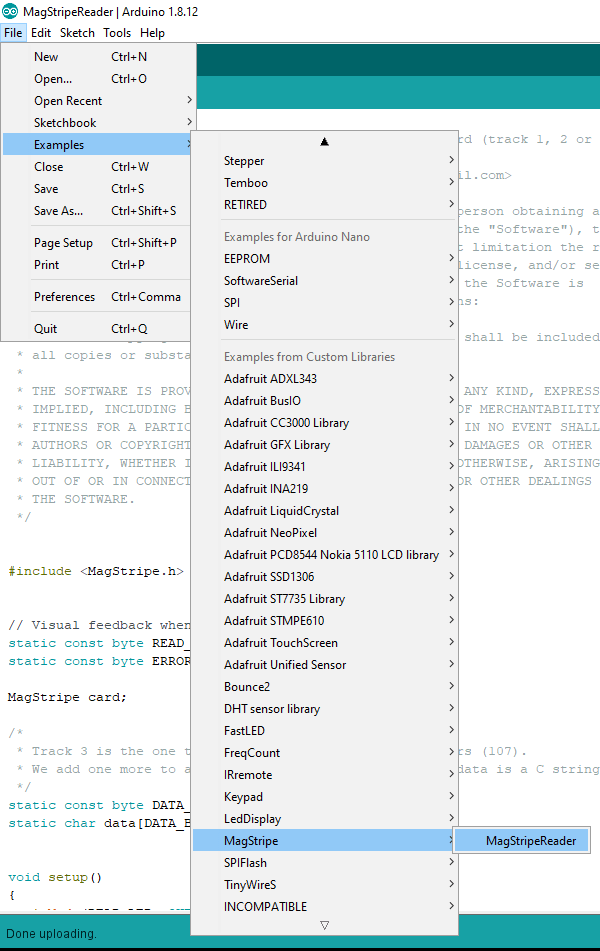
Connect the Arduino to the PC and start the Arduino IDE and add the magstripelib library by going to the menu Tools > Manage Libraries… Search for MagStrip and install the library by Carlos Rodrigues.

Find and Install MagStripe Library

Load the MagStripe example by going to the menu File > Examples > MagStripe > MagStripeReader.

Make certain the correct board and port are selected then upload the code to the Arduino. Once the code is loaded, open the serial monitor and run a card through the reader to see if there is any data read. I did not receive any data so I added some lines of code to let me know that there was an issue. Below is the modified code. The modified code let me know that the card was detected and it attempted to read it but ran into an issue decoding the data.

/*
 * MagStripeReader - Read data from a magnetic stripe card (track 1, 2 or 3).
 *
 * Copyright (c) 2010 Carlos Rodrigues <cefrodrigues@gmail.com>
 *
 * Permission is hereby granted, free of charge, to any person obtaining a copy
 * of this software and associated documentation files (the "Software"), to deal
 * in the Software without restriction, including without limitation the rights
 * to use, copy, modify, merge, publish, distribute, sublicense, and/or sell
 * copies of the Software, and to permit persons to whom the Software is
 * furnished to do so, subject to the following conditions:
 *
 * The above copyright notice and this permission notice shall be included in
 * all copies or substantial portions of the Software.
 *
 * THE SOFTWARE IS PROVIDED "AS IS", WITHOUT WARRANTY OF ANY KIND, EXPRESS OR
 * IMPLIED, INCLUDING BUT NOT LIMITED TO THE WARRANTIES OF MERCHANTABILITY,
 * FITNESS FOR A PARTICULAR PURPOSE AND NONINFRINGEMENT. IN NO EVENT SHALL THE
 * AUTHORS OR COPYRIGHT HOLDERS BE LIABLE FOR ANY CLAIM, DAMAGES OR OTHER
 * LIABILITY, WHETHER IN AN ACTION OF CONTRACT, TORT OR OTHERWISE, ARISING FROM,
 * OUT OF OR IN CONNECTION WITH THE SOFTWARE OR THE USE OR OTHER DEALINGS IN
 * THE SOFTWARE.
 */


#include 


// Visual feedback when the card is being read...
static const byte READ_LED = 13;
static const byte ERROR_LED = 12;

MagStripe card;

/*
 * Track 3 is the one that can contain the most characters (107).
 * We add one more to accomodate the final '\0', as the data is a C string...
 */
static const byte DATA_BUFFER_LEN = 108;
static char data[DATA_BUFFER_LEN];


void setup()
{
  pinMode(READ_LED, OUTPUT);
  pinMode(ERROR_LED, OUTPUT);
  
  // The card data will be sent over serial...
  Serial.begin(9600);
  
  // Initialize the library for reading track 2...
  card.begin(2);

  // Start with the feedback LEDs off...
  digitalWrite(READ_LED, LOW);
  digitalWrite(ERROR_LED, LOW);
}

 
void loop()
{
  // Don't do anything if there isn't a card present...
  if (!card.available()) {
    return;
  }
  
  // Show that a card is being read...
  digitalWrite(READ_LED, HIGH);
  
  // Read the card into the buffer "data" (as a null-terminated string)...
  short chars = card.read(data, DATA_BUFFER_LEN);
  
  // Show that the card has finished reading...
  digitalWrite(READ_LED, LOW);
  Serial.println("-- Read Completed --");
  
  // If there was an error reading the card, blink the error LED...
  if (chars < 0) {
    digitalWrite(ERROR_LED, HIGH);
    delay(250);
    digitalWrite(ERROR_LED, LOW);
    Serial.println("Read Error...");
    Serial.println(chars);

    return;
  }
  
  Serial.println("Good Read...");
  Serial.print("Read Direction: ");
  //Serial.println(card.read_direction());
  Serial.println(card.read_direction()==1 ? "Forward" : card.read_direction()==2 ? "Backward" : "Unknown");

  // Send the data to the computer...
  Serial.println(data);
}


/* EOF - MagStripeReader.ino */

The result was always a failed read no mater which card was read.

-- Read Completed --
Read Error...
-1

Troubleshooting

As mentioned in the introduction, I first focused on the code to see if I could find something that was amiss. I also attempted to switch the strobe and clock wires to see if I had identified them incorrectly. I then tried using an Arduino Uno to see if the Nano was a problem but I still could not successfully read a card. I then turned my attention to the hardware. The first thing that I did was to use my Tenma 72-8705 oscilloscope to look at the strobe and data lines. I noted that it looked like the data line had narrow spikes on some clock edges. I did not think much of it at the time.


Channel 1 is Strobe and Channel 2 is Data

I decided to break out the Saleae Logic Analyzer to capture the strobe and data lines and manually decode the data to see if the readers are working properly. I saw the same spikes on the data line which occurs with the rising clock edge.


Channel 0 is Strobe, Channel 1 is Data, and Channel 2 is Card Sense

Since the spikes occur on a rising clock edge, it really should not be an issue as the data is only valid on a falling clock edge. I exported the captured data into a CSV file and looked at it in Excel. I was able to decode the data and verified that the data was reading the card properly. To know that the data was read properly, it was necessary to read some of the information from Magtek.

I took another look at the code and see that the data values are being flipped from the previous value. I was unable to determine what the width of the spikes are but I suspect that the spikes may flip the data value in the code but are not wide enough to raise the hardware interrupt on the Arduino when it returns to +5V. If this is the case then it is understandable why there are issues reading the cards. This could be fixed using hardware or software. I took the hardware approach by connecting a 0.01uF capacitor between the data line and Vcc. Once the capacitor was added to remove the spikes from the data line, the code was able to read the cards successfully.

Going Further

It may be possible to resolve the issue observed with this particular card reader by removing the interrupt from the data pin and reading the data value on the clock interrupt instead. This in turn would free up the hardware interrupt used for the data pin and allow any digital pin to be used for the data line. This may allow the reading of two track from readers which read multiple tracks or allow the use of more than one card reader.

Part II ->

Categories
Arduino Review

eBay Review – 1602 Serial Blue Backlight LCD Display Keypad 4 Arduino Uno R3 Mega 2560 Shield

I purchased an LCD Shield for Arduino from eBay a few weeks ago. I wanted to do a review to help others to get the shield to run on their Arduino or other microprocessor.

Overall Impression

Works as stated and is a good value. I would recommend this shield if you are in the market for a low cost shield with buttons for user input. It is a great shield to get a project going.

Overview

I am not certain who designed the original shield but I assume that it is open-source as there are many similar shields on the market. It appears that most are built from the same schematic that I found on SainSmart’s website at https://www.sainsmart.com/collections/all-for-arduino/products/lcd-keypad-shield-for-arduino-duemilanove-uno-mega2560-mega1280.

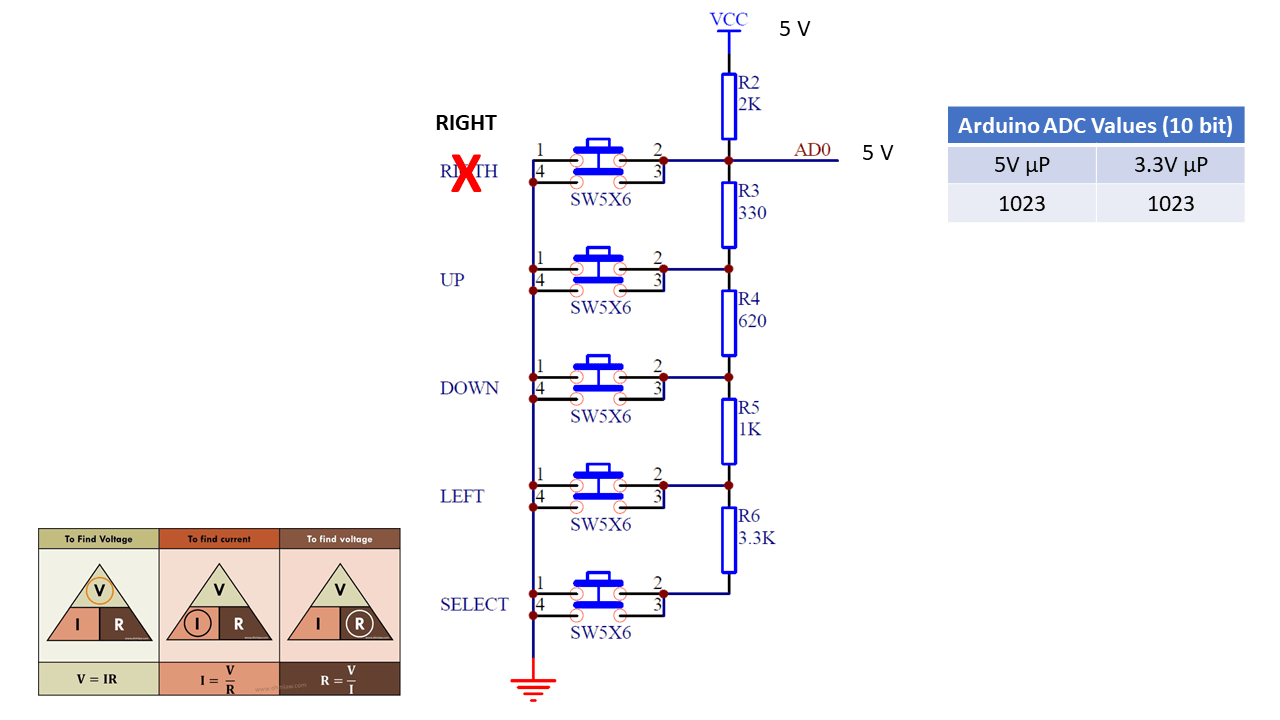
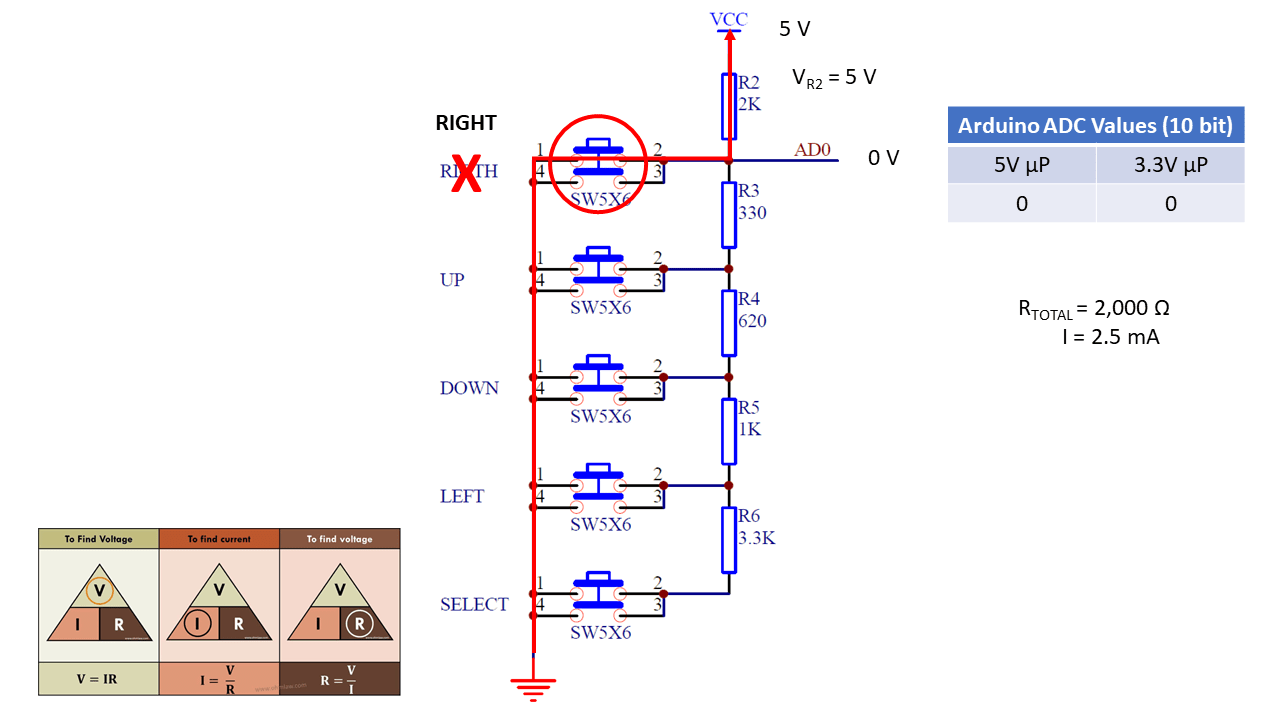
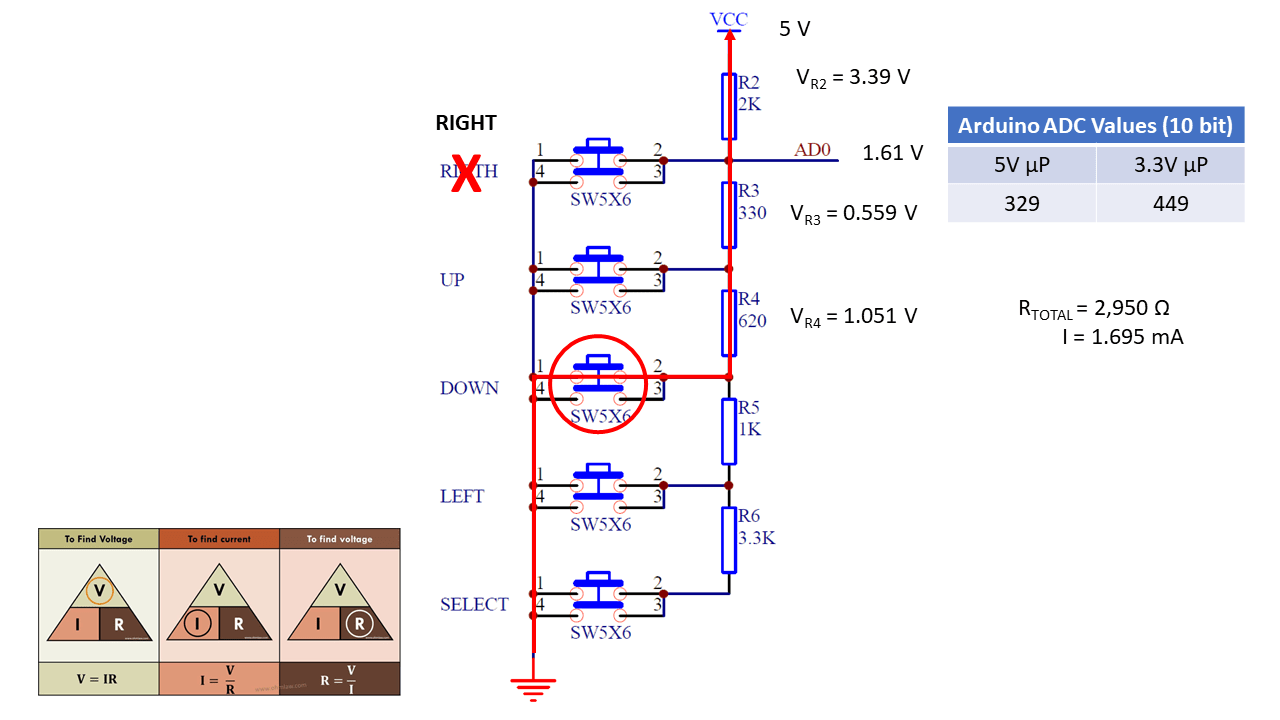
The shield uses one analog pin to determine which of the five switches the user has pressed. A series of resistors creates a voltage divider which in turn creates specific voltages for each switched pressed. The pins in use on the board are as follows.

PinFunction PinFunction
ResetReset Button 10LCD – Backlight
5VPower 9LCD – Enable
GroundGround 8LCD – RS
A0Buttons 7LCD – D7
 – SELECT 6LCD – D6
 -LEFT 5LCD – D5
 – UP
– RIGHT
– DOWN
 4LCD – D4
 
 WARNING: The shield works on 5VDC. Not all Arduinos are 5V tolerant so you may damage your Arduino if you use this shield on an Arduino with a microcontroller running on 3.3V such as the Due. If you do not know what voltage the microprocessor on your Arduino is running at, check the Wikipedia article at https://en.wikipedia.org/wiki/List_of_Arduino_boards_and_compatible_systems.

Code for Testing

The following code was found on SainSmart’s website. It was modified slightly to monitor the value of the A0 pin over the serial connection with the PC.

/*
  The circuit:
 * LCD RS pin to digital pin 8
 * LCD Enable pin to digital pin 9
 * LCD D4 pin to digital pin 4
 * LCD D5 pin to digital pin 5
 * LCD D6 pin to digital pin 6
 * LCD D7 pin to digital pin 7
 * LCD BL pin to digital pin 10
 * KEY pin to analogl pin 0
 */

#include <LiquidCrystal.h>

LiquidCrystal lcd(8, 13, 9, 4, 5, 6, 7);

char msgs[5][16] = {"Right Key OK ",
                    "Up Key OK    ",               
                    "Down Key OK  ",
                    "Left Key OK  ",
                    "Select Key OK" };

int adc_key_val[5] ={50, 200, 400, 600, 800 };
int NUM_KEYS = 5;
int adc_key_in;
int key=-1;
int oldkey=-1;

void setup()
{
  // open the serial port at 9600 bps:
  Serial.begin(9600);
  
  lcd.clear(); 
  lcd.begin(16, 2);
  lcd.setCursor(0,0); 
  lcd.print("ADC key testing"); 

  //analogReadResolution(12);
}

void loop()
{
  adc_key_in = analogRead(0);    // read the value from the sensor 
  Serial.println(adc_key_in);
  key = get_key(adc_key_in);  // convert into key press
 
  if (key != oldkey)   // if keypress is detected
   {
    delay(50);  // wait for debounce time
    adc_key_in = analogRead(0);    // read the value from the sensor 
    key = get_key(adc_key_in);    // convert into key press
    if (key != oldkey)    
    {   
      lcd.setCursor(0, 1);
      oldkey = key;
      if (key >=0){
           lcd.print(msgs[key]);              
      }
    }
  }
 delay(100);
}

// Convert ADC value to key number
int get_key(unsigned int input)
{
    int k;
   
    for (k = 0; k < NUM_KEYS; k++)
    {
      if (input < adc_key_val[k]) { return k; } } if (k >= NUM_KEYS)k = -1;  // No valid key pressed
    return k;
}

The code does not perform any debouncing of the button presses so you may need to modify the code if it becomes a problem in your project. Another limitation is the shield and/or the code will not be able to determine if more than one switch has been pressed. I have not tested this, but my hypothesis is that the switch with the lowest resistance will be detected.

Issue with 3.3V Adruino Boards

First off, read the warning above as you may damage your Arduino if the microcontroller is running at 3.3V.

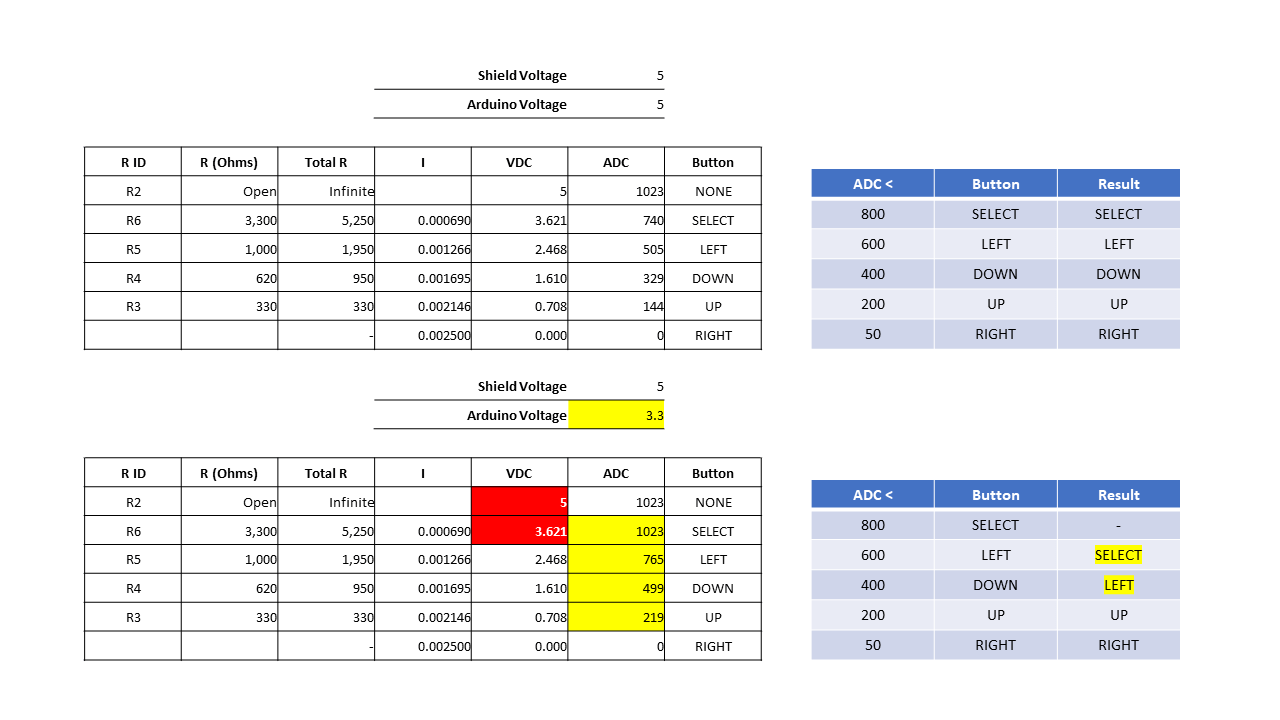
After receiving the shield from the seller, frentaly , on eBay, I pulled out my Arduino Due as it happened to be the first Arduino board that I grabbed. I ran the above code and had some strange results. Pressing the “SELECT” button did nothing. Pressing the “LEFT” button registered “SELECT” was pushed. Likewise, pressing “DOWN” registered that the “LEFT” button was pressed. The “UP” and “RIGHT” buttons worked as expected. I sent a message to frentaly as I believed there was a problem with the shield. I then observed that the resistors for the voltage divider were the correct values so I pulled out a Mega board and ran the same test sketch. I found that the LCD button shield worked as expected on the Mega board. I did some investigating and found that the microprocessor on the Due board is running at 3.3V therefore the highest voltage that may be read on any analog pin is 3.3V. I went a bit further to get a bit more information.

The table below provides some information regarding the ADC values reported on A0 with 5V and 3.3V microprocessor Arduino boards. In the table below there is not difference between no button pressed and the “SELECT” button being pressed.

Button

R ID

R (Ohms)

Total R

I

VDC

ADC 5V

ADV 3.3V

NONE R2 Open Infinite  

5

1023

1023

SELECT R6 3,300 5,250

0.000690

3.621

740

1023

LEFT R5 1,000 1,950

0.001266

2.468

505

765

DOWN R4 620 950

0.001695

1.610

329

499

UP R3 330 330

0.002146

0.708

144

219

RIGHT    

0.002500

0.000

0

0

Here are some slides which provide some details on how the buttons work on the shield.

  • No buttons pressed
  • RIGHT button pressed
  • UP button pressed
  • DOWN button pressed
  • LEFT button pressed
  • SELECT button pressed

The schematic is from the SainSmart web page referenced above.

Below is the data presented above shown in a different format.

Categories
Arduino Microcontroller

Setting up ESP32 with Arduino IDE

I purchased a few things on eBay recently, including some ESP32s for $7.99 each from eBay seller, miniduino. I have not worked with the ESP32 but I know that it can work with the Arduino IDE and can run CircuitPython. I am familiar with the Arduino IDE so I wanted to get the ESP32 to work with the Arduino IDE so I can test them out and make certain that they work fine.

Doing a Google search on ESP32 and Arduino IDE returned many results which helped to get me going. The process for getting the ESP32 up and running is nearly the same as with the Teensy boards. The exception is that the Teensy boards have one nice executable to get things setup. The high-level steps to get ESP32 working with Arduino are the following.

  1. Install the latest Arduino IDE if you do not already have it installed. (https://www.arduino.cc/)
  2. Depending on your operating system, you may need to install the driver. I am running Windows 10 so I needed to install the driver for the Silicon Labs CP2102 from https://www.silabs.com/products/development-tools/software/usb-to-uart-bridge-vcp-drivers.
    BTW: The boards that I purchased have no markings on the CP2102 chip. I fear that the chips are counterfeit or a lower grade chip. The first one I tested works so I’ll keep my fingers crossed.
  3. Once the driver was installed, I needed install the Arduino libraries for the ESP32 by cloning the GitHub repository at https://github.com/espressif/arduino-esp32.
    NOTE: A better way it to follow the “Installation instructions using Arduino IDE Boards Manager” instructions on the GitHub page.
  4. Program the ESP32 with the blink example.
    1. Load the blink example in the Arduino IDE and modify the example to use pin 2 for the led.
/*
  Blink
  Turns on an LED on for one second, then off for one second, repeatedly.
 
  This example code is in the public domain.
 */
 
// Pin 13 has an LED connected on most Arduino boards.
// Pin 11 has the LED on Teensy 2.0
// Pin 6  has the LED on Teensy++ 2.0
// Pin 13 has the LED on Teensy 3.0
// give it a name:
int led = 2;

// the setup routine runs once when you press reset:
void setup() {                
  // initialize the digital pin as an output.
  pinMode(led, OUTPUT);     
}

// the loop routine runs over and over again forever:
void loop() {
  digitalWrite(led, HIGH);   // turn the LED on (HIGH is the voltage level)
  delay(1000);               // wait for a second
  digitalWrite(led, LOW);    // turn the LED off by making the voltage LOW
  delay(1000);               // wait for a second
}
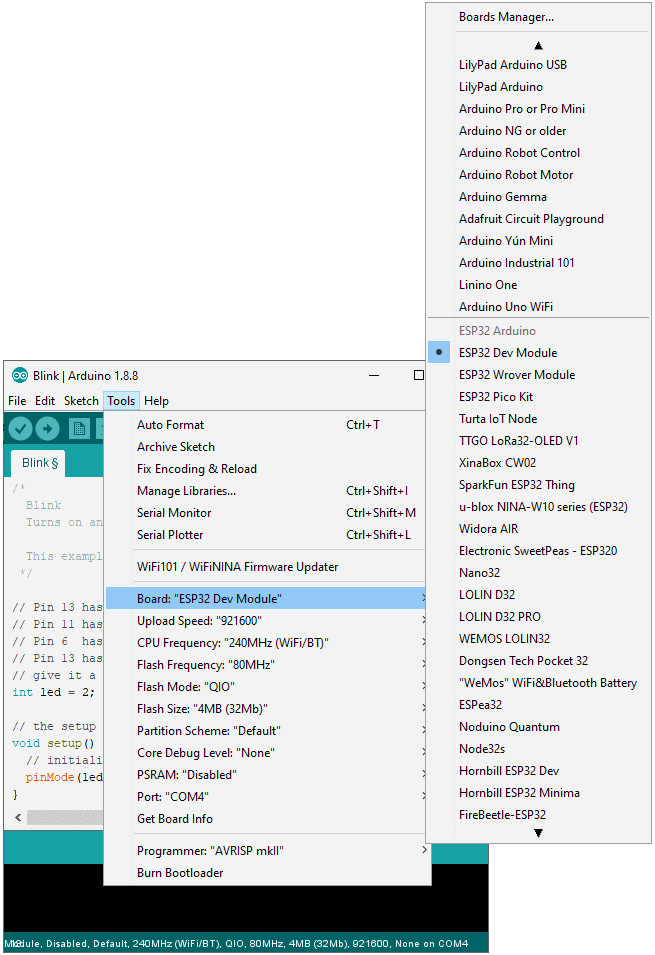
  1. Pick the “ESP32 Dev Module” from the “Boards” menu option
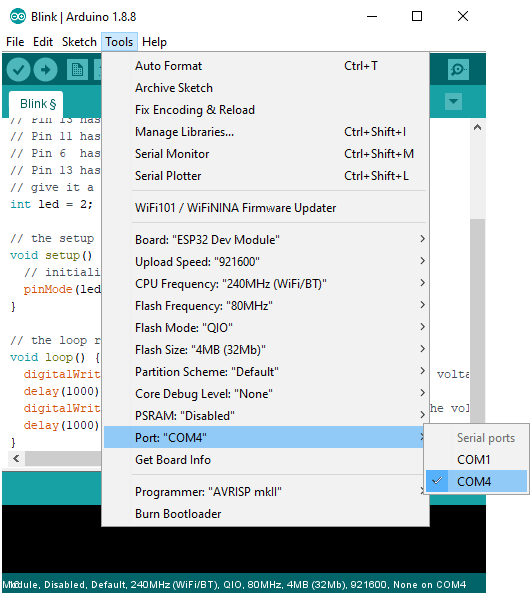
  2. Select the COM port for your board
  3. Upload the program to the ESP32 by clicking the upload button then press and hold the boot button on the ESP32 board. You may release the button once the upload starts.
Categories
Android Review

Learning Android Development using Big Nerd Ranch’s book

I have been contemplating learning Android development for a while now. I have dabbled in it in the past but never took a deep dive to create an application from scratch. I decided to go through a book from start to finish to see if that will give me what I need to finally take the dive.

Android Programming Book by Big Nerd Ranch

Link to the book on Amazon

The book is laid out really well and explains things much clearer than other books I have looked at over the years. I will say that Java development is still not much better than it was 20 years ago, at least on a Windows OS. I know some people will like to bash me for that comment but let me tell you about day one of working through the book and why Java still has a long way to go. (In retrospect after writing this, the blame is not really Java but the IDE. About 20 years ago, both were an issue but at least my issue is more to do with the IDE rather than Java.)

Installation of Android Studio seemed to go well. I got through the GeoQuiz example with no problems other than needing to use a physical device rather than the emulator due to Hyper-V being enabled on my system. I then worked on the challenge by copying the completed example and opening the copy. I made my changes and attempted to launch the application. I received an error that the apk could not be loaded or copied and a prompt was given to uninstall the apk with a warning that user data may be deleted. Since the application did not have associated user data, I clicked the button to uninstall the apk. Another error showed up in the log stating that the apk could not be copied or installation failed. (Sorry, I do not call the exact text.)

At this point, I assumed that the issue was with my device having the application installed from the sample so I decided to try the emulator. I was being a bit lazy so I clicked the link in the emulator selection to turn off Hyper-V. This change required a reboot so I let the PC reboot. On reboot, Windows 10 attempted to fix an error and stated that automatic repair failed to fix the issue. I attempted to turn Hyper-V back on from the command prompt but I was unable to do so from the Windows PE command prompt. I then decided to try turning off early anti-virus and the PC rebooted. Of course I was not happy about that especially since my AV software kept complaining that it could not reach the live-update site and other issues. Basically I had a mess to clean up. Once I finally got the OS squared away, I decided to go back to the challenge. Now Android Studio was having all kinds of issues. (All of these issues may be related to other attempts to boot back into Windows including restoring a previous restore point.)

I uninstalled Android Studio, deleted the files in the Program Files folder, rebooted, and reinstalled Android Studio. I was still having issues launching Android Studio. I finally found that I needed to delete the contents of the C:\Users\AppData\Local\Android\Sdk folder. I then needed to reinstall the SDK, emulator, and build tools. Once these were reinstalled, Android Studio behaved well as it did before. I attempted to run the application and the emulator launched so that was great news but I received the original error regarding the apk file.

I was at a loss but looked a bit more into the log file and it pointed me to a file in the C:\Users\Documents\AndroidStudioProjects\GeoQuiz – Challenge\app\build\intermediates\split-apk\debug\slices folder. I deleted all of the files in the folder but I still received the same message. This was getting quite frustrating so I decided to try deleting all of the files and folders in the C:\Users\Documents\AndroidStudioProjects\GeoQuiz – Challenge\app\build folder. I attempted to build and run the application again. Low and behold, this time the application launched in the emulator. Finally success.

With all of this said, I’m going to keep marching on. It is very frustrating to have the Android Studio behave this way but hopefully my rant here will help someone. If nothing else, it will serve as a reminder to myself what to do when this error occurs.

Here are some locations of note regarding where Android Studio places files. If you want to uninstall and reinstall Android Studio, you should uninstall, delete the following folders, and reinstall. (These may not be all of the locations but these are the ones I found.)

  • C:\Program Files\Android
  • C:\Program Files (x86)\Android
  • C:\Users\.android
  • C:\Users\.AndroidStudio3.1
  • C:\Users\.gradle
  • C:\Users\AppData\Local\Android
Categories
Project Raspberry Pi

Pipboy 3000

OVERVIEW

My daughter wanted to cosplay as a character from Fallout 3 for Awesomecon 2018 in Washington D.C. We found Noe and Pedro Ruiz’s design on learn.adafruit.com 1 and decided to build it. She decided do this cosplay a few days before the event so it was going to be a challenge to complete it in time but we did it.

I thought getting the electronics in time was going to be the biggest challenge but the biggest challenge was reducing the time for the 3D prints. We started on Sunday and did not finish until Wednesday afternoon. (We did not print continuously so the overall print time was less but not by much.) Noe and Pedro have some tips on reducing print time and they worked in combination with tweaking the infill and layer height.

3D PRINTING

My 3D printer is the XYZprinting daVinci 1.0. The printer is a few years old now and is not the best 3D printer by far but it does a fair job. The printer only supports ABS fulfillment and XYZprinting filament cartridges. I have yet to take time to change the head to support PLA or hack the firmware so I can use other filaments. This limits me to the colors of filament that I may use in the printer. We looked for a brown or green filament to use for the Pipboy but did not find any to my daughter’s liking. We decided to print it in white and spray paint it. We found some metallic paint which seemed to work well. Additionally, we printed the screen visor in black and the LED diffuser in natural.

As a side note, I started using Simplify3D Slicing Software with the printer and it has made a world of difference with the print quality and control of the printer. The prints come out much closer to the designed measurements than the XYZprinting software could accomplish. The software gives more options than the XYZprinting software which really came in handy for this project. Noe and Pedro recommend removing some of the supports for the armband and base-main pieces. The XYZprinting software is all or nothing regarding supports but the Simplify3D software allowed me to remove some supports while leaving others in place.

HARDWARE

Noe and Pedro do a good job in the write-up but as with most build instructions, a few things are left out or are not clear. Here are a few notes that I made along the way but it is not a complete list as we were under a very restrict time constraint to get this project done. Unfortunately that means take notes and documenting issues was not a priority.

Additional Materials needed but not listed in the materials list in the overview.

  • Electronic Parts & Components
  • Tools & Supplies
    • (Optional) Hot Glue and Hot Glue Gun
    • Adhesive foam such as weatherstripping for doors and windows

Below are the connections to the 3.5″ LCD Shield that were used in our build.

PypBoy Function Pin Pin Function PypBoy
LED + 3V3 1 2 5V
ENC A GPIO2 3 4 5V PB 1000C +
ENC B GPIO3 5 6 GND PB 1000C –
ROT 1 GPIO4 7 8 GPIO14 ENC SW
LED – GND 9 10 GPIO15
ROT 2 GPIO17 11 12 GPIO18
ROT 3 GPIO27 13 14 GND ROT –
ROT 4 GPIO22 15 16 GPIO23 ROT 5
3V3 17 18 GPIO24
GPIO10 19 20 GND
GPIO9 21 22 GPIO25
GPIO11 23 24 GPIO8
ENC – GND 25 26 GPIO7

SOFTWARE

We made a few tweaks to the software but they were to change the map and display some different text on some screens and adding some missing code to change other displayed text. I plan to post those minor changes in a future post. The more major changes implemented were to get the pypboy program to launch on start and wire up the rotary encoder so we can safely shutdown the Raspberry Pi.

The shutdown code was modified from Inderpreet Singh’s code on Element14’s website2.

REFERENCES

  1. Noe and Pedro’s writeup on learn.adafruit.com: https://learn.adafruit.com/raspberry-pi-pipboy-3000
  2. Inderpreet Singh’s Shutdown Code on Element14’s site: https://www.element14.com/community/docs/DOC-78055/l/adding-a-shutdown-button-to-the-raspberry-pi-b