Categories
Arduino

Arduino delay(), millis(), etc. cause execution to halt in a library

I ran into an interesting issue yesterday while rewriting some Arduino code into a library. I figure out what was the issue but I’m not sure as to why. If someone reads this and can point me to the reason why this was an issue, please comment on this post. I would appreciate it.

PROBLEM STATEMENT (Observation): Adding any timing function in my library file would halt the execution. The time functions includes delay(), delayMicroseconds(), micros(), and millis().

ROOT CAUSE: The time function was being called in the constructor of the class. If the time function was moved to another method and called separately, the time function would work.

RESOLUTION: Modified the code to create the object, then make a call to a public method of the class. I used begin() as I have seen in other classes.

Problem code demonstrating the issue

sample.ino

#include "mylib.h"

mylib myObject = mylib();

const int ledPin =  LED_BUILTIN;
unsigned long previousMillis = 0;
const long interval = 1000;

void setup() {
   pinMode(ledPin, OUTPUT);
}

void loop() {
  unsigned long currentMillis = millis();
  
  if (currentMillis - previousMillis >= interval) {
    previousMillis = currentMillis;
    digitalWrite(ledPin, !digitalRead(13));
  }
}

mylib.h

#if defined(ARDUINO) && ARDUINO >= 100
  #include "Arduino.h"
#else
  #include "WProgram.h"
#endif

class mylib {
  public:
    // Constructors
    mylib();

  private:
    void initialize();
};

mylib.cpp

#include "mylib.h"

mylib::mylib() {
  initialize();
}

mylib::initialize() {
  delay(100);
}

Working code demonstrating the solution

sample.ino

#include "mylib.h"

mylib myObject = mylib();

const int ledPin =  LED_BUILTIN;
unsigned long previousMillis = 0;
const long interval = 1000;

void setup() {
  pinMode(ledPin, OUTPUT);
  myObject.begin();
}

void loop() {
  unsigned long currentMillis = millis();
  
  if (currentMillis - previousMillis >= interval) {
    previousMillis = currentMillis;
    digitalWrite(ledPin, !digitalRead(ledPin));
  }
}

mylib.h

#if defined(ARDUINO) && ARDUINO >= 100
  #include "Arduino.h"
#else
  #include "WProgram.h"
#endif

class mylib {
  public:
    // Constructors
    mylib();

    void begin();

  private:
    void initialize();
};

mylib.cpp

#include "mylib.h"

mylib::mylib() {
  
}

mylib::begin() {
  initialize();
}

mylib::initialize() {
  delay(100);
}
Categories
Review

Glowforge

My Glowforge finally arrived this week. I pre-ordered it in October 2015 so it took a little over two years of waiting to finally get it.

I designed and printed the obligatory escutcheon for the print button. I chose to name my Glowforge Scotty in honor of James Doohan. His character was my inspiration for becoming an engineer in the first place so I felt it was fitting.


The escutcheon after being printed.


The escutcheon after removing the tape covering.

A few thoughts on the Glowforge interface.
The interface and workflow will take a bit of getting use to but I think it will be fine once I’m more familiar with it. At first I was getting frustrated as I created a PNG image to scale. When I imported it, I thought it was too small until I realized the scale is in inches not mm. Once I realized my error, I looked for an option to change it but could not find one. I attempted to find a way to scale it to the correct size but there is no option to type in the size or view the exact measurement. It is necessary to guess what size it is by looking at the ruler on the screen which is not very accurate. What I ended up doing was using the 1:1 scale printout and placing it in the Glowforge so I could attempt to scale it correctly. Once I did that, I could not figure out how to do cuts where I wanted them. I did some reading and found that an SVG is needed for cuts. I then used Inkscape to create an SVG from a modified image with only the cuts. This worked and I was able to scale it exactly. I then created another PNG file with just the engraving and uploaded both files. I still needed to scale the engraving but that was easy and not critical. Once everything looked good, I pressed the print button. The Glowforge performed the cuts but not the engraving. I then removed the cut image and clicked print again. This time the engraving was done. On my next print, I will need to see what I did wrong here so I do not make that mistake again.

Overall it was easy to use the Glowforge but I do have a few concerns. Firstly, a desktop application to prepare the print would afford a better setup experience. Secondly, it is not possible to print if your network connection is down for any reason or if Glowforge goes out of business. While it is nice to use a device this way, it does leave users vulnerable to the existence of the company and the health of the web servers.


The original PNG file I created.


A modified PNG for the cuts. This file could not be used for the cuts as PNG files may only be used for engraving. I needed to convert this file to SVG using Inkscape.


The modified PNG for the engraving.

Overall, I’m pleased with the Glowforge. I just hope that the company and the web-service run well for many years to come so I may continue to use the Glowforge.

BTW: The size of the escutcheon is 119.903 x 119.903 mm. I was not able to upload the SVG for the cuts so if you decide to use the PNG, you will need to convert it to SVG and resize it.

Categories
Arduino Project Project Ideas

All Electronics LCD-101 (256×128 LCD) with Arduino

All Electronics has a rather large LCD display which will work great in a Jeopardy! like game that I am building. The display should be rather easy to use with an Arduino or Raspberry Pi but searching for Arduino or Raspberry Pi projects using the display turns up very few details. Fortunately the SED1330F datasheet is fairly well written. With some experimentation, it is possible to figure out how to get it to work. Especially helpful is table 32 in section 9.1.2. Some of the parameters need to be changed but it is a great example of how to get the display to work.

Here is a very short video of the LCD running from an Arduino UNO. The video starts with the display showing the result from the test2 function from the sample code below. I then upload the code again with the test2 function call commented out and the testDataSheetSection9 function call uncommented.

test2(511);

testDataSheetSection9();

#include 

// All Electronics LCD-101
// HG25504 with SED1330F

// LCD Pins
#define d0 14
#define d1 15
#define d2 2
#define d3 3
#define d4 4
#define d5 5
#define d6 6
#define d7 7
#define res 8
#define rd 9
#define wr 10
#define cs 11
#define a0 12

// LCD Comands
#define SYSTEM_SET  0x40
#define SLEEP_IN    0x53
#define DISP_OFF    0x58
#define DISP_ON     0x59
#define SCROLL      0x44
#define CSRFORM     0x5D
#define CGRAM_ADR   0x5C
#define CSRDIR_R    0x4C
#define CSRDIR_L    0x4D
#define CSRDIR_U    0x4E
#define CSRDIR_D    0x4F
#define HDOT_SCR    0x5A
#define OVLAY       0x5B
#define CSRW        0x46
#define CSRR        0x47
#define MWRITE      0x42
#define MREAD       0x43

// LCD Parameters
#define LCD_RES_W 256
#define LCD_RES_H 128
#define CHAR_BITS_WIDE 8  
#define CHARS_PER_LINE  32//8 bit
#define TEXT_ROWS 16

void setup() {
  // put your setup code here, to run once:
  Serial.begin(9600);
  Serial.println("Hello world");
  delay(2000);// Give reader a chance to see the output.
  
  // Set pins for output
  setDataPinsForOutput();
  pinMode(res, OUTPUT);
  pinMode(rd, OUTPUT);
  pinMode(wr, OUTPUT);
  pinMode(cs, OUTPUT);
  pinMode(a0, OUTPUT);

  lcdReset();
  lcdInit();

  testDataSheetSection9();
  //test2(511);
}

void loop() {
  // put your main code here, to run repeatedly:
}

/*** Functions ***/

void clearGraphicsLayer() {
  // Set Start at 03E8H
  lcdWriteCommand(CSRW);
  lcdWriteData(0x03);
  lcdWriteData(0xE8);

  // Write 00H (blank data) for 8000 bytes
  lcdWriteCommand(MWRITE);
  for(int i=0; i<8000; i++) {
    lcdWriteData(0x00);
  }
}

void clearTextLayer() {
  // Set Start at 0000H
  lcdWriteCommand(CSRW);
  lcdWriteData(0x00);
  lcdWriteData(0x00);

  // Write 20H (space character) for 1000 bytes
  lcdWriteCommand(MWRITE);
  for(int i=0; i<1000; i++) {
    lcdWriteData(0x20);
  }
}

void lcdInit() {
  Serial.println("Step  3");
  //  3 Initialize LCD Sequence
  lcdWriteCommand(SYSTEM_SET);  // C
  lcdWriteData(0x30);  // P1 M0, M1, M2, W/S, IV, T/L, & DR
  lcdWriteData(0x87);  // P2 FX & WF
  lcdWriteData(0x07);  // P3 FY
  lcdWriteData(0x1F);  // P4 (C/R) Address range covered by one line
  lcdWriteData(0x23);  // P5 (TC/R) Length of one line
  lcdWriteData(0x7F);  // P6 (L/F) Frame height in lines
  lcdWriteData(0x20);  // P7 (APL)
  lcdWriteData(0x00);  // P8 (APH)
}

void lcdReset() {
  digitalWrite(res, LOW);
  // Set init state for wr & cs
  digitalWrite(wr, LOW);
  digitalWrite(cs, LOW);
  delay(50);
}

void lcdWriteCommand(byte command) {
  lcdWriteCtrl(0x05);
  lcdWriteJustData(command);
  digitalWrite(wr, HIGH); // Latch Data
  //delay(10);
}

void lcdWriteCtrl(byte ctrl) {
  digitalWrite(cs, LOW);
  digitalWrite(res, HIGH);
  
  digitalWrite(a0, ctrl & 0x04);
  digitalWrite(wr, ctrl & 0x02);
  digitalWrite(rd, ctrl & 0x01);
}

void lcdWriteData(byte data) {
  lcdWriteCtrl(0x01);
  lcdWriteJustData(data);
  digitalWrite(wr, HIGH); // Latch Data
  //delay(10);
}

void lcdWriteJustData(byte data) {
  digitalWrite(d7, (data & 0x80) == 0x80);
  digitalWrite(d6, (data & 0x40) == 0x40);
  digitalWrite(d5, (data & 0x20) == 0x20);
  digitalWrite(d4, (data & 0x10) == 0x10);
  digitalWrite(d3, (data & 0x08) == 0x08);
  digitalWrite(d2, (data & 0x04) == 0x04);
  digitalWrite(d1, (data & 0x02) == 0x02);
  digitalWrite(d0, (data & 0x01) == 0x01);
}

void setDataPinsForOutput() {
  pinMode(d0, OUTPUT);
  pinMode(d1, OUTPUT);
  pinMode(d2, OUTPUT);
  pinMode(d3, OUTPUT);
  pinMode(d4, OUTPUT);
  pinMode(d5, OUTPUT);
  pinMode(d6, OUTPUT);
  pinMode(d7, OUTPUT);
}

void testDataSheetSection9() {
  Serial.println("Running Test 2");

  Serial.println("Step  4");
  //  4 Set display start address and display regions
  lcdWriteCommand(SCROLL);
  lcdWriteData(0x00);     // P1 (SAD 1 L)
  lcdWriteData(0x00);     // P2 (SAD 1 H)
  lcdWriteData(0x80);     // P3 (SL 1)
  lcdWriteData(0x00);     // P4 (SAD 2 L)
  lcdWriteData(0x10);     // P5 (SAD 2 H)
  lcdWriteData(0x80);     // P6 (SL 2)
  lcdWriteData(0x00);     // P7 (SAD 3 L)
  lcdWriteData(0x04);     // P8 (SAD 3 H)
  //lcdWriteData(0x00);     // P9 (SAD 4 L)
  //lcdWriteData(0x30);     // P10 (SAD 4 H)
  
  Serial.println("Step  5");
  //  5 Set Horizontal Scroll position
  lcdWriteCommand(HDOT_SCR);
  lcdWriteData(0x00);
  
  Serial.println("Step  6");
  //  6 Set display overlay format
  lcdWriteCommand(OVLAY);
  lcdWriteData(0x01);
  
  Serial.println("Step  7");
  //  7 Set display off
  lcdWriteCommand(DISP_OFF);
  lcdWriteData(0x56);

  Serial.println("Step  8");
  //  8 Clear data in first layer with 20H (space character)
  clearTextLayer();

  Serial.println("Step  9");
  //  9 Clear data in second layer with 00H (blank data)
  clearGraphicsLayer();

  Serial.println("Step 10");
  // 10 Set cursor address
  lcdWriteCommand(CSRW);
  lcdWriteData(0x00);
  lcdWriteData(0x00);

  Serial.println("Step 11");
  // 11 Set Cursor type
  lcdWriteCommand(CSRFORM);
  lcdWriteData(0x04);
  lcdWriteData(0x86); 
  
  Serial.println("Step 12");
  // 12 Set display on
  lcdWriteCommand(DISP_ON);

  Serial.println("Step 13");
  // 13 Set Cursor direction - Right
  lcdWriteCommand(CSRDIR_R);

  Serial.println("Step 14");
  // 14 Write characters
  lcdWriteCommand(MWRITE);
  lcdWriteData(0x20);
  lcdWriteData(0x45);
  lcdWriteData(0x50);
  lcdWriteData(0x53);
  lcdWriteData(0x4F);
  lcdWriteData(0x4E);

  Serial.println("Step 15");
  // 15 Set cursor address
  lcdWriteCommand(CSRW);
  lcdWriteData(0x00);
  lcdWriteData(0x10);

  Serial.println("Step 16");
  // 16 Set Cursor direction - Down
  lcdWriteCommand(CSRDIR_D);
  
  Serial.println("Step 17");
  // 17 Fill square
  lcdWriteCommand(MWRITE);
  for(int i0=0; i0<9; i0++) {
    lcdWriteData(0xFF);
  }

  Serial.println("Step 18");
  // 18 Set cursor address
  lcdWriteCommand(CSRW);
  lcdWriteData(0x01);
  lcdWriteData(0x10);

  Serial.println("Step 19");
  // 19 Fill square
  lcdWriteCommand(MWRITE);
  for(int i0=0; i0<9; i0++) {
    lcdWriteData(0xFF);
  }

  Serial.println("Step 20");
  // 20 Set cursor address
  lcdWriteCommand(CSRW);
  lcdWriteData(0x02);
  lcdWriteData(0x10);

  Serial.println("Step 21");
  // 21 Fill square
  lcdWriteCommand(MWRITE);
  for(int i0=0; i0<9; i0++) {
    lcdWriteData(0xFF);
  }

  Serial.println("Step 22");
  // 22 Set cursor address
  lcdWriteCommand(CSRW);
  lcdWriteData(0x03);
  lcdWriteData(0x10);

  Serial.println("Step 23");
  // 23 Fill square
  lcdWriteCommand(MWRITE);
  for(int i0=0; i0<9; i0++) {
    lcdWriteData(0xFF);
  }

  Serial.println("Step 24");
  // 24 Set cursor address
  lcdWriteCommand(CSRW);
  lcdWriteData(0x04);
  lcdWriteData(0x10);

  Serial.println("Step 25");
  // 25 Fill square
  lcdWriteCommand(MWRITE);
  for(int i0=0; i0<9; i0++) {
    lcdWriteData(0xFF);
  }

  Serial.println("Step 26");
  // 26 Set cursor address
  lcdWriteCommand(CSRW);
  lcdWriteData(0x05);
  lcdWriteData(0x10);

  Serial.println("Step 27");
  // 27 Fill square
  lcdWriteCommand(MWRITE);
  for(int i0=0; i0<9; i0++) {
    lcdWriteData(0xFF);
  }

  Serial.println("Step 28");
  // 28 Set cursor address
  lcdWriteCommand(CSRW);
  lcdWriteData(0x06);
  lcdWriteData(0x10);

  Serial.println("Step 29");
  // 29 Fill square
  lcdWriteCommand(MWRITE);
  for(int i0=0; i0<9; i0++) {
    lcdWriteData(0xFF);
  }

  Serial.println("Step 30");
  // 30 Set cursor address
  lcdWriteCommand(CSRW);
  lcdWriteData(0x00);
  lcdWriteData(0x01);

  Serial.println("Step 31");
  // 31 Set Cursor direction - Right
  lcdWriteCommand(CSRDIR_R);

  Serial.println("Step 32");
  // 32 Write more text
  lcdWriteCommand(MWRITE);
  lcdWriteData(0x44);
  lcdWriteData(0x6F);
  lcdWriteData(0x74);
  lcdWriteData(0x20);
  lcdWriteData(0x4D);
  lcdWriteData(0x61);
  lcdWriteData(0x74);
  lcdWriteData(0x72);
  lcdWriteData(0x69);
  lcdWriteData(0x78);
  lcdWriteData(0x20);
  lcdWriteData(0x4C);
  lcdWriteData(0x43);
  lcdWriteData(0x44);  
  
  
  Serial.println("Done with Datasheet Section 9 Sample");
}

void test2(int testNum) {
  
  Serial.println("Running Test 2");

  Serial.println("Step  4");
  //  4 Set display start address and display regions
  lcdWriteCommand(SCROLL);
  lcdWriteData(0x00);     // P1 (SAD 1 L)
  lcdWriteData(0x00);     // P2 (SAD 1 H)
  lcdWriteData(0x80);     // P3 (SL 1)
  lcdWriteData(0x00);     // P4 (SAD 2 L)
  lcdWriteData(0x10);     // P5 (SAD 2 H)
  lcdWriteData(0x80);     // P6 (SL 2)
  lcdWriteData(0x00);     // P7 (SAD 3 L)
  lcdWriteData(0x04);     // P8 (SAD 3 H)
  
  Serial.println("Step  5");
  //  5 Set Horizontal Scroll position
  lcdWriteCommand(HDOT_SCR);
  lcdWriteData(0x00);
  
  Serial.println("Step  6");
  //  6 Set display overlay format
  lcdWriteCommand(OVLAY);
  lcdWriteData(0x01);
  
  Serial.println("Step  7");
  //  7 Set display off
  lcdWriteCommand(DISP_OFF);
  lcdWriteData(0x56);

  Serial.println("Step  8");
  //  8 Clear data in first layer with 20H (space character)
  clearTextLayer();

  Serial.println("Step  9");
  //  9 Clear data in second layer with 00H (blank data)
  clearGraphicsLayer();

  Serial.println("Step 10");
  // 10 Set cursor address
  lcdWriteCommand(CSRW);
  lcdWriteData(0x00);
  lcdWriteData(0x00);

  Serial.println("Step 11");
  // 11 Set Cursor type
  lcdWriteCommand(CSRFORM);
  lcdWriteData(0x04);
  lcdWriteData(0x86); 
  
  Serial.println("Step 12");
  // 12 Set display on
  lcdWriteCommand(DISP_ON);
  //lcdWriteData(0x16);

  Serial.println("Step 13");
  // 13 Set Cursor direction - Right
  lcdWriteCommand(CSRDIR_R);

  Serial.println("Step 14");
  // 14 Write characters
  writeNumbers(testNum);

  
  Serial.println("Done with Test 2");
}


void writeNumbers(int numQty) {
  byte numZero = 0x30;
  int idx = 0;
  byte data = 0x00;
  byte offset = 1;
  
  lcdWriteCommand(MWRITE);
  while(idx < numQty) {
    if(offset > 9)
      offset = 0;

    data = numZero + offset;
    lcdWriteData(data);
    
    offset++;
    idx++;
  }
}

I plan to post more information as the project progresses. I do want to mention a few things that I found out in regards to the display.

  • You may wonder if the HG25504 is single or dual-panel display. It is a one panel display. This becomes obvious when you look at the ICs on the back of the display. The columns are driven by four HD66204FC Dot Matrix LCD column driver with 80-channels. If each column was used on these chips, they could drive 320 columns. This is 64 more columns than the display has but no where near 512 columns which would be required for a dual-panel configuration.
  • Included ICs and function
    • HD66204FC (Qty 4) Dot Matrix LCD column driver with 80-channels
    • HD66205FC (Qty 2) Dot Matrix LCD common driver with 80-channels
    • SED1330F (Qty 1) LCD Controller
    • HY6264A (Qty 1) Static RAM (8K bytes)
    • KA324D (Qty 1) Quad Operational Amplifier
  • Vo (LCD Contrast Voltage) – You really do need to apply at least -10V to Vo in respect to ground. There are some posts regarding this display stating that tying it to ground is enough but it is not. I had applied a negative voltage but was only seeing something when Vo was near ground potential. I was able to initialize the LCD but could not see anything displayed. I knew the screen was initialized because with Vo being close to ground potential, I saw one or more lines on the LCD when it was initially powered up. When I initialized the LCD, the line(s) were gone. I was getting frustrated as I could not display anything on the screen after initializing it. When I finally used a different power supply, I could see that I had been doing things right.
  • Power Requirements (You may have different results)
    • LCD Contrast (-10.5VDC @ 3.5mA)
    • LCD Logic (5VDC @ 10mA)
    • Arduino Uno (5VDC @ 10mA
  • The SED1330F supports 8080 and 6800 family processors. This matters as the LCD is wired for one or the other and the control lines change function based on the wiring of the LCD. Section 2.4.3 of the datasheet specifies that SEL1 and SEL2 determine the operation. Both SEL1 and SEL2 are connected to ground on the LCD therefore it is operating in 8080 mode.
Categories
Project Raspberry Pi

Today’s Tricorder Project Update

Ticorder

Progress has been slow on revision 2 of the TOS Tricorder. I have been working on the software, particularly the plugins for the sensors. I am currently working on the I2C sensors. I have 2 of the 8 sensors coded but found an issue with detecting the I2C devices in the init method without getting the I2C bus into a stuck state. I finally figured out this issue this morning and updated the Raspberry Pi forum post were I found the original code that I used. If you are interested, you may check out the post at https://www.raspberrypi.org/forums/viewtopic.php?f=32&t=114401.

Another quick note, I found the lambda function in Python. I may put this to some good use. I had to do something similar but found a way around it as I never stumbled on this gem. In many ways, I wish I stuck to C++ for this project but it is good to get to know yet another language.
References:
https://stackoverflow.com/questions/30325351/ioerror-errno-5-input-output-error-while-using-smbus-for-analog-reading-thr
http://www.secnetix.de/olli/Python/lambda_functions.hawk

GitLab Source: https://gitlab.com/richteel/TOSTricorder/tree/v2.0.0.0

Categories
Review

CNC Machine

I have had a MyDIYCNC Machine sitting around for a few years now. I was having some problems with the controller boards so I set it aside and am just getting back to take another look at it. I found that one of the boards that was sent to me was indeed bad but MyDIYCNC no longer sells machines or parts. I then decided to go to Amazon and pick out a controller board to try. I picked the SainSmart CNC TB6560 3 Axis Stepper Motor Driver Controller Board & Cable. This board seems to work quite well. I have been having a bit of a time getting it to work properly in LinuxCNC but I have got it to home and move but it seems to be at 1/2 scale. I am still tweaking with the settings to see if I can get it to work 100%.

A few notes about wiring and hardware. The MyDIYCNC instructions refer to the motor which moves the Z axis carrier as the Y axis. It appears that it should really be the X axis and the table should be the Y axis. If it were the Y axis, the home position would be in the wrong corner of the machine. I played with the configuration a bit to see if I could get it to work as expected but I had no luck. Finally when I decided to try to swap the X and Y axes did home line up in the correct corner. I could have swapped A & B around on the Y motor and that may have reversed the direction of the motor but I did not want to go there. Swapping the axes made the most sense.

Here is a short video of a test of the CNC. The spindle has a ink cartage in it and is simply running the default LinuxCNC project. The drawing should be 5.3 inches wide but is only half that size.

Here are the settings for LinuxCNC.

001
Base Information

  • Machine Name: MyDIYCNC_inches
  • Axis configuration: XYZ
  • Reset Default machine units: Inch
  • Driver type: Other
  • Driver Timing Settings (The Stepper Drive Timing page on linux.org states that 150,000 ns should be used for all values however the current version of LinuxCNC has a max value of 100,000.)
    • Step Time: 100000
    • Step Space: 100000
    • Direction Hold: 100000
    • Direction Setup: 100000
  • Base Period Maximum Jitter: 9000

002
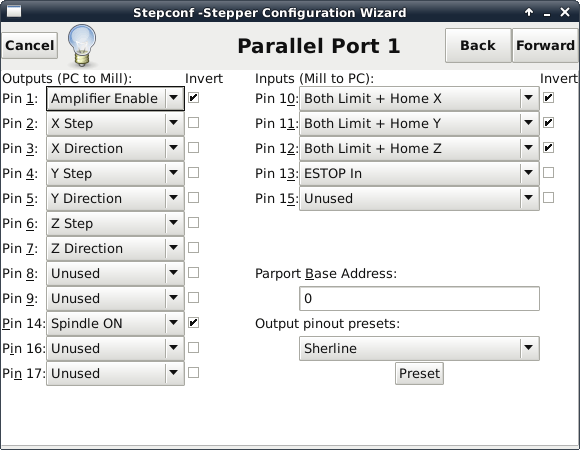
Parallel Port 1

  • Outputs (PC to Mill):
    • Pin 1: Amplifier Enable (Invert)
    • Pin 2: X Step
    • Pin 3: X Direction
    • Pin 4: Y Step
    • Pin 5: Y Direction
    • Pin 6: Z Step
    • Pin 7: Z Direction
    • Pin 8: Unused
    • Pin 9: Unused
    • Pin 14: Spindle ON (Invert)
    • Pin 16: Unused
    • Pin 17: Unused
  • Inputs (Mill to PC):
    • Pin 10: Both Limit + Home X (Invert)
    • Pin 11: Both Limit + Home Y (Invert)
    • Pin 12: Both Limit + Home Z (Invert)
    • Pin 13: ESTOP In
    • Pin 15: Unused
  • Parport Base Address: 0
  • Output pinout presets: Sherline (The value here is not important. It is actually used with the “Preset” button to load values.)

003
Options

Selections here really do not matter. I have not figured out how to use these yet. I may look into it more in the future.

004
Axis X

  • Motor steps per revolution: 800 (Steppers included with MyDIYCNC are 50 steps per revolution. The TB6560 board has the switches set for 1/16 microstepping. 50 x 16 = 800)
  • Driver Microstepping: 2.0 (Someone posted that 2 meant that microsteping was being used. I had this set to 32 earlier.)
  • Pulley teeth (Motor:Leadscrew): 1.0:1.0 (All axes are direct drive so they are all 1:1.)
  • Leadscrew Pitch: 20.0
  • Maximum Velocity: 0.4
  • Maximum Acceleration: 30.0
  • Home location: 0.125 This took awhile to get. If using the limit switches as home switches as well, we need to back the machine off so that the limit switches are not active when at home position. I choose to back them off 1/8 inch on all axes.)
  • Table travel: 0.0 to 5.5
  • Home Switch Location: 0.0
  • Home Search velocity: -0.05
  • Home Latch direction: Same

005
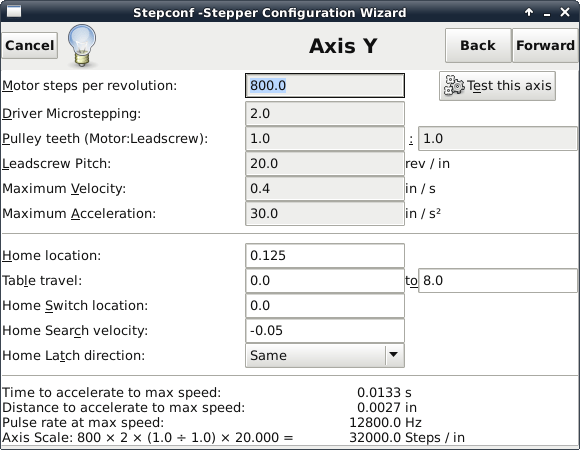
Axis Y

  • Motor steps per revolution: 800
  • Driver Microstepping: 2.0
  • Pulley teeth (Motor:Leadscrew): 1.0:1.0
  • Leadscrew Pitch: 20.0
  • Maximum Velocity: 0.4
  • Maximum Acceleration: 30.0
  • Home location: 0.125
  • Table travel: 0.0 to 8.0
  • Home Switch Location: 0.0
  • Home Search velocity: -0.05
  • Home Latch direction: Same

006
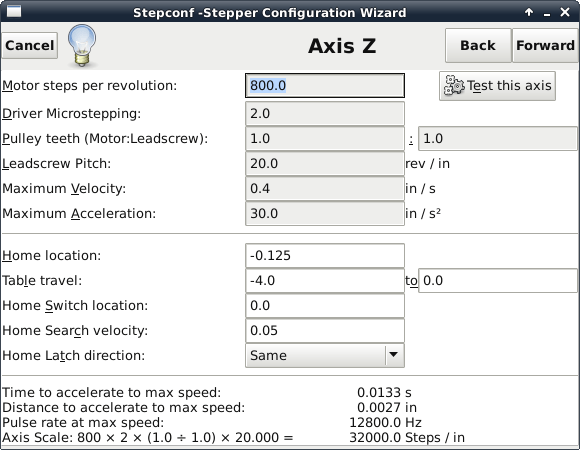
Axis Z

  • Motor steps per revolution: 800
  • Driver Microstepping: 2.0
  • Pulley teeth (Motor:Leadscrew): 1.0:1.0
  • Leadscrew Pitch: 20.0
  • Maximum Velocity: 0.4
  • Maximum Acceleration: 30.0
  • Home location: -0.125
  • Table travel: -4.0 to 0.0
  • Home Switch Location: 0.0
  • Home Search velocity: 0.05
  • Home Latch direction: Same

007
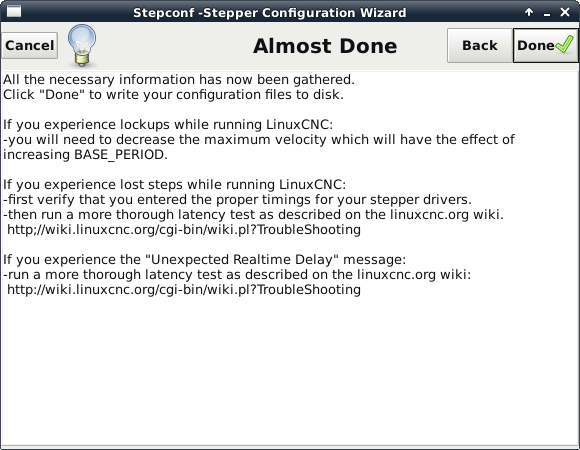
Almost Done

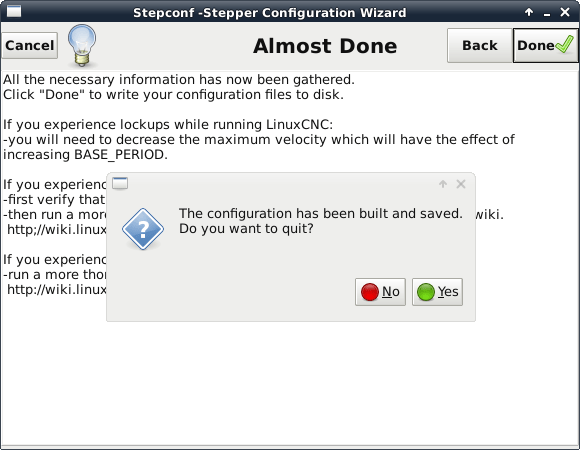
008
Do you want to quit?

Screenshot added for completeness

I plan to continue to look into what is going on with the scaling and settle on the correct settings or at least settings which will work.

Categories
Review

Test Video

I would like to add more videos to the blog. One of the problems that I have had is the time it takes to perform post processing on videos to add different sources and information. I found the Open Broadcaster Software application and started messing around with it and found that it is quite good, once you get use to how it works. Here is my first attempt at creating a video with the software.

BTW: Yes, I totally ripped off some ideas from Adafruit. I’m not too creative so I copied what I like. I will attempt to change it but it is tough as Limor and Phil have created a very nice format for the shows that Adafruit produces. I also like Ben Heck and Dave Jones (EEVBlog) videos as well but I seem to watch more of the videos Adafruit puts out.

Here is my first recording.

Categories
Arduino Project Raspberry Pi

I2C Communications between Raspberry Pi and Arduino – Update

Over the past few days, I have been able to bit bang the I2C bus with the PIGPIO library. I found a very helpful example at http://raspberrypi.stackexchange.com/questions/3627/is-there-an-i2c-library/4052 which was posted by crj11. This example was using the pigpiod_if.h library. This worked well but required the application to be run with elevated privileges (sudo) which was not acceptable as I needed to run the application from a Python script which in turn was running every 5 minutes from a cron job. The final solution was to use the pigpiod_if2.h and run the pigpio daemon on startup.

The final solution has been running for a few days with three sensors connected over a total of 9 feet (~3 meters) of cable. The data has been logged at Adafruit.IO which I have made public. I may remove or rename the Dashboard in the near future so here is a screenshot of the page.
adafruit_io_v0.1.0

I have also updated the GitHub site for the project so there are now two releases available. Version RC_0.0.1 is the version using the hardware for I2C control and version RC_0.1.0 is the bit bang version.

I still have more work to do to make this project valuable to others. I plan to create some better documentation on the project and provide a full write-up to allow someone to follow along and build there own from start to finish. Right now, 80% to 90% is captured in various places but there are obvious gaps such as the connection to the Raspberry Pi. One can figure this missing information out by looking through the right source files and piece it together however I do not like it when I find a project write-up that is only 80% to 90% documented. It is still better than nothing or only 10% to 25% though.

I hope someone will find some of the information here useful.

Categories
Arduino Project Raspberry Pi

I2C Communications between Raspberry Pi and Arduino – Update, BOM, and Source Control

Update

I have been working on this project over the past couple of weeks when I have free time but have not been posting updates. This is a general update which is why the title is different from the other posts regarding this project.

My boards from OSH Park arrived last week. I was able to populate them and test them out. Fortunately I did not make any errors on the PCB or schematic so they all worked as designed. There are a few things that I would change on a future version if I choose to make another version of the board.

  1. I would put the ICSP header on the bottom of the board so it does not stick out from the front. This would make it much easier to assemble and would make it possible to not have any exposed circuitry which may allow the device to be damaged from static electricity.
  2. I would move the resistors toward the bottom of the board if possible. It would allow the DHT11 sensor to stick out further from the case.
  3. I would also try to push the ATtiny85 a little further towards the bottom for the same reason as the resistors.

Currently I am looking to bit bang the I2C bus on the Raspberry Pi. I seem to have gotten around the clock stretching issue if there is only one device connected to the I2C bus but as soon as I add another device, the clock stretching becomes an issue again. I really wish that the Pi Foundation would work with Broadcom and fix the issue with the I2C bus.

Here are some pictures.

This slideshow requires JavaScript.

Bill of Materials (BOM)

Materials List (For One Sensor)

  • QTY 1 – PCB (Source: OSH Park)
  • QTY 2 – 3.5mm 4 Pole Audio Jack, J1 & J2 (Source: MCM Electronics NOTE: I ordered 27-9485 but received ones which look like 27-9487)
  • QTY 1 – 2×3 Position Male Header 2.54mm Pitch, JP1 (Source: MCM Electronics NOTE: This is a 2×13 header. You will need to cut it for 2×3 header.)
  • QTY 1 – T-1 3mm LED, LED1 (Source: MCM Electronics NOTE: May choose another color)
  • QTY 1 – CDS Photoresistor Photoelectric 5549 GL5549, PH1 (Source: Ebay)
  • QTY 2 – Resistor 1/4W 10K Ohm, R1 & R2 (Source: MCM Electronics)
  • QTY 1 – Resistor 1/4W 220 Ohm, R3 (Source: MCM Electronics)
  • QTY 1 – DHT11 Digital Temperature & Humidity Sensor Moudle, SE1 (Source: Ebay)
  • QTY 1 – ATMEL ATtiny85, U1 (Source: Newark)

Materials List for Raspberry Pi Hat

  • Qty 1 – Perfboard (Source: Adafruit)
  • Qty 1 – GPIO Header for Raspberry Pi NOTE: The one you will need depends on which model of Raspberry Pi you are using. (Source: Adafruit 2×13 Header for original Raspberry Pi or 2×20 Header for newer Raspberry Pi)
  • QTY 1 – 3.5mm 4 Pole Audio Jack (Source: MCM Electronics NOTE: I ordered 27-9485 but received ones which look like 27-9487)
  • Optional items

Source Control

I have added the source files for the Hardware and Software onto GitHub. I did this so the community may have access to the files and any updates to them. I mainly did it because I was having a hard time remembering which set of files I last worked with especially if a few days went by when I could not work on the project. I think this is a win-win for me and anyone interested in this project.

The files are located at https://github.com/TeelSys/TeelSys_THL. When you first go to the page, it may look like there are mo project files included in the project. If that is the case it is because I am still trying to get everything working properly before I commit code to the master branch. You will see a button with the text “Branch: master” and a downward arrow. Click that button and select another branch such as “dev”. You will then see the project files in their current state.

If you wish to contribute, add a comment here or if you can request through GitHub, do that. I will reply once I see the request but keep in mind that it may be a few days.

Categories
Arduino Project Raspberry Pi

I2C Communications between Raspberry Pi and Arduino – Part Four

It has been two weeks since my last post but it has been out of frustration on porting the code over to the ATtiny85. The first thing that I ran into was that the Wire library is not supported on the ATtiny85. I needed to modify my code to work with the TinyWireS library. This did not seem too bad and worked once in a while. It was a bit frustrating as I followed examples and it appeared that I was doing everything correctly but that is typically how it goes when coding.

I finally took a look at the specs for the ATtiny85 and realized that memory may be my issue so I started to pare down the memory requirements. The Arduino IDE was not complaining but I recalled an posting that was published on Adafruit a couple of years ago called Arduino Memories. After rereading the article and looking at a couple of other references, I determined that I needed to tackle the memory is see if it was an issue.

At some point in my debugging, I had noticed that the examples for TinyWireS were utilizing a buffer and pointer method to do fast reads and writes. I had a significant switch statement on the request data handler so I removed that and went with the buffer option. By doing so I reserved a whopping 256 bytes for the buffer. This was a very stupid move which I realized when I took a look at the specs for the the ATtiny85. The ATtiny85 has only 512 bytes of RAM so I was consuming half of it for the buffer which did not leave much room for anything else.

I dropped the buffer size down to 32 bytes which helped a great deal. After reducing the size of the buffer, I could get communications between the ATtiny85 and the Raspberry Pi to work a few times before the communications stopped working. I further refined the code to reduce memory usage and swapped out the Adafruit DHT library for one written by Rob Tillaart for the DHT11 only.

Book1

With these modifications, I was able to get the code down to using 113 bytes of RAM and 4,918 bytes (60%) of Flash.

With these changes, the code works quite well but sometimes it appears that the ATtiny85 does not read the correct request from the Raspberry Pi. After some searching it was found that there is a known issue with the Raspberry Pi and clock stretching. It appears that there is a bug which has not been fixed yet if the slave stretches the clock at the right moment and the stretching is too short. The ATtiny85 implements I2C in software so this is going to happen at some point.One of the best articles on this issue is the Raspberry Pi I2C clock-stretching bug.

There are some suggested fixes which I need to read more to understand well enough to use. The most promising fix appears to use Python to perform I2C communication in software. The recommendation is to use the PiGPIO library.

Below is the code that I have thus far on the ATtiny85.

// Uses DHT from Rob instead of Adafruit
// http://playground.arduino.cc/Main/DHTLib
// http://playground.arduino.cc/Main/DHT11Lib


#include <TinyWireS.h>
#include <dht11.h>

#define SLAVE_ADDRESS 0x23

#define PIN_DHT 4
#define PIN_PHOTORESISTOR A3
#define PIN_LED 1

unsigned long previousMillis = 0;
#define interval 2500

#define bufferSz 32
byte dataBuffer[bufferSz] = { 32 };
uint8_t bufferIdx = 0;
boolean firstByteRead = false;

dht11 DHT11;

// Union used to convert float to byte array
union u_tag {
  byte b[4];
  float fval;
} fdata;

void setup() {
  pinMode(PIN_DHT, INPUT);
  pinMode(PIN_PHOTORESISTOR, INPUT);
  pinMode(PIN_LED, OUTPUT);

  digitalWrite(PIN_LED, HIGH);

  // initialize i2c as slave
  TinyWireS.begin(SLAVE_ADDRESS);

  // define callbacks for i2c communication
  TinyWireS.onReceive(receiveData);
  TinyWireS.onRequest(sendData);

  // Initialize dataBuffer
  for (int i = 0; i < bufferSz; i++) {
    dataBuffer[i] = 0xFF;
  }
  // Set LED to blink on each loop
  dataBuffer[3] = 2;
  // Load Model Info
  // T  S  0  0  0  0  0  1
  // 54 53 30 30 30 30 30 31
  String storeText = F("TS000001");
  bufferIdx = 0x10;
  for (int i = 0; i < storeText.length(); i++) {
    dataBuffer[bufferIdx] = storeText[i];
    bufferIdx++;
  }
  // Load Version Info
  // 0  0  0  0  0  0  0  3
  // 30 30 30 30 30 30 30 33
  storeText = F("00000003");
  bufferIdx = 0x18;
  for (int i = 0; i < storeText.length(); i++) {
    dataBuffer[bufferIdx] = storeText[i];
    bufferIdx++;
  }
}

void loop() {
  TinyWireS_stop_check();
  
  unsigned long currentMillis = millis();

  if (currentMillis - previousMillis >= interval) {
    previousMillis = currentMillis;

    if (dataBuffer[3] == 2) {
      digitalWrite(PIN_LED, !digitalRead(PIN_LED));
    }

    ReadDHT();
    ReadLightLevel();
  }
}

// callback for received data
void receiveData(uint8_t byteCount) {
  if (byteCount != 1)
  {
    // Sanity-check
    return;
  }

  while (TinyWireS.available()) {
    bufferIdx = TinyWireS.receive();
    firstByteRead = false;

    SetLedStatus();
  }
}

// callback for sending data
void sendData() {
  if (firstByteRead) {
    bufferIdx++;
  }

  firstByteRead = true;

  if(bufferIdx < 0 || bufferIdx >= bufferSz) {
    TinyWireS.send(0xFF);
    return;
  }

  TinyWireS.send(dataBuffer[bufferIdx]);
}

void ReadDHT() {
  int chk = DHT11.read(PIN_DHT);

  if(!chk==DHTLIB_OK) {
    return;
  }
  
  float humidity = (float)DHT11.humidity;
  float temperatureCelsius = (float)DHT11.temperature;
  
  SaveFloatToBuffer(0x04, temperatureCelsius);
  SaveFloatToBuffer(0x08, humidity);
}

void ReadLightLevel() {
  int photocellReading = analogRead(PIN_PHOTORESISTOR);
  float lightReading = ((float)photocellReading / 1023.0) * 100.0;
  SaveFloatToBuffer(0x0C, lightReading);
}

void SaveFloatToBuffer(uint8_t bufIdx, float val) { 
  dataBuffer[bufIdx] = 0;
  dataBuffer[bufIdx + 1] = 0;
  dataBuffer[bufIdx + 2] = 0;
  dataBuffer[bufIdx + 3] = 0;
  
  fdata.fval = val;

  dataBuffer[bufIdx] = fdata.b[3];
  dataBuffer[bufIdx + 1] = fdata.b[2];
  dataBuffer[bufIdx + 2] = fdata.b[1];
  dataBuffer[bufIdx + 3] = fdata.b[0];
  
  //dataBuffer[bufIdx] = (int)val;
}

void SetLedStatus() {
  if (bufferIdx > 2)
    return;

  dataBuffer[3] = 2;
  if (bufferIdx < 2) {
    digitalWrite(PIN_LED, bufferIdx);
    dataBuffer[3] = 0;
    if (digitalRead(PIN_LED) == HIGH) {
      dataBuffer[3] = 1;
    }
  }
}

Here is the code on the Raspberry Pi to verify that things are working.

#include <string.h>
#include <unistd.h>
#include <errno.h>
#include <stdio.h>
#include <stdlib.h>
#include <linux/i2c-dev.h>
#include <sys/ioctl.h>
#include <fcntl.h>
#include <unistd.h>
#include <math.h>

#define CMD_GET_TEMPERATURE 1
#define CMD_GET_HUMIDITY 2
#define CMD_SET_LIGHT 3
#define CMD_SET_LED_ON 4
#define CMD_SET_LED_OFF 5
#define CMD_SET_LED_FLASH 6
#define CMD_GET_MODEL 250
#define CMD_GET_VERSION 251
#define CMD_GET_HELLO_WORLD 254

// The PiWeather board i2c address
#define ADDRESS 0x23

// The I2C bus: This is for V2 pi's. For V1 Model B you need i2c-0
char *devName = "/dev/i2c-0";
int file;
int devices[128];
int sensorDevices[128];

union u_tag {
	char b[4];
	float fval;
} fdata;

float computeHeatIndex(float temperature, float percentHumidity, int isFahrenheit);
float convertCtoF(float c);
float convertFtoC(float f);
void displayConnectedI2cDevices();
void dumpDeviceInfo(int deviceAddress);
void findAllI2cDevices();
void findI2cBus();
void findSensors();
float receiveFloat();
int receiveInt();
void receiveString(char *str, int bufSize);
int sendCommand(int deviceAddress, int cmdCode);

int main(int argc, char** argv) {
	// Look for the I2C bus device

  printf("I2C: Connecting\n");
	findI2cBus();
  
  // Find Devices
  findAllI2cDevices();
  
  // Display devices found (Simlar to i2cdetect -y 0)
  displayConnectedI2cDevices();
  
  dumpDeviceInfo(0x23);
  
  sendCommand(0x23, 0x04);
  float temperature = receiveFloat();
  sendCommand(0x23, 0x08);
  float percentHumidity = receiveFloat();
  sendCommand(0x23, 0x0C);
  float lightLevel = receiveFloat();
  
  printf("Temperature = %1.2f (C)\n", temperature);
  printf("Humidity = %1.2f\n", percentHumidity);
  printf("Light Level = %1.2f\n", lightLevel);

  close(file);
  return (EXIT_SUCCESS);
}

float computeHeatIndex(float temperature, float percentHumidity, int isFahrenheit) {
  // Using both Rothfusz and Steadman's equations
  // http://www.wpc.ncep.noaa.gov/html/heatindex_equation.shtml
  float hi;

  if (isFahrenheit==0)
    temperature = convertCtoF(temperature);

  hi = 0.5 * (temperature + 61.0 + ((temperature - 68.0) * 1.2) + (percentHumidity * 0.094));

  if (hi > 79) {
    hi = -42.379 +
             2.04901523 * temperature +
            10.14333127 * percentHumidity +
            -0.22475541 * temperature*percentHumidity +
            -0.00683783 * pow(temperature, 2) +
            -0.05481717 * pow(percentHumidity, 2) +
             0.00122874 * pow(temperature, 2) * percentHumidity +
             0.00085282 * temperature*pow(percentHumidity, 2) +
            -0.00000199 * pow(temperature, 2) * pow(percentHumidity, 2);

    if((percentHumidity < 13) && (temperature >= 80.0) && (temperature <= 112.0))
      hi -= ((13.0 - percentHumidity) * 0.25) * sqrt((17.0 - abs(temperature - 95.0)) * 0.05882);

    else if((percentHumidity > 85.0) && (temperature >= 80.0) && (temperature <= 87.0))
      hi += ((percentHumidity - 85.0) * 0.1) * ((87.0 - temperature) * 0.2);
  }

  return isFahrenheit ? hi : convertFtoC(hi);
}

float convertCtoF(float c) {
  return c * (9.0/5.0) + 32;
}

float convertFtoC(float f) {
  return (f - 32) * (5.0/9.0);
}

void displayConnectedI2cDevices() {
	int idx=0;
	printf("     0  1  2  3  4  5  6  7  8  9  a  b  c  d  e  f");
	for(idx=0; idx<=0x7F; idx++) {
		if(idx%16==0) {
			printf("\n%d0:",idx/16);
		}
		if(idx>0x07 && idx<0x78) {
			if(devices[idx]>0) {
				if(devices[idx]==-9) {
					printf(" UU");
				}
				else {
					printf(" %02x", idx);
				}
			}
			else {
				printf(" --");
			}
		}
		else {
				printf("   ");
		}
  }
  printf("\n");
}

void dumpDeviceInfo(int deviceAddress) {
	int i=0;
	
	sendCommand(deviceAddress, 0x03);
	
	for(i=0x03; i<0x20; i++) {
		int val = receiveInt();
		
		printf("0x%02x: 0x%02x (%d)\t%c\n", i, val, val, val);
	}
}

void findAllI2cDevices() {
	int idx=0;
  for(idx=0; idx<=0x7F; idx++) {
  	int device=0;
  	
  	if(idx>0x07 && idx<0x78) {
	  	if (ioctl(file, I2C_SLAVE, idx) < 0) {
	  		if(errno == EBUSY) {
	  			device = -9;
	  		}
	  		else {
		  		device = -1;
		  	}
	  	}
	  	else {
	  		char buf[1];
	  		if(read(file, buf, 1) == 1 && buf[0] >= 0) {
	  			device = idx;
	  		}
	  	}
  	}
  	
  	devices[idx] = device;
  }
}

void findI2cBus() {
	if ((file = open(devName, O_RDWR)) < 0) {
  	devName = "/dev/i2c-1";
  	if ((file = open(devName, O_RDWR)) < 0) {
	    fprintf(stderr, "I2C: Failed to access %d\n", devName);
	    exit(1);
	  }
  }
  
  printf("Found I2C bus at %s\n", devName);
}

void findSensors() {
	char *sensorType="TeelSys Data and Light Sensor";
	char buf[256];
	int idx=0;
	int sensorIdx=0;
	// sensorDevices
	// devices
	
	// Clear the sensorDevices array
	for(idx=0; idx<128; idx++) {
		sensorDevices[idx] = 0;
	}
	
  for(idx=0x08; idx<=0x78; idx++) {
  	int device=0;
  	
  	if(devices[idx]==idx) {
  		if(sendCommand(0x22, CMD_GET_MODEL)==1) {
  			int bufSize = sizeof(buf)/sizeof(buf[0]);
  			receiveString(buf, bufSize);
  			if(strlen(sensorType)==strlen(buf) && strcmp(sensorType, buf)==0) {
  				sensorDevices[sensorIdx]=devices[idx];
  				sensorIdx++;
  				printf("Found Sensor at: 0x%02x\n", devices[idx]);
  			}
  		}
  	}
  }
}

void receiveString(char *buf, int bufSize) {
  int charCount=0;
  
	if(read(file, buf, bufSize) == bufSize) {
		for(charCount=0; charCount<bufSize; charCount++) {
			int temp = (int) buf[charCount];
			
			if(temp==255) {
				buf[charCount]=0;
			}
		}
  }
}

int receiveChar() {
  char buf[1];
  char retVal = 0x00;
  
  if (read(file, buf, 1) == 1) {
  	retVal=buf[0];
  }
  
	usleep(10000);
  return retVal;
}

float receiveFloat() {	
	fdata.b[3] = 0;
	fdata.b[2] = 0;
	fdata.b[1] = 0;
	fdata.b[0] = 0;
	
	fdata.b[3] = receiveChar();
	fdata.b[2] = receiveChar();
	fdata.b[1] = receiveChar();
	fdata.b[0] = receiveChar();
	
	return fdata.fval;
	//return (float)fdata.b[3];
}

int receiveInt() {
  return (int)receiveChar();
}

int sendCommand(int deviceAddress, int cmdCode) {
	int retVal = 0;
	unsigned char cmd[16];
	cmd[0] = cmdCode;
	
	if (ioctl(file, I2C_SLAVE, deviceAddress) < 0) {
    fprintf(stderr, "I2C: Failed to acquire bus access/talk to slave 0x%x\n", deviceAddress);
    exit(1);
  }
  
  if (write(file, cmd, 1) == 1) {
  	// As we are not talking to direct hardware but a microcontroller we
    // need to wait a short while so that it can respond.
    //
    // 1ms seems to be enough but it depends on what workload it has
    usleep(10000);
    retVal = 1;
  }
  
  return retVal;
}

Running the Raspberry Pi program produces the following result.

pi@raspberrypi:~ $ ./testi2c07a
I2C: Connecting
Found I2C bus at /dev/i2c-0
     0  1  2  3  4  5  6  7  8  9  a  b  c  d  e  f
00:                         -- -- -- -- -- -- -- --
10: -- -- -- -- -- -- -- -- -- -- -- -- -- -- -- --
20: -- -- -- 23 -- -- -- -- -- -- -- -- -- -- -- --
30: -- -- -- -- -- -- -- -- -- -- -- -- -- -- -- --
40: -- -- -- -- -- -- -- -- -- -- -- -- -- -- -- --
50: -- -- -- -- -- -- -- -- -- -- -- -- -- -- -- --
60: -- -- -- -- -- -- -- -- -- -- -- -- -- -- -- --
70: -- -- -- -- -- -- -- --
0x03: 0x02 (2)
0x04: 0x41 (65) A
0x05: 0xb8 (184)        ▒
0x06: 0x00 (0)
0x07: 0x00 (0)
0x08: 0x42 (66) B
0x09: 0x0c (12)

0x0a: 0x00 (0)
0x0b: 0x00 (0)
0x0c: 0x42 (66) B
0x0d: 0x2d (45) -
0x0e: 0xff (255)        ▒
0x0f: 0x80 (128)        ▒
0x10: 0x54 (84) T
0x11: 0x53 (83) S
0x12: 0x30 (48) 0
0x13: 0x30 (48) 0
0x14: 0x30 (48) 0
0x15: 0x30 (48) 0
0x16: 0x30 (48) 0
0x17: 0x31 (49) 1
0x18: 0x30 (48) 0
0x19: 0x30 (48) 0
0x1a: 0x30 (48) 0
0x1b: 0x30 (48) 0
0x1c: 0x30 (48) 0
0x1d: 0x30 (48) 0
0x1e: 0x30 (48) 0
0x1f: 0x33 (51) 3
Temperature = 23.00 (C)
Humidity = 35.00
Light Level = 43.50


Next step is to see if I can resolve the clock stretching issue and then connect to adafruit.io to post data. If it is not possible to address the clock stretching issue, it would be possible to identify when it occurs and reset the power to the I2C slave devices. I am trying to avoid that solution but I may need to resort to that solution.

Categories
Arduino Project Raspberry Pi

I2C Communications between Raspberry Pi and Arduino – Part Three

Today’s goal is to send a string from the Arduino to the Raspberry Pi. The setup is the same as from day two.

After several attempts and stupid mistakes, I was finally able to get a “Hello World” message from the Arduino to the Raspberry Pi.

Here is the code for the Arduino

#include <Wire.h>
#include "DHT.h"

#define SLAVE_ADDRESS 0x04

#define PIN_DHT 4
#define PIN_PHOTORESISTOR A3
#define PIN_LED 1

#define DHTTYPE DHT11   // DHT 11
//#define DHTTYPE DHT22   // DHT 22  (AM2302), AM2321
//#define DHTTYPE DHT21   // DHT 21 (AM2301)

int humidity = 0;
int temperatureCelsius = 0;
int lightReading = 0;

int number = 0;

unsigned long previousMillis = 0;
const long interval = 1000;

bool flashLed = true;
bool respondWithText = false;
String responseText = "The Message";

// Initialize DHT sensor.
// Note that older versions of this library took an optional third parameter to
// tweak the timings for faster processors.  This parameter is no longer needed
// as the current DHT reading algorithm adjusts itself to work on faster procs.
DHT dht(PIN_DHT, DHTTYPE);

void setup() {
  pinMode(PIN_DHT, INPUT);
  pinMode(PIN_PHOTORESISTOR, INPUT);
  pinMode(PIN_LED, OUTPUT);

  digitalWrite(PIN_LED, LOW);

  dht.begin();

  // initialize i2c as slave
  Wire.begin(SLAVE_ADDRESS);

  // define callbacks for i2c communication
  Wire.onReceive(On_WireReceive);
  Wire.onRequest(On_WireRequest);
}

void loop() {
  unsigned long currentMillis = millis();

  if (currentMillis - previousMillis >= interval) {
    previousMillis = currentMillis;

    if (flashLed) {
      digitalWrite(PIN_LED, HIGH);
    }
    ReadDHT();
    ReadLightLevel();
    if (flashLed) {
      digitalWrite(PIN_LED, LOW);
    }
  }
}

// callback for received data
void On_WireReceive(int byteCount) {

  while (Wire.available()) {
    number = Wire.read();
    respondWithText = false;

    switch (number) {
      case 1: // Temperature in Celsius
        number = temperatureCelsius;
        break;
      case 2: // Humidity
        number = humidity;
        break;
      case 3: // Light Level
        number = lightReading;
        break;
      case 4: // LED On
        digitalWrite(PIN_LED, HIGH);
        flashLed = false;
        break;
      case 5: // LED Off
        digitalWrite(PIN_LED, LOW);
        flashLed = false;
        break;
      case 6: // LED Flash on read
        digitalWrite(PIN_LED, LOW);
        flashLed = true;
        break;
      case 250: // Send Model Info
        respondWithText = true;
        responseText = "TeelSys Data and Light Sensor";
        break;
      case 251: // Send Version Info
        respondWithText = true;
        responseText = "version 0.0.3";
        break;
      case 254: // Send Hello World
        respondWithText = true;
        responseText = "Hello World";
        break;
      default:
        break;
    }
  }
}

// callback for sending data
void On_WireRequest() {
  if(respondWithText) {
    ProcessRequestString();
  }
  else {
    sendData();
  }
}

void ReadDHT() {
  humidity = 0;
  temperatureCelsius = 0;

  // Reading temperature or humidity takes about 250 milliseconds!
  // Sensor readings may also be up to 2 seconds 'old' (its a very slow sensor)
  humidity = dht.readHumidity();
  // Read temperature as Celsius (the default)
  temperatureCelsius = dht.readTemperature();
}

void ReadLightLevel() {
  int photocellReading = analogRead(PIN_PHOTORESISTOR);
  lightReading = ((float)photocellReading / 1023.0) * 100.0;
}

void sendData() {
  Wire.write(number);
}

void ProcessRequestString() {
  Wire.write(responseText.c_str());
}

Here is the code for the Raspberry Pi

#include <string.h>
#include <unistd.h>
#include <errno.h>
#include <stdio.h>
#include <stdlib.h>
#include <linux/i2c-dev.h>
#include <sys/ioctl.h>
#include <fcntl.h>
#include <unistd.h>

// The PiWeather board i2c address
#define ADDRESS 0x04

// The I2C bus: This is for V2 pi's. For V1 Model B you need i2c-0
static const char *devName = "/dev/i2c-0";

int main(int argc, char** argv) {

  if (argc == 1) {
    printf("Supply one or more commands to send to the Arduino\n");
    exit(1);
  }

  printf("I2C: Connecting\n");
  int file;

  if ((file = open(devName, O_RDWR)) < 0) {
    fprintf(stderr, "I2C: Failed to access %d\n", devName);
    exit(1);
  }

  printf("I2C: acquiring buss to 0x%x\n", ADDRESS);

  if (ioctl(file, I2C_SLAVE, ADDRESS) < 0) {
    fprintf(stderr, "I2C: Failed to acquire bus access/talk to slave 0x%x\n", ADDRESS);
    exit(1);
  }

  int arg;

  for (arg = 1; arg < argc; arg++) {
    int val;
    unsigned char cmd[16];

    if (0 == sscanf(argv[arg], "%d", &val)) {
      fprintf(stderr, "Invalid parameter %d \"%s\"\n", arg, argv[arg]);
      exit(1);
    }

    printf("Sending %d\n", val);

    cmd[0] = val;
    if (write(file, cmd, 1) == 1) {

      // As we are not talking to direct hardware but a microcontroller we
      // need to wait a short while so that it can respond.
      //
      // 1ms seems to be enough but it depends on what workload it has
      usleep(10000);
      
      if(val<250) {	// Receiving int
	      char buf[1];
	      if (read(file, buf, 1) == 1) {
		    int temp = (int) buf[0];
		
		    printf("Received %d\n", temp);
		      }
		  }
      else {	// Receiving String
	      char buf[256];
	      int charCount=0;
	      
	      for(charCount=0; charCount<256; charCount++) {
	      	buf[charCount]=89;
	      }
	      
				if(read(file, buf, 256) == 256) {
					for(charCount=0; charCount<256; charCount++) {
	    			int temp = (int) buf[charCount];
	
	    			printf("%d:\tReceived %d\t%c\n", charCount, temp, temp);
	    		}
		    }
      }
		}
		
    // Now wait else you could crash the arduino by sending requests too fast
    usleep(10000);
  }

  close(file);
  return (EXIT_SUCCESS);
}

Compile the code
gcc testi2c03.c -o testi2c03
Config_I2C_103

Run the code
./testi2c03 254
Config_I2C_104
Config_I2C_105

We can see that once the string ends, the data on the I2C buss is 255. Let’s tweak the code on the Raspberry Pi to stop once we receive 255.

#include <string.h>
#include <unistd.h>
#include <errno.h>
#include <stdio.h>
#include <stdlib.h>
#include <linux/i2c-dev.h>
#include <sys/ioctl.h>
#include <fcntl.h>
#include <unistd.h>

// The PiWeather board i2c address
#define ADDRESS 0x04

// The I2C bus: This is for V2 pi's. For V1 Model B you need i2c-0
static const char *devName = "/dev/i2c-0";

int main(int argc, char** argv) {

  if (argc == 1) {
    printf("Supply one or more commands to send to the Arduino\n");
    exit(1);
  }

  printf("I2C: Connecting\n");
  int file;

  if ((file = open(devName, O_RDWR)) < 0) {
    fprintf(stderr, "I2C: Failed to access %d\n", devName);
    exit(1);
  }

  printf("I2C: acquiring buss to 0x%x\n", ADDRESS);

  if (ioctl(file, I2C_SLAVE, ADDRESS) < 0) {
    fprintf(stderr, "I2C: Failed to acquire bus access/talk to slave 0x%x\n", ADDRESS);
    exit(1);
  }

  int arg;

  for (arg = 1; arg < argc; arg++) {
    int val;
    unsigned char cmd[16];

    if (0 == sscanf(argv[arg], "%d", &val)) {
      fprintf(stderr, "Invalid parameter %d \"%s\"\n", arg, argv[arg]);
      exit(1);
    }

    printf("Sending %d\n", val);

    cmd[0] = val;
    if (write(file, cmd, 1) == 1) {

      // As we are not talking to direct hardware but a microcontroller we
      // need to wait a short while so that it can respond.
      //
      // 1ms seems to be enough but it depends on what workload it has
      usleep(10000);
      
      if(val<250) {	// Receiving int
	      char buf[1];
	      if (read(file, buf, 1) == 1) {
		    int temp = (int) buf[0];
		
		    printf("Received %d\n", temp);
		      }
		  }
      else {	// Receiving String
	      char buf[256];
	      int charCount=0;
	      
	      for(charCount=0; charCount<256; charCount++) {
	      	buf[charCount]=89;
	      }
	      
				if(read(file, buf, 256) == 256) {
					for(charCount=0; charCount<256; charCount++) {
	    			int temp = (int) buf[charCount];
	    			
	    			if(temp==255) {
	    				break;
	    			}
	
	    			printf("%d:\tReceived %d\t%c\n", charCount, temp, temp);
	    		}
		    }
      }
		}
		
    // Now wait else you could crash the arduino by sending requests too fast
    usleep(10000);
  }

  close(file);
  return (EXIT_SUCCESS);
}

Compile the code
gcc testi2c03b.c -o testi2c03b

Then run the application
./testi2c03b 254
Config_I2C_107

We can see that the output is now cleaner.

Let’s do even better and print the string as a string instead of a list of characters.

#include <string.h>
#include <unistd.h>
#include <errno.h>
#include <stdio.h>
#include <stdlib.h>
#include <linux/i2c-dev.h>
#include <sys/ioctl.h>
#include <fcntl.h>
#include <unistd.h>

// The PiWeather board i2c address
#define ADDRESS 0x04

// The I2C bus: This is for V2 pi's. For V1 Model B you need i2c-0
static const char *devName = "/dev/i2c-0";

int main(int argc, char** argv) {

  if (argc == 1) {
    printf("Supply one or more commands to send to the Arduino\n");
    exit(1);
  }

  printf("I2C: Connecting\n");
  int file;

  if ((file = open(devName, O_RDWR)) < 0) {
    fprintf(stderr, "I2C: Failed to access %d\n", devName);
    exit(1);
  }

  printf("I2C: acquiring buss to 0x%x\n", ADDRESS);

  if (ioctl(file, I2C_SLAVE, ADDRESS) < 0) {
    fprintf(stderr, "I2C: Failed to acquire bus access/talk to slave 0x%x\n", ADDRESS);
    exit(1);
  }

  int arg;

  for (arg = 1; arg < argc; arg++) {
    int val;
    unsigned char cmd[16];

    if (0 == sscanf(argv[arg], "%d", &val)) {
      fprintf(stderr, "Invalid parameter %d \"%s\"\n", arg, argv[arg]);
      exit(1);
    }

    printf("Sending %d\n", val);

    cmd[0] = val;
    if (write(file, cmd, 1) == 1) {

      // As we are not talking to direct hardware but a microcontroller we
      // need to wait a short while so that it can respond.
      //
      // 1ms seems to be enough but it depends on what workload it has
      usleep(10000);
      
      if(val<250) {	// Receiving int
	      char buf[1];
	      if (read(file, buf, 1) == 1) {
		    int temp = (int) buf[0];
		
		    printf("Received %d\n", temp);
		      }
		  }
      else {	// Receiving String
	      char buf[256];
	      int charCount=0;
	      char receivedText[256];
	      
	      for(charCount=0; charCount<256; charCount++) {
	      	receivedText[charCount]=0;
	      }
	      
				if(read(file, buf, 256) == 256) {
					for(charCount=0; charCount<256; charCount++) {
	    			int temp = (int) buf[charCount];
	    			
	    			if(temp==255) {
	    				break;
	    			}
	    			
	    			receivedText[charCount] = buf[charCount];
	
	    			//printf("%d:\tReceived %d\t%c\n", charCount, temp, temp);
	    		}
	    		printf("Received %s\n", receivedText);
		    }
      }
		}
		
    // Now wait else you could crash the arduino by sending requests too fast
    usleep(10000);
  }

  close(file);
  return (EXIT_SUCCESS);
}

Compile the code
gcc testi2c03c.c -o testi2c03c

Then run the application
./testi2c03c 1 2 3 254 250 251
Config_I2C_108

Yes, I included additional arguments this time. The code was setup to handle this which is really nice. This allows us to teak the code if we like to print out what the values actually are and get some additional information. So let’s create a new application which will do exactly that but will not take in any arguments. I am also going to add a few other things such as detecting if we are using a Raspberry Pi Rev 1 or Rev 2 as well as scanning the I2C Bus.

I was doing some searching on valid I2C addresses and found a great reference article from Total  Phase at 7-bit, 8-bit, and 10-bit I2C Slave Addressing. The article provides a diagram showing the valid range of 7-bit I2C addresses.

slave-address-fig3

From this diagram, we can see that the address used in the examples is a reserved address. I will change the address in the Arduino code so that it is in the valid address range.

Here is a modified version of the code which finds all connected I2C devices. Determines which ones are the sensors that we are interested in, and reads values from each one. This will be a great program for making certain that the design works and all of the sensors are working.

Arduino Code

#include <Wire.h>
#include "DHT.h"

#define SLAVE_ADDRESS 0x22

#define PIN_DHT 4
#define PIN_PHOTORESISTOR A3
#define PIN_LED 1

#define DHTTYPE DHT11   // DHT 11
//#define DHTTYPE DHT22   // DHT 22  (AM2302), AM2321
//#define DHTTYPE DHT21   // DHT 21 (AM2301)

int humidity = 0;
int temperatureCelsius = 0;
int lightReading = 0;

int number = 0;

unsigned long previousMillis = 0;
const long interval = 1000;

bool flashLed = true;
bool respondWithText = false;
String responseText = "The Message";

// Initialize DHT sensor.
// Note that older versions of this library took an optional third parameter to
// tweak the timings for faster processors.  This parameter is no longer needed
// as the current DHT reading algorithm adjusts itself to work on faster procs.
DHT dht(PIN_DHT, DHTTYPE);

void setup() {
  pinMode(PIN_DHT, INPUT);
  pinMode(PIN_PHOTORESISTOR, INPUT);
  pinMode(PIN_LED, OUTPUT);

  digitalWrite(PIN_LED, LOW);

  dht.begin();

  // initialize i2c as slave
  Wire.begin(SLAVE_ADDRESS);

  // define callbacks for i2c communication
  Wire.onReceive(On_WireReceive);
  Wire.onRequest(On_WireRequest);
}

void loop() {
  unsigned long currentMillis = millis();

  if (currentMillis - previousMillis >= interval) {
    previousMillis = currentMillis;

    if (flashLed) {
      digitalWrite(PIN_LED, HIGH);
    }
    ReadDHT();
    ReadLightLevel();
    if (flashLed) {
      digitalWrite(PIN_LED, LOW);
    }
  }
}

// callback for received data
void On_WireReceive(int byteCount) {

  while (Wire.available()) {
    number = Wire.read();
    respondWithText = false;

    switch (number) {
      case 1: // Temperature in Celsius
        number = temperatureCelsius;
        break;
      case 2: // Humidity
        number = humidity;
        break;
      case 3: // Light Level
        number = lightReading;
        break;
      case 4: // LED On
        digitalWrite(PIN_LED, HIGH);
        flashLed = false;
        break;
      case 5: // LED Off
        digitalWrite(PIN_LED, LOW);
        flashLed = false;
        break;
      case 6: // LED Flash on read
        digitalWrite(PIN_LED, LOW);
        flashLed = true;
        break;
      case 250: // Send Model Info
        respondWithText = true;
        responseText = "TeelSys Data and Light Sensor";
        break;
      case 251: // Send Version Info
        respondWithText = true;
        responseText = "version 0.0.3";
        break;
      case 254: // Send Hello World
        respondWithText = true;
        responseText = "Hello World";
        break;
      default:
        break;
    }
  }
}

// callback for sending data
void On_WireRequest() {
  if(respondWithText) {
    ProcessRequestString();
  }
  else {
    sendData();
  }
}

void ReadDHT() {
  humidity = 0;
  temperatureCelsius = 0;

  // Reading temperature or humidity takes about 250 milliseconds!
  // Sensor readings may also be up to 2 seconds 'old' (its a very slow sensor)
  humidity = dht.readHumidity();
  // Read temperature as Celsius (the default)
  temperatureCelsius = dht.readTemperature();
}

void ReadLightLevel() {
  int photocellReading = analogRead(PIN_PHOTORESISTOR);
  lightReading = ((float)photocellReading / 1023.0) * 100.0;
}

void sendData() {
  Wire.write(number);
}

void ProcessRequestString() {
  Wire.write(responseText.c_str());
}

Raspberry Pi Code

#include <string.h>
#include <unistd.h>
#include <errno.h>
#include <stdio.h>
#include <stdlib.h>
#include <linux/i2c-dev.h>
#include <sys/ioctl.h>
#include <fcntl.h>
#include <unistd.h>
#include <math.h>

#define CMD_GET_TEMPERATURE 1
#define CMD_GET_HUMIDITY 2
#define CMD_SET_LIGHT 3
#define CMD_SET_LED_ON 4
#define CMD_SET_LED_OFF 5
#define CMD_SET_LED_FLASH 6
#define CMD_GET_MODEL 250
#define CMD_GET_VERSION 251
#define CMD_GET_HELLO_WORLD 254

// The I2C bus: This is for V2 pi's. For V1 Model B you need i2c-0
char *devName = "/dev/i2c-0";
int file;
int devices[128];
int sensorDevices[128];

float computeHeatIndex(float temperature, float percentHumidity, int isFahrenheit);
float convertCtoF(float c);
float convertFtoC(float f);
void displayConnectedI2cDevices();
void findAllI2cDevices();
void findI2cBus();
void findSensors();
int receiveInt();
void receiveString(char *str, int bufSize);
int sendCommand(int deviceAddress, int cmdCode);

int main(int argc, char** argv) {
	// Look for the I2C bus device

  printf("I2C: Connecting\n");
	findI2cBus();
  
  // Find Devices
  findAllI2cDevices();
  
  // Display devices found (Simlar to i2cdetect -y 0)
  displayConnectedI2cDevices();
  
  // Find the sensors for this project
  findSensors();
  
  printf("\n");
  
  // Read information from each sensor
  int deviceIdx = 0;
  
  while(sensorDevices[deviceIdx] > 0) {
  	int bufSize=256;
  	char buf[bufSize];
  	// int bufSize = sizeof(buf)/sizeof(buf[0]);
  	int val=0;
  	
  	/*
  		Model
  		Version
  		Temperature
  		Humidity
  		Light Level
  	*/
  	float degreesC=0.0;
  	float degreesF=0.0;
  	float humidity=0.0;
  	float lightLevel=0.0;
  	float heatIndexC=0.0;
  	float heatIndexF=0.0;
  	char model[bufSize];
  	char version[bufSize];
  	
  	// Get the values
  	sendCommand(sensorDevices[deviceIdx], CMD_SET_LED_ON);
  	if(sendCommand(sensorDevices[deviceIdx], CMD_GET_MODEL)==1) {
  		receiveString(model, bufSize);
  	}
  	if(sendCommand(sensorDevices[deviceIdx], CMD_GET_VERSION)==1) {
  		receiveString(version, bufSize);
  	}
  	if(sendCommand(sensorDevices[deviceIdx], CMD_GET_TEMPERATURE)==1) {
  		val=receiveInt();
  		degreesC = (float)val;
  	}
  	if(sendCommand(sensorDevices[deviceIdx], CMD_GET_HUMIDITY)==1) {
  		val=receiveInt();
  		humidity = (float)val;
  	}
  	if(sendCommand(sensorDevices[deviceIdx], CMD_SET_LIGHT)==1) {
  		val=receiveInt();
  		lightLevel = (float)val;
  	}
  	sendCommand(sensorDevices[deviceIdx], CMD_SET_LED_OFF);
  	
  	// Calculate Values
  	degreesF=convertCtoF(degreesC);
  	heatIndexC=computeHeatIndex(degreesC, humidity, 0);
  	heatIndexF=computeHeatIndex(degreesF, humidity, 1);
  	
  	// Display values
  	printf("Sensor Address: 0x%02x\n", sensorDevices[deviceIdx]);
  	printf("Model: %s\n", model);
  	printf("Version: %s\n", version);
		printf("Temperature: %3.2f C\n", degreesC);
		printf("Temperature: %3.2f F\n", degreesF);
  	printf("Humidity: %3.2f%% RH\n", humidity);
		printf("Heat Index: %3.2f C\n", heatIndexC);
		printf("Heat Index: %3.2f F\n", heatIndexF);
  	printf("Light Level: %3.2f%%\n", lightLevel);
  	printf("\n");
  	
  	deviceIdx++;
  }
  
  close(file);
  return (EXIT_SUCCESS);
}

float computeHeatIndex(float temperature, float percentHumidity, int isFahrenheit) {
  // Using both Rothfusz and Steadman's equations
  // http://www.wpc.ncep.noaa.gov/html/heatindex_equation.shtml
  float hi;

  if (isFahrenheit==0)
    temperature = convertCtoF(temperature);

  hi = 0.5 * (temperature + 61.0 + ((temperature - 68.0) * 1.2) + (percentHumidity * 0.094));

  if (hi > 79) {
    hi = -42.379 +
             2.04901523 * temperature +
            10.14333127 * percentHumidity +
            -0.22475541 * temperature*percentHumidity +
            -0.00683783 * pow(temperature, 2) +
            -0.05481717 * pow(percentHumidity, 2) +
             0.00122874 * pow(temperature, 2) * percentHumidity +
             0.00085282 * temperature*pow(percentHumidity, 2) +
            -0.00000199 * pow(temperature, 2) * pow(percentHumidity, 2);

    if((percentHumidity < 13) && (temperature >= 80.0) && (temperature <= 112.0))
      hi -= ((13.0 - percentHumidity) * 0.25) * sqrt((17.0 - abs(temperature - 95.0)) * 0.05882);

    else if((percentHumidity > 85.0) && (temperature >= 80.0) && (temperature <= 87.0))
      hi += ((percentHumidity - 85.0) * 0.1) * ((87.0 - temperature) * 0.2);
  }

  return isFahrenheit ? hi : convertFtoC(hi);
}

float convertCtoF(float c) {
  return c * (9.0/5.0) + 32;
}

float convertFtoC(float f) {
  return (f - 32) * (5.0/9.0);
}

void displayConnectedI2cDevices() {
	int idx=0;
	printf("     0  1  2  3  4  5  6  7  8  9  a  b  c  d  e  f");
	for(idx=0; idx<=0x7F; idx++) {
		if(idx%16==0) {
			printf("\n%d0:",idx/16);
		}
		if(idx>0x07 && idx<0x78) {
			if(devices[idx]>0) {
				if(devices[idx]==-9) {
					printf(" UU");
				}
				else {
					printf(" %02x", idx);
				}
			}
			else {
				printf(" --");
			}
		}
		else {
				printf("   ");
		}
  }
  printf("\n");
}

void findAllI2cDevices() {
	int idx=0;
  for(idx=0; idx<=0x7F; idx++) {
  	int device=0;
  	
  	if(idx>0x07 && idx<0x78) {
	  	if (ioctl(file, I2C_SLAVE, idx) < 0) {
	  		if(errno == EBUSY) {
	  			device = -9;
	  		}
	  		else {
		  		device = -1;
		  	}
	  	}
	  	else {
	  		char buf[1];
	  		if(read(file, buf, 1) == 1 && buf[0] >= 0) {
	  			device = idx;
	  		}
	  	}
  	}
  	
  	devices[idx] = device;
  }
}

void findI2cBus() {
	if ((file = open(devName, O_RDWR)) < 0) {
  	devName = "/dev/i2c-1";
  	if ((file = open(devName, O_RDWR)) < 0) {
	    fprintf(stderr, "I2C: Failed to access %d\n", devName);
	    exit(1);
	  }
  }
  
  printf("Found I2C bus at %s\n", devName);
}

void findSensors() {
	char *sensorType="TeelSys Data and Light Sensor";
	char buf[256];
	int idx=0;
	int sensorIdx=0;
	// sensorDevices
	// devices
	
	// Clear the sensorDevices array
	for(idx=0; idx<128; idx++) {
		sensorDevices[idx] = 0;
	}
	
  for(idx=0x08; idx<=0x78; idx++) {
  	int device=0;
  	
  	if(devices[idx]==idx) {
  		if(sendCommand(0x22, CMD_GET_MODEL)==1) {
  			int bufSize = sizeof(buf)/sizeof(buf[0]);
  			receiveString(buf, bufSize);
  			if(strlen(sensorType)==strlen(buf) && strcmp(sensorType, buf)==0) {
  				sensorDevices[sensorIdx]=devices[idx];
  				sensorIdx++;
  				printf("Found Sensor at: 0x%02x\n", devices[idx]);
  			}
  		}
  	}
  }
}

void receiveString(char *buf, int bufSize) {
  int charCount=0;
  
	if(read(file, buf, bufSize) == bufSize) {
		for(charCount=0; charCount<bufSize; charCount++) {
			int temp = (int) buf[charCount];
			
			if(temp==255) {
				buf[charCount]=0;
			}
		}
  }
}

int receiveInt() {
  char buf[1];
  int retVal=0;
  
  if (read(file, buf, 1) == 1) {
  	retVal=(int)buf[0];
  }
  
  return retVal;
}

int sendCommand(int deviceAddress, int cmdCode) {
	int retVal = 0;
	unsigned char cmd[16];
	cmd[0] = cmdCode;
	
	if (ioctl(file, I2C_SLAVE, deviceAddress) < 0) {
    fprintf(stderr, "I2C: Failed to acquire bus access/talk to slave 0x%x\n", deviceAddress);
    exit(1);
  }
  
  if (write(file, cmd, 1) == 1) {
  	// As we are not talking to direct hardware but a microcontroller we
    // need to wait a short while so that it can respond.
    //
    // 1ms seems to be enough but it depends on what workload it has
    usleep(10000);
    retVal = 1;
  }
  
  return retVal;
}


Compiling the Raspberry Pi code is a bit different as we need to link the math library. In order to do this, we need to add -lm to the command line.

gcc testi2c03d.c -o testi2c03d -lm

Config_I2C_110

Here is the results of running the application.
Config_I2C_112


The passing of a string was successful however there are several standards which may be better suited to the goal that I have in mind. One worth further consideration is the System Management Bus (SMBus). For the moment, I am leaving the code as is since the information that I need to send may be sent as simple integer responses. A future enhancement will be to get a better messaging system in place.

The next step is to replace the Arduino with a ATTiny85 and get it all working.