Categories
Project Raspberry Pi

Updated Raspberry Pi Camera Wi-Fi Monitor Script

My Raspberry Pi cameras have been running well for a while now, but I’ve had one camera that seems to be having issues. I did have some issues earlier with two camera and believe it was due to using cheap Micro Center SD cards and having the Wi-Fi monitoring script write to the card every 5 minutes. I used new cards and did not include the Wi-Fi monitoring script. All was well until a couple of weeks ago, when one camera, that is closest to my Wi-Fi router, would not show up in Blue Iris. I unplugged it and plug it in to hard reboot it, but it still would not come back up.

I finally pulled it out to take a look at it but it seemed to work just fine. It may be that the CD Card was not seated properly, but uncertain why it worked then did not work. If and only if the last state and current state are different, will it update the state file and create a log entry. Below is my resulting script. This is much better than my original version. It is easier to view the log and see when the Wi-Fi went down and when it reconnected.

#!/bin/bash
# Shell script to monitor Wi-Fi status and operating conditions
#   and attempt Wi-Fi restart if down

IWCONFIG="/usr/sbin/iwconfig wlan0"
# The IP for the server you wish to ping (8.8.8.8 is a public Google DNS server)
SERVER=192.168.1.1
LOGFILE="/var/log/wifi.log"
STATEFILE="/var/log/wifistate.txt"
DATE=`date`
I=$((`cat /sys/class/thermal/thermal_zone0/temp`/100))
TEMP="Temp="$(($I/10))"."$(($I%10))" C"
STATUS=`$IWCONFIG | grep level | awk '{$1=$1};1'`
STATUS+=" "
STATUS+=`$IWCONFIG | grep Rate | awk '{$1=$1};1'`
CURRENTSTATE=""
LASTSTATE=""

if [ -f ${STATEFILE} ]; then
    LASTSTATE=$(cat ${STATEFILE})
fi

# Only send two pings, sending output to /dev/null
ping -c2 ${SERVER} > /dev/null
# If the return code from ping ($?) is not 0 (meaning there was an error)
if [ $? = 0 ] 
then
    CURRENTSTATE="UP"
    UPDOWN="\033[32m UP  \033[0m"
else
    CURRENTSTATE="DOWN"
    UPDOWN="\033[31mDOWN \033[0m"
    STATUS+=" Attempting wlan0 restart"
    # Restart the wireless interface
    sh -c 'ifconfig wlan0 down; sleep 5; ifconfig wlan0 up'
fi
if [ "$CURRENTSTATE" != "$LASTSTATE" ]; then
    echo -e $CURRENTSTATE > $STATEFILE
    echo -e "WiFi @ $DATE: $UPDOWN $TEMP $STATUS" >> ${LOGFILE}
fi
echo -e "WiFi @ $DATE: $UPDOWN $TEMP $STATUS"


# Check daemon
# Name of the daemon to check
DAEMON_NAME="mediamtx"
LOGFILE="/var/log/mediamtx.log"
STATEFILE="/var/log/mediamtxstate.txt"
STATUS=""
CURRENTSTATE=""
LASTSTATE=""

if [ -f ${STATEFILE} ]; then
    LASTSTATE=$(cat ${STATEFILE})
fi

# Check if the daemon is running
if pgrep -x "$DAEMON_NAME" > /dev/null; then
    CURRENTSTATE="RUNNING"
    STATUS="$DAEMON_NAME is running"
else
    CURRENTSTATE="NOT RUNNING"
    STATUS="$DAEMON_NAME is not running, restarting..."
    # Use appropriate command to restart the daemon
    sudo systemctl restart "$DAEMON_NAME"
fi
if [ "$CURRENTSTATE" != "$LASTSTATE" ]; then
    echo -e $CURRENTSTATE > $STATEFILE
    echo -e "MediaMTX @ $DATE: $STATUS" >> ${LOGFILE}
fi
echo -e "MediaMTX @ $DATE: $STATUS"
Categories
Project Raspberry Pi

Raspberry Pi Camera Solution

After looking at the stability issue with MediaMTX, Raspberry Pi Camera Module with Raspberry Pi Zero 2 W, and Blue Iris, I have uncovered what looks like a simple fix.

I was doing some searching on my issue with the Pi Cameras and found a post with the rpiCameraBitrate set to 1,500,000 rather than 5,000,000, which is the default value. Instead of editing the rpiCameraBitrate value on line 591 of the mediamtx.yml file, I added a new line in the paths > cam block at the end of the file. The end of my mediamtx.yml file now looks like the following.

paths:
  # example:
  # my_camera:
  #   source: rtsp://my_camera

  # Settings under path "all_others" are applied to all paths that
  # do not match another entry.
  cam:
    source: rpiCamera
    rpiCameraWidth: 1280
    rpiCameraHeight: 720
    rpiCameraFPS: 15
    rpiCameraBitrate: 1000000
  all_others:

Run the following command to edit the mediamtx.yml file.
nano /home/pi/mediamtx/mediamtx.yml

My cameras have been stable now for several weeks.

I did want to show the light sensitivity difference with the Raspberry Pi Cameral Module v3 and ESP32-CAM modules. The top row in the screen capture shows the Raspberry Pi cameras and the bottom row shows the ESP32-CAM modules. The scenes are the same top to bottom.

Screen capture from Blue Iris software showing the Raspberry Pi Camera and ESP32-CAM video.
Categories
Project Raspberry Pi

Raspberry Pi Camera Status

I’ve been seeing that the Raspberry Pi Cameras are going offline quite often and it is quite annoying. I’ve done a few things in an attempt to improve the reliability of the cameras but have not been able to come up with a winning solution yet. If I was only having issues with the cameras that are some distance from my Wi-Fi router, I could blame the network, but the one camera that is closest to the router (11ft/3.3M with no obstructions) seems to be the worst offender.

I have used some new USB Power supplies and cables to rule out power as an issue. I’ve also used new SD Cards, but that has not improved the situation. I also created a script to monitor the Wi-Fi connection and restart it if it appears down. I also added monitoring and restarting the MediaMTX daemon as well.

Parts Used in this Project

Here are some links to the items that I used in an attempt to rectify the issue with the cameras.

The Amazon links are affiliate links that will provide me some income to offset the cost of this site and allow me to continue posting similar content.

Steps to create monitoring script

This script is modified from a post on the Raspberry Pi Forum at https://forums.raspberrypi.com/viewtopic.php?t=338723. There are a few errors in the posted code. Unfortunately, the thread is locked so I cannot reply with the corrected code. The main issues with the code as posted in the forum the author assumed that everyone’s terminal session has a white background with black text. Mine is the opposite, which is the default. I thought something was wrong with the script as there was nothing displayed after the status. Once I determined that the text was black on a black background, I was able to resolve that issue.

The other issue is that ifdown and ifup are no longer used to bring the connection down and back up. There was also a minor bug with the call to iwconfig as the interface was not specified. The grep command was returning the loopback connection as well as the Wi-Fi connection.

  1. Open a SSH or terminal session to the Raspberry Pi
  2. Open the text editor to create the script file.
    sudo nano /usr/local/bin/wifi_monitor.bsh
  3. Add the following content to the file.
    #!/bin/bash
    # Shell script to monitor Wi-Fi status and operating conditions
    # and attempt Wi-Fi restart if down

    IWCONFIG="/usr/sbin/iwconfig wlan0"
    # The IP for the server you wish to ping (8.8.8.8 is a public Google DNS server)
    SERVER=192.168.1.1
    LOGFILE="/var/log/wifi.log"
    DATE=`date`
    I=$((`cat /sys/class/thermal/thermal_zone0/temp`/100))
    TEMP="Temp="$(($I/10))"."$(($I%10))" C"
    STATUS=`$IWCONFIG | grep level | awk '{$1=$1};1'`
    STATUS+=" "
    STATUS+=`$IWCONFIG | grep Rate | awk '{$1=$1};1'`

    # Only send two pings, sending output to /dev/null
    ping -c2 ${SERVER} > /dev/null
    # If the return code from ping ($?) is not 0 (meaning there was an error)
    if [ $? = 0 ]
    then
    UPDOWN="\033[32m UP \033[0m"
    else
    UPDOWN="\033[31mDOWN \033[0m"
    STATUS+=" Attempting wlan0 restart"
    # Restart the wireless interface
    sh -c 'ifconfig wlan0 down; sleep 5; ifconfig wlan0 up'
    fi
    echo -e "WiFi @ $DATE: $UPDOWN $TEMP $STATUS" >> ${LOGFILE}
    echo -e "WiFi @ $DATE: $UPDOWN $TEMP $STATUS"

    # Check daemon
    # Name of the daemon to check
    DAEMON_NAME="mediamtx"
    LOGFILE="/var/log/mediamtx.log"
    STATUS=""

    # Check if the daemon is running
    if pgrep -x "$DAEMON_NAME" > /dev/null; then
    STATUS="$DAEMON_NAME is running"
    else
    STATUS="$DAEMON_NAME is not running, restarting..."
    # Use appropriate command to restart the daemon
    sudo systemctl restart "$DAEMON_NAME"
    fi
    echo -e "MediaMTX @ $DATE: $STATUS" >> ${LOGFILE}
    echo -e "MediaMTX @ $DATE: $STATUS"
  4. If necessary, change the IP Address from 192.168.1.1 to an IP Address on your local network or a reliable public IP Address. I chose the local gateway address as I do not care if the Raspberry Pi has access to the internet.
  5. Save the file and exit the Nano editor.
  6. Make the script executable by running the following command.
    sudo chmod 744 /usr/local/bin/wifi_monitor.bsh
  7. Test the script by running the following command.
    sudo /usr/local/bin/wifi_monitor.bsh
  8. If everything is working as expected you should see output similar to the following.
    WiFi @ Mon 30 Dec 18:19:13 EST 2024:  UP   Temp=56.9 C Link Quality=40/70 Signal level=-70 dBm Bit Rate=52 Mb/s Tx-Power=31 dBm
    MediaMTX @ Mon 30 Dec 18:19:13 EST 2024: mediamtx is running
    

Run the script on start/reboot

  1. Run the following command to bring up the CRON editor.
    sudo crontab -e
  2. Select the editor you would like to use.
    pi@PiCam01:~ $ sudo crontab -e
    no crontab for root - using an empty one
    
    Select an editor.  To change later, run 'select-editor'.
      1. /bin/nano        <---- easiest
      2. /usr/bin/vim.tiny
      3. /bin/ed
    
    Choose 1-3 [1]:
    
  3. At the end of the file, add the following line to run the script every 5 minutes.
    */5 * * * * /usr/local/bin/wifi_monitor.bsh
  4. The completed file should look like the following.
    ### CRON FILE ###
    # Edit this file to introduce tasks to be run by cron.
    #
    # Each task to run has to be defined through a single line
    # indicating with different fields when the task will be run
    # and what command to run for the task
    #
    # To define the time you can provide concrete values for
    # minute (m), hour (h), day of month (dom), month (mon),
    # and day of week (dow) or use '*' in these fields (for 'any').
    #
    # Notice that tasks will be started based on the cron's system
    # daemon's notion of time and timezones.
    #
    # Output of the crontab jobs (including errors) is sent through
    # email to the user the crontab file belongs to (unless redirected).
    #
    # For example, you can run a backup of all your user accounts
    # at 5 a.m every week with:
    # 0 5 * * 1 tar -zcf /var/backups/home.tgz /home/
    #
    # For more information see the manual pages of crontab(5) and cron(8)
    #
    # m h  dom mon dow   command
    */5 * * * * /usr/local/bin/wifi_monitor.bsh
  5. Save the file and exit the text editor.
  6. Wait 5-minutes or longer and run the following commands to view the logs and verify that the script was run from the CRON Job as expected.
    cat /var/log/wifi.log
    cat /var/log/mediamtx.log
  7. If the script is running as expected, the Raspberry Pi should reconnect to the Wi-Fi if it finds that it is not able to reach the IP Address defined in the script. It will also start the mediamtx daemon if it is not running.

Final Thoughts

I’m still not certain what is causing the Raspberry Pi cameras to randomly stop connecting to Blue Iris. I will continue working on this to see if I can determine the root cause.

Categories
Project Raspberry Pi

Raspberry Pi Camera and Blue Iris

I wanted to look at replacing some ESP32-CAM cameras that I have in my windows with some Raspberry Pi Cameras. My hope is that I can get better quality and potentially have some usable video at night. I looked at several options but none seem to be satisfactory but the most promising was the open source project, MediaMTX. It was simple to get setup as it just worked. The issue that I have is even tweaking it to only serve on RTSP stream at 640×480, it could still not deliver a continous smooth stream. I constantly received “write queue is full” warnings. I did serveral things in an attempt to allow it to run smoother, but nothing seemed to help. To be fair, I did start with a Raspberry Pi Zero 2 W, which may be underpowered for this task.

Parts Used in this Project

Here are some links to the items that I used in this project.

The Amazon links are affiliate links that will provide me some income to offset the cost of this site and allow me to continue posting similar content. I have also provided links to PiShop.us in case items are out of stock at Amazon.

Steps to setup the software

  1. Write the latest Raspbian image to an SD Card using Raspberry Pi Imager.
    • Click the “Choose Device” button and select “Raspberry Pi Zero 2 W” from the list.
      List of Boards in the Raspberry Pi Imager software
    • Click the “Choose OS” button and select “Raspberry Pi OS (other)”, then “Raspberry Pi OS Lite (64-bit)”.
      First list of Operating Systems in the Raspberry Pi Imager software Second list for other Operating Systems in the Raspberry Pi Imager software
    • Click the “Choose Storage” button and select the SD Card from the list.
      List of available removable storage devices in the Raspberry Pi Imager software
    • Click the “Next” button and follow the prompts. Once the card is validated and you receive a confirmation message that the image has been written to the SD Card, remove the card from the computer and move it to the Raspberry Pi Zero 2 W board and power it on.
      Raspberry Pi Imager confirmation message
  2. Once the Raspberry Pi boots up, and finishes setting up, log into the Raspberry Pi. You may do this directly with an attached keyboard and monitor or by connecting with SSH.
  3. Update the Raspberry Pi OS by running the following code.
    sudo apt update -y && sudo apt upgrade -y
  4. Download MediaMTX for the Raspberry Pi Zero 2 W by running the following command.
    wget https://github.com/bluenviron/mediamtx/releases/download/v1.10.0/mediamtx_v1.10.0_linux_arm64v8.tar.gz
  5. Make a new directory for the MediaMTX application by running the following command.
    mkdir mediamtx
  6. Unpack the MediaMTX application release into the application folder with the following command.
    tar -C mediamtx -xvzf mediamtx_v1.10.0_linux_arm64v8.tar.gz
  7. Change to the application directory.
    cd mediamtx
  8. Edit the YAML file.
    nano mediamtx.yml
  9. It is recommended to make the following changes to the file as well.
    • Find “protocols: [udp, multicast, tcp]” and change to “protocols: [tcp]”
      (~Line 230)
    • Find “rtmp: yes” and change yes to no
      (~Line 263)
    • Find “hls: yes” and change yes to no
      (~Line 283)
    • Find “srt: yes” and change yes to no
      (~Line 395)
  10. Add these lines at the end of the YAML file to provide a stream for the Raspberry Pi Camera.
    (~Line 698)
    paths:
    # example:
    # my_camera:
    # source: rtsp://my_camera

    # Settings under path "all_others" are applied to all paths that
    # do not match another entry.
    cam:
    source: rpiCamera
    rpiCameraWidth: 1280
    rpiCameraHeight: 720
    rpiCameraFPS: 15
    rpiCameraBitrate: 1500000
    all_others:
  11. Save the file and exit the Nano editor.
  12. Run MediaMTX by typing the following command.
    ./mediamtx
    • You should not see any errors.
    • Any Warnings may be ignored. Common Warning messages are the following.
      • WARN RPiSdn sdn.cpp:40 Using legacy SDN tuning – please consider moving SDN inside rpi.denoise
      • WAR [RTSP] [session 861b8faa] write queue is full
    • Note once you connect to the stream from VLC, Blue Iris, or other viewer, you should see a line similar to the following at the end of the output.
      2024/12/15 19:17:39 INF [RTSP] [session 861b8faa] is reading from path ‘cam’, with TCP, 1 track (H264)
      Terminal session output showing output from MediaMTX
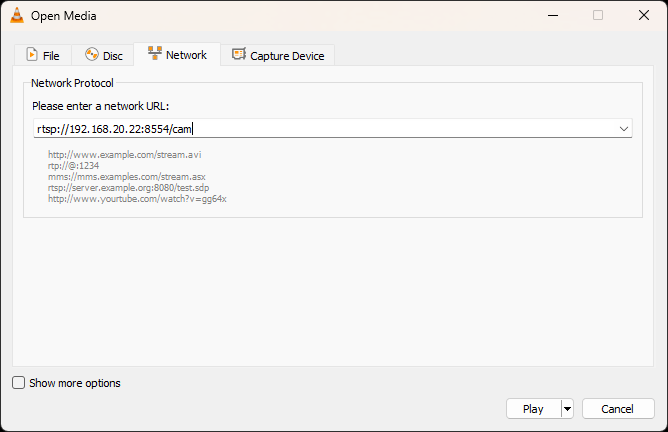
  13. You may validate that the stream is working properly by opening VLC going to the “file “Media” menu and selecting “Open Network Stream…”
    NOTE: I’m running VLC on Windows
    Windows VLC Media Menu items
  14. In the “Please enter a network URL:” textbox, enter the following and press the “Play” button.
    rtsp://<Raspberry Pi Address>:8554/cam
    VLC Open Network Stream Dialog
  15. If everything is working, you should see the video from the camera.
    VLC showing video stream
  16. Once it is verified that everything is working properly, exit mediamtx by pressing the <Ctrl> and C keys on the keyboard.
  17. Now we want MediaMTX to start up when the Raspberry Pi reboots. To run MediaMTX on startup, a service file needs to be created. Run the following command to create and edit the service file.
    sudo nano /etc/systemd/system/mediamtx.service
  18. Add the following content to the file.
    [Unit]
    Description=MediaMTX service
    Wants=network.target
    
    [Service]
    ExecStart=/home/pi/mediamtx/mediamtx /home/pi/mediamtx/mediamtx.yml
    
    [Install]
    WantedBy=multi-user.target
  19. Save and close the file.
  20. To enable the service, the following two commands need to be run.
    sudo systemctl daemon-reload
    sudo systemctl enable mediamtx.service
  21. The following set of commands are useful for viewing the status, restarting, starting, and stopping the service.
    Yes, I know services are called daemons on Linux.
    • sudo systemctl status mediamtx
    • sudo systemctl restart mediamtx
    • sudo systemctl start mediamtx
    • sudo systemctl stop mediamtx

Connecting to the camera from Blue Iris

When adding a the camera to Blue Iris, the settings need to be entered properly. Below is a screenshot and the list of settings.

Blue Iris Network IP camera configuration dialog
  • Select “rtsp://” from the protocol dropdown list.
  • Enter the following for the URL.
    <IP Address>:8554/cam
  • Clear the “User” and “Password” textboxes.
  • Set the “Media/video/RTSP port” to 8554.
  • Leave the “Discovery/ONVIF port” to the default setting.
  • Keep the other options to the default values

After clicking the “OK” button, the video stream should be displayed in Blue Iris.

Blue Iris interface showing the video feed from the camera

References

I want to call a few resources that helped me get this setup.

Final Thoughts

I was able to get things working but I have seen the Raspberry Pi not able to serve up the stream occasionally but it is starting to look like it may be usable. I’m going to make a case for this so that it can mount on a window where I have the ESP32-CAM cameras mounted. If they run well for a month or so, I may replace the three ESP32-CAM cameras that I have. I’m thinking about adding the ability to move the camera’s as well using some servo motors. I will have to determine what would be required to do that with Blue Iris and the Raspberry Pi GPIO pins.

Categories
Project Review

Home Networking

This weekend, I looked at replacing my current Linksys router with a newer 6e Mesh MR7500 router. I’ve been disappointed with Linksys not providing support for routers that are only a few years old but decided to continue with them as I’m familiar with how to configure them.

I found that the configuration of the MR7500 was straightforward. I was able to configure it as needed for my network. I was not impressed with the range as my older router has no problem connecting throughout the house but the newer MR7500 dropped off very quickly and was unusable through much of the house. I returned the MR7500 due to the poor performance of the Wi-Fi network.

I’m currently looking into the Synology routers as they look like they may provide some additional benefits that the Linksys routers cannot provide. I would like to look into using VLANs to separate network traffic to prevent network broadcast storms and provide some isolation for my IP Phones and Cameras as well as other IoT devices. I also like the support that Synology provides. I’ve been using Synology NAS devices for many years and even my older NAS gets regular updates. In addition, their customer support is very good. One time there was an issue with an update and the configuration of my NAS. I needed to reach out to customer support and after going back and forth a bit, they were able to determine the cause of the issue and helped me resolve it. Typically I get frustrated with customer support as they are following a script and it takes a long time to get to someone who can help me with my issue. The initial contact was somewhat similar but it did not take long to have my issue escalated to someone who could help me resolve the issue. Even though I mentioned some back and forth with tech support, it was just for the gathering of information.

The Synology routers are nearly double the price of the Linksys routers but I’m confident that Synology routers will continue to receive security updates for many years, which will make them worth the price. I do hope that they come out with a cheaper solution to extend the mesh network as I would like to have that option. I am concerned that the Synology router may not have any more range than the Linksys MR7500 had as they may be using the same radio or it may be the design of the radios supporting so many different bands. Even if this is the case, the ability to make use of VLANs to separate network traffic may make it worthwhile.

Ubiquiti routers and equipment are another option but the price point may be higher than Synology. The advantage of Ubiquiti is the management software allows for easy configuration of the entire network.

I would like to hear from you if you have experience with your home network using Synology or Ubiquiti routers and networking equipment. Please comment below.

All links to Amazon product pages are Amazon Affiliate Links. Any purchases made through these affiliate links help support me to continue produce content.

Categories
Arduino Project Raspberry Pi Pico RTOS Software Development

TPMS Reception

I was on travel this weekend and tested the Tire Pressure Monitoring System (TPMS) project on the long road trip. The sensitivity of the receiver is not what it needs to be to pickup all four tires. Previously I was able to pickup the signal from all four tires with a longer antenna, however during this trip only two tires seemed to be received consistently while the other ones would only be received once in a while, but most of the time were not received at all.

I suspect that the reason for the difference may be due to the tires being rotated and the two older sensors may be in the rear, and further away from the receiver or it may be that the placement of the receiver was different enough to cause the signal to not be heard. I plan on digging into this a bit more but will continue to focus on rewriting the code for the TPMS project then attempt to resolve the issue with signal strength. It may simply be that the configuration of the radio needs to be adjusted to improve the gain of the received signal.

Categories
Arduino Project Project Ideas Raspberry Pi Pico RTOS Software Development

Projects in the Real World

Testing projects in real world situations can help uncover issues that we wish would have been discovered earlier. One such example was with my Speech Timer Project.

I traveled to Binghamton, NY so I could attend my family reunion and decided to arrive early to attend the Morning Knights Toastmasters meeting in-person. I brought along my Speech Timer to try it out at the meeting. Before the meeting even started, I ran into an issue. The clock connects to the internet to get the time to set the real time clock (RTC). I knew this but thought the clock would still operate as the RTC does not need to be set for the speech timer to work. The configuration is set for my home network so I knew it would not connect to the internet at the meeting location. I pressed the button on the remote to activate the timer function and nothing happened. I ended up tucking the clock back into my backpack. I’ll need to edit the code and run some tests to make absolutely certain that it will work when it cannot connect to the internet.

This lesson shows how important it is to test our projects in a variety of situations. I believe I have tested this scenario before, so I will need to make certain that I can recreate it with the current code base, then move on from there.

Categories
Arduino Project Raspberry Pi Pico Software Development

Code Rewrite

I have started to rewrite the code based on the analysis of the parameters and timings. I have yet to look across the code for the various TPMS sensors to see if they use common code. I suspect that they do, but if they don’t it may make the approach impractical. I plan to investigate loading the parameters and timing values from files on the SD Card as well. I think the file approach may lead to a more sustainable approach.

The code rewrite starts with a structure, CC1101_Parameters, to hold the timing parameters and CC1101_Settings, to hold the settings for the CC1101 radio. The default values specified in the structures are the most common values for each property.

struct CC1101_Parameters {
  int expectedbitcount = 72;
  int expectedbytecount = 9;
  int expectedfifobytecount = 21;
  int syncbits = 16;
  int cdwidth_min = 5500;
  int cdwidth_max = 11500;
  int shorttiming_min = 35;
  int shorttiming_nom = 50;
  int shorttiming_max = 79;
  int longtiming_min = 80;
  int longtiming_max = 120;
  int synctiming_min = 175;
  int synctiming_max = 1200;
  int endtiming_min = 0;
  int endtiming_max = 500;
};  // CC1101_Parameters

struct CC1101_Settings {
  byte cc1101_defval_iocfg2 = 0x0C;    // GDO2 Output Pin Configuration - Serial out (synchronous)
  byte cc1101_defval_iocfg1 = 0x2E;    // GDO1 Output Pin Configuration - not used
  byte cc1101_defval_iocfg0 = 0x0E;    // GDO0 Output Pin Configuration - Carrier Sense output
  byte cc1101_defval_fifothr = 0x0F;   // RX FIFO and TX FIFO Thresholds - 64 bytes in FIFO
  byte cc1101_defval_sync1 = 0xD5;     // Synchronization word, high byte  11010101 01001111
  byte cc1101_defval_sync0 = 0x4F;     // Synchronization word, low byte
  byte cc1101_defval_pktlen = 0x09;    // Packet Length
  byte cc1101_defval_pktctrl1 = 0x00;  // Packet Automation Control
  byte cc1101_defval_pktctrl0 = 0x12;  // Packet Automation Control - synchronous data
  byte cc1101_defval_addr = 0x00;      // Device Address
  byte cc1101_defval_channr = 0x00;    // Channel Number
  byte cc1101_defval_fsctrl1 = 0x0F;   // Frequency Synthesizer Control
  byte cc1101_defval_fsctrl0 = 0x00;   // Frequency Synthesizer Control
  byte cc1101_defval_freq2 = 0x10;     // Frequency Control Word, High Byte
  byte cc1101_defval_freq1 = 0xB0;     // Frequency Control Word, Middle Byte
  byte cc1101_defval_freq0 = 0x71;     // Frequency Control Word, Low Byte
  byte cc1101_defval_deviatn = 0x40;   // Modem Deviation Setting (+/-25.390625kHz)
  byte cc1101_defval_mdmcfg4 = 0x59;   // Modem Configuration (59 = data rate = 20kHz, RX bw 325kHz)
  byte cc1101_defval_mdmcfg3 = 0x93;   // Modem Configuration (now 93 = data rate = 20kHz)
  byte cc1101_defval_mdmcfg2 = 0x10;   // Modem Configuration (GFSK, No Sync or Manchester coding)
  byte cc1101_defval_mdmcfg1 = 0x21;   // Modem Configuration Channel spacing 100kHz
  byte cc1101_defval_mdmcfg0 = 0xF8;   // Modem Configuration
  byte cc1101_defval_agcctrl2 = 0x87;  // AGC Control
  byte cc1101_defval_agcctrl1 = 0x58;  // AGC Control
  byte cc1101_defval_agcctrl0 = 0x80;  // AGC Control
  byte cc1101_defval_mcsm2 = 0x07;     // Main Radio Control State Machine Configuration
  byte cc1101_defval_mcsm1 = 0x3C;     // Main Radio Control State Machine Configuration
  byte cc1101_defval_mcsm0 = 0x18;     // Main Radio Control State Machine Configuration
  byte cc1101_defval_foccfg = 0x16;    // Frequency Offset Compensation Configuration
  byte cc1101_defval_bscfg = 0x6C;     // Bit Synchronization Configuration
  byte cc1101_defval_worevt1 = 0x87;   // High Byte Event0 Timeout
  byte cc1101_defval_worevt0 = 0x6B;   // Low Byte Event0 Timeout
  byte cc1101_defval_worctrl = 0xFB;   // Wake On Radio Control
  byte cc1101_defval_frend1 = 0x56;    // Front End RX Configuration
  byte cc1101_defval_frend0 = 0x10;    // Front End TX Configuration
  byte cc1101_defval_fscal3 = 0xE9;    // Frequency Synthesizer Calibration
  byte cc1101_defval_fscal2 = 0x2A;    // Frequency Synthesizer Calibration
  byte cc1101_defval_fscal1 = 0x00;    // Frequency Synthesizer Calibration
  byte cc1101_defval_fscal0 = 0x1F;    // Frequency Synthesizer Calibration
  byte cc1101_defval_rcctrl1 = 0x41;   // RC Oscillator Configuration
  byte cc1101_defval_rcctrl0 = 0x00;   // RC Oscillator Configuration
  byte cc1101_defval_fstest = 0x59;    // Frequency Synthesizer Calibration Control
  byte cc1101_defval_ptest = 0x7F;     // Production Test
  byte cc1101_defval_agctest = 0x3F;   // AGC Test
  byte cc1101_defval_test2 = 0x81;     // Various Test Settings
  byte cc1101_defval_test1 = 0x35;     // Various Test Settings
  byte cc1101_defval_test0 = 0x09;     // Various Test Settings
};                                     // CC1101_Settings

The next bit of code makes use of switch case statements to set the values based on the selected configuration.

void cc1101_init_vars() {
  switch (carSettings.freq) {
    case TPMS_Frequencies::UK_433MHz:
      switch (carSettings.tpmsSensorType) {
        case TPMS_Sensors::Citroen:
          cc1101_parameters.expectedbitcount = 88;
          cc1101_parameters.expectedbytecount = 10;
          cc1101_parameters.cdwidth_min = 8000;

          break;
        case TPMS_Sensors::Dacia:
          cc1101_parameters.cdwidth_min = 7000;

          cc1101_settings.cc1101_defval_freq0 = 0x0C;
          cc1101_settings.cc1101_defval_deviatn = 0x41;
          break;
        case TPMS_Sensors::Ford:
          cc1101_parameters.expectedbitcount = 64;
          cc1101_parameters.expectedbytecount = 8;
          cc1101_parameters.cdwidth_max = 10000;
          break;
        case TPMS_Sensors::Hyundai_i35:
          cc1101_parameters.expectedbitcount = 64;
          cc1101_parameters.expectedbytecount = 8;
          cc1101_parameters.cdwidth_max = 9000;
          cc1101_parameters.synctiming_min = 140;
          cc1101_parameters.synctiming_max = 160;
          break;
// ...
        case TPMS_Sensors::Zoe:
          cc1101_parameters.expectedbitcount = 64;
          cc1101_parameters.expectedbytecount = 8;
          cc1101_parameters.cdwidth_min = 7000;

          cc1101_settings.cc1101_defval_freq0 = 0x0C;
          cc1101_settings.cc1101_defval_deviatn = 0x41;
          break;
        default:
          break;
      }
      break;
    case TPMS_Frequencies::US_315MHz:
      switch (carSettings.tpmsSensorType) {
        case TPMS_Sensors::Citroen:
          // UK 433 MHz Only
          break;
        case TPMS_Sensors::Dacia:
          // UK 433 MHz Only
          break;
        case TPMS_Sensors::Ford:
          cc1101_parameters.expectedbitcount = 64;
          cc1101_parameters.expectedbytecount = 8;
          cc1101_parameters.cdwidth_max = 10000;

          cc1101_settings.cc1101_defval_freq2 = 0x0C;
          cc1101_settings.cc1101_defval_freq1 = 0x1D;
          cc1101_settings.cc1101_defval_freq0 = 0x57;
          break;
        case TPMS_Sensors::Hyundai_i35:
          cc1101_parameters.expectedbitcount = 64;
          cc1101_parameters.expectedbytecount = 8;
          cc1101_parameters.cdwidth_max = 9000;
          cc1101_parameters.synctiming_min = 140;
          cc1101_parameters.synctiming_max = 160;

          cc1101_settings.cc1101_defval_freq2 = 0x0C;
          cc1101_settings.cc1101_defval_freq1 = 0x1D;
          cc1101_settings.cc1101_defval_freq0 = 0x57;
          break;
// ...
        case TPMS_Sensors::Toyota_TRW_C070:
          cc1101_parameters.expectedbitcount = 64;
          cc1101_parameters.expectedbytecount = 8;
          cc1101_parameters.cdwidth_max = 9000;
          cc1101_parameters.synctiming_min = 140;
          cc1101_parameters.synctiming_max = 160;

          cc1101_settings.cc1101_defval_freq2 = 0x0C;
          cc1101_settings.cc1101_defval_freq1 = 0x1D;
          cc1101_settings.cc1101_defval_freq0 = 0x57;
          break;
        case TPMS_Sensors::TruckSolar:
          // UK 433 MHz Only
          break;
        case TPMS_Sensors::Zoe:
          // UK 433 MHz Only
          break;
        default:
          break;
      }
      break;
    default:
      break;
  }
}

The next step is to determine if common code can be written for receiving the data from each brand of TPMS sensor.

Categories
Project

TPMS Tire Pressure Display – Code Redesign

Work has started with redesigning the original project code posted on hackster.io by JSMSolns. I have decided to use FreeRTOS, Real Time Operating System, to make the code more responsive to button presses. This may limit the supported microcontrollers to RP2040 and ESP32 microcontrollers. Limiting to these microcontrollers does allows for a larger code size if necessary and provides the potential added benefit to support Wi-Fi and Bluetooth in the future to provide an additional method for configuration and monitoring.

Here is an initial list of items/features that need to or may be developed.

  • Support for different display types
    May start with one display type then move to others.
  • Support SD Card
    • Load Configuration
    • Save edited configuration
    • Load sensor parameters
  • Alarm function
  • Switches and menu system
    • Turn alarms on or off
    • Move tire position
    • Assign sensor to a position
    • Setup new vehicle
  • Support multiple vehicles
    Allow switching the device to multiple vehicles without losing previous vehicle configuration.
  • Listen for updates
  • Update display with information
  • View received sensors

I’m currently looking at options for showing the status of the project such as Jira, Trello, or GitHub Issues. It would be good to have something to keep me on track and be able to communicate with others. Each option has its own limitations so I’ll need to determine how to work through them or drop some requirements that I have in mind.

Please let me know if you have any interest in the project or would like to help with moving it forward. I would like to have some other C++ developers to bounce ideas around.

Categories
Project

TPMS Project – Analysis for Adding Flexibility

The Arduino TPMS Tyre Pressure Display project posted on hackster.io is locked into the vehicle and sensor type at compile time. This does not make it easy to setup for a new vehicle. Additionally the sensor ids and positions cannot be changed after the code has been compiled. If you rotate the tires of your vehicle, you need to edit and recompile the code to change the positions. While these restrictions reduce code size, they do not make it easy to change anything unless you want to recompile the code.

The hard coding of values is fine for most people creating this project, but it would not be good if you want to build it for a friend or relative. Once the tires are rotated or a sensor is changed, it would not be useful to them any longer. If they live not too far, that may not be an issue as the person who built it could recompile the code with the necessary changes, but what if that individual was several hundred or thousands of miles away? The project may end up in the trash or gathering dust in the corner.

I have started looking at the differences in configuration and parameters for the vehicles and sensors supported in the code to identify similarities and differences. The goal is to keep the code as small as possible so that more microcontrollers may be supported but the main focus will be on supporting the Raspberry Pi Pico RP2040 microcontroller. Additionally an SD Card reader will be added to the code with the configuration stored in a file on the card. I’ve also added some buttons to my version, which will allow a menu to be added so it will be possible to switch between different sensor types, scan for TPMS sensors, and move or assign them to positions on the car. Below are some screenshots of the Excel Workbook that I’m using to do the analysis.

The next step is to determine the best way to move forward. Currently I’m considering determining what the most common configuration settings are, then adding code to make changes to the common configuration where there are differences. I have started down this path, but I see a few issues with this approach, primarily with maintaining the code. It would be necessary to keep the Excel workbook up to date with any code changes and only make changes in the proper case statements. While this would work fine, it could lead to bloated code especially if someone was unclear how to maintain the code and added all the parameters in a case statement. Another more flexible approach would be to have a configuration file for each sensor type but this could slow down the startup process but it is a viable option.