Categories
Project Raspberry Pi

Updated Raspberry Pi Camera Wi-Fi Monitor Script

My Raspberry Pi cameras have been running well for a while now, but I’ve had one camera that seems to be having issues. I did have some issues earlier with two camera and believe it was due to using cheap Micro Center SD cards and having the Wi-Fi monitoring script write to the card every 5 minutes. I used new cards and did not include the Wi-Fi monitoring script. All was well until a couple of weeks ago, when one camera, that is closest to my Wi-Fi router, would not show up in Blue Iris. I unplugged it and plug it in to hard reboot it, but it still would not come back up.

I finally pulled it out to take a look at it but it seemed to work just fine. It may be that the CD Card was not seated properly, but uncertain why it worked then did not work. If and only if the last state and current state are different, will it update the state file and create a log entry. Below is my resulting script. This is much better than my original version. It is easier to view the log and see when the Wi-Fi went down and when it reconnected.

#!/bin/bash
# Shell script to monitor Wi-Fi status and operating conditions
#   and attempt Wi-Fi restart if down

IWCONFIG="/usr/sbin/iwconfig wlan0"
# The IP for the server you wish to ping (8.8.8.8 is a public Google DNS server)
SERVER=192.168.1.1
LOGFILE="/var/log/wifi.log"
STATEFILE="/var/log/wifistate.txt"
DATE=`date`
I=$((`cat /sys/class/thermal/thermal_zone0/temp`/100))
TEMP="Temp="$(($I/10))"."$(($I%10))" C"
STATUS=`$IWCONFIG | grep level | awk '{$1=$1};1'`
STATUS+=" "
STATUS+=`$IWCONFIG | grep Rate | awk '{$1=$1};1'`
CURRENTSTATE=""
LASTSTATE=""

if [ -f ${STATEFILE} ]; then
    LASTSTATE=$(cat ${STATEFILE})
fi

# Only send two pings, sending output to /dev/null
ping -c2 ${SERVER} > /dev/null
# If the return code from ping ($?) is not 0 (meaning there was an error)
if [ $? = 0 ] 
then
    CURRENTSTATE="UP"
    UPDOWN="\033[32m UP  \033[0m"
else
    CURRENTSTATE="DOWN"
    UPDOWN="\033[31mDOWN \033[0m"
    STATUS+=" Attempting wlan0 restart"
    # Restart the wireless interface
    sh -c 'ifconfig wlan0 down; sleep 5; ifconfig wlan0 up'
fi
if [ "$CURRENTSTATE" != "$LASTSTATE" ]; then
    echo -e $CURRENTSTATE > $STATEFILE
    echo -e "WiFi @ $DATE: $UPDOWN $TEMP $STATUS" >> ${LOGFILE}
fi
echo -e "WiFi @ $DATE: $UPDOWN $TEMP $STATUS"


# Check daemon
# Name of the daemon to check
DAEMON_NAME="mediamtx"
LOGFILE="/var/log/mediamtx.log"
STATEFILE="/var/log/mediamtxstate.txt"
STATUS=""
CURRENTSTATE=""
LASTSTATE=""

if [ -f ${STATEFILE} ]; then
    LASTSTATE=$(cat ${STATEFILE})
fi

# Check if the daemon is running
if pgrep -x "$DAEMON_NAME" > /dev/null; then
    CURRENTSTATE="RUNNING"
    STATUS="$DAEMON_NAME is running"
else
    CURRENTSTATE="NOT RUNNING"
    STATUS="$DAEMON_NAME is not running, restarting..."
    # Use appropriate command to restart the daemon
    sudo systemctl restart "$DAEMON_NAME"
fi
if [ "$CURRENTSTATE" != "$LASTSTATE" ]; then
    echo -e $CURRENTSTATE > $STATEFILE
    echo -e "MediaMTX @ $DATE: $STATUS" >> ${LOGFILE}
fi
echo -e "MediaMTX @ $DATE: $STATUS"
Categories
Project Raspberry Pi

Raspberry Pi Camera Solution

After looking at the stability issue with MediaMTX, Raspberry Pi Camera Module with Raspberry Pi Zero 2 W, and Blue Iris, I have uncovered what looks like a simple fix.

I was doing some searching on my issue with the Pi Cameras and found a post with the rpiCameraBitrate set to 1,500,000 rather than 5,000,000, which is the default value. Instead of editing the rpiCameraBitrate value on line 591 of the mediamtx.yml file, I added a new line in the paths > cam block at the end of the file. The end of my mediamtx.yml file now looks like the following.

paths:
  # example:
  # my_camera:
  #   source: rtsp://my_camera

  # Settings under path "all_others" are applied to all paths that
  # do not match another entry.
  cam:
    source: rpiCamera
    rpiCameraWidth: 1280
    rpiCameraHeight: 720
    rpiCameraFPS: 15
    rpiCameraBitrate: 1000000
  all_others:

Run the following command to edit the mediamtx.yml file.
nano /home/pi/mediamtx/mediamtx.yml

My cameras have been stable now for several weeks.

I did want to show the light sensitivity difference with the Raspberry Pi Cameral Module v3 and ESP32-CAM modules. The top row in the screen capture shows the Raspberry Pi cameras and the bottom row shows the ESP32-CAM modules. The scenes are the same top to bottom.

Screen capture from Blue Iris software showing the Raspberry Pi Camera and ESP32-CAM video.
Categories
Project Raspberry Pi

Raspberry Pi Camera Status

I’ve been seeing that the Raspberry Pi Cameras are going offline quite often and it is quite annoying. I’ve done a few things in an attempt to improve the reliability of the cameras but have not been able to come up with a winning solution yet. If I was only having issues with the cameras that are some distance from my Wi-Fi router, I could blame the network, but the one camera that is closest to the router (11ft/3.3M with no obstructions) seems to be the worst offender.

I have used some new USB Power supplies and cables to rule out power as an issue. I’ve also used new SD Cards, but that has not improved the situation. I also created a script to monitor the Wi-Fi connection and restart it if it appears down. I also added monitoring and restarting the MediaMTX daemon as well.

Parts Used in this Project

Here are some links to the items that I used in an attempt to rectify the issue with the cameras.

The Amazon links are affiliate links that will provide me some income to offset the cost of this site and allow me to continue posting similar content.

Steps to create monitoring script

This script is modified from a post on the Raspberry Pi Forum at https://forums.raspberrypi.com/viewtopic.php?t=338723. There are a few errors in the posted code. Unfortunately, the thread is locked so I cannot reply with the corrected code. The main issues with the code as posted in the forum the author assumed that everyone’s terminal session has a white background with black text. Mine is the opposite, which is the default. I thought something was wrong with the script as there was nothing displayed after the status. Once I determined that the text was black on a black background, I was able to resolve that issue.

The other issue is that ifdown and ifup are no longer used to bring the connection down and back up. There was also a minor bug with the call to iwconfig as the interface was not specified. The grep command was returning the loopback connection as well as the Wi-Fi connection.

  1. Open a SSH or terminal session to the Raspberry Pi
  2. Open the text editor to create the script file.
    sudo nano /usr/local/bin/wifi_monitor.bsh
  3. Add the following content to the file.
    #!/bin/bash
    # Shell script to monitor Wi-Fi status and operating conditions
    # and attempt Wi-Fi restart if down

    IWCONFIG="/usr/sbin/iwconfig wlan0"
    # The IP for the server you wish to ping (8.8.8.8 is a public Google DNS server)
    SERVER=192.168.1.1
    LOGFILE="/var/log/wifi.log"
    DATE=`date`
    I=$((`cat /sys/class/thermal/thermal_zone0/temp`/100))
    TEMP="Temp="$(($I/10))"."$(($I%10))" C"
    STATUS=`$IWCONFIG | grep level | awk '{$1=$1};1'`
    STATUS+=" "
    STATUS+=`$IWCONFIG | grep Rate | awk '{$1=$1};1'`

    # Only send two pings, sending output to /dev/null
    ping -c2 ${SERVER} > /dev/null
    # If the return code from ping ($?) is not 0 (meaning there was an error)
    if [ $? = 0 ]
    then
    UPDOWN="\033[32m UP \033[0m"
    else
    UPDOWN="\033[31mDOWN \033[0m"
    STATUS+=" Attempting wlan0 restart"
    # Restart the wireless interface
    sh -c 'ifconfig wlan0 down; sleep 5; ifconfig wlan0 up'
    fi
    echo -e "WiFi @ $DATE: $UPDOWN $TEMP $STATUS" >> ${LOGFILE}
    echo -e "WiFi @ $DATE: $UPDOWN $TEMP $STATUS"

    # Check daemon
    # Name of the daemon to check
    DAEMON_NAME="mediamtx"
    LOGFILE="/var/log/mediamtx.log"
    STATUS=""

    # Check if the daemon is running
    if pgrep -x "$DAEMON_NAME" > /dev/null; then
    STATUS="$DAEMON_NAME is running"
    else
    STATUS="$DAEMON_NAME is not running, restarting..."
    # Use appropriate command to restart the daemon
    sudo systemctl restart "$DAEMON_NAME"
    fi
    echo -e "MediaMTX @ $DATE: $STATUS" >> ${LOGFILE}
    echo -e "MediaMTX @ $DATE: $STATUS"
  4. If necessary, change the IP Address from 192.168.1.1 to an IP Address on your local network or a reliable public IP Address. I chose the local gateway address as I do not care if the Raspberry Pi has access to the internet.
  5. Save the file and exit the Nano editor.
  6. Make the script executable by running the following command.
    sudo chmod 744 /usr/local/bin/wifi_monitor.bsh
  7. Test the script by running the following command.
    sudo /usr/local/bin/wifi_monitor.bsh
  8. If everything is working as expected you should see output similar to the following.
    WiFi @ Mon 30 Dec 18:19:13 EST 2024:  UP   Temp=56.9 C Link Quality=40/70 Signal level=-70 dBm Bit Rate=52 Mb/s Tx-Power=31 dBm
    MediaMTX @ Mon 30 Dec 18:19:13 EST 2024: mediamtx is running
    

Run the script on start/reboot

  1. Run the following command to bring up the CRON editor.
    sudo crontab -e
  2. Select the editor you would like to use.
    pi@PiCam01:~ $ sudo crontab -e
    no crontab for root - using an empty one
    
    Select an editor.  To change later, run 'select-editor'.
      1. /bin/nano        <---- easiest
      2. /usr/bin/vim.tiny
      3. /bin/ed
    
    Choose 1-3 [1]:
    
  3. At the end of the file, add the following line to run the script every 5 minutes.
    */5 * * * * /usr/local/bin/wifi_monitor.bsh
  4. The completed file should look like the following.
    ### CRON FILE ###
    # Edit this file to introduce tasks to be run by cron.
    #
    # Each task to run has to be defined through a single line
    # indicating with different fields when the task will be run
    # and what command to run for the task
    #
    # To define the time you can provide concrete values for
    # minute (m), hour (h), day of month (dom), month (mon),
    # and day of week (dow) or use '*' in these fields (for 'any').
    #
    # Notice that tasks will be started based on the cron's system
    # daemon's notion of time and timezones.
    #
    # Output of the crontab jobs (including errors) is sent through
    # email to the user the crontab file belongs to (unless redirected).
    #
    # For example, you can run a backup of all your user accounts
    # at 5 a.m every week with:
    # 0 5 * * 1 tar -zcf /var/backups/home.tgz /home/
    #
    # For more information see the manual pages of crontab(5) and cron(8)
    #
    # m h  dom mon dow   command
    */5 * * * * /usr/local/bin/wifi_monitor.bsh
  5. Save the file and exit the text editor.
  6. Wait 5-minutes or longer and run the following commands to view the logs and verify that the script was run from the CRON Job as expected.
    cat /var/log/wifi.log
    cat /var/log/mediamtx.log
  7. If the script is running as expected, the Raspberry Pi should reconnect to the Wi-Fi if it finds that it is not able to reach the IP Address defined in the script. It will also start the mediamtx daemon if it is not running.

Final Thoughts

I’m still not certain what is causing the Raspberry Pi cameras to randomly stop connecting to Blue Iris. I will continue working on this to see if I can determine the root cause.

Categories
Project Raspberry Pi

Raspberry Pi Camera and Blue Iris

I wanted to look at replacing some ESP32-CAM cameras that I have in my windows with some Raspberry Pi Cameras. My hope is that I can get better quality and potentially have some usable video at night. I looked at several options but none seem to be satisfactory but the most promising was the open source project, MediaMTX. It was simple to get setup as it just worked. The issue that I have is even tweaking it to only serve on RTSP stream at 640×480, it could still not deliver a continous smooth stream. I constantly received “write queue is full” warnings. I did serveral things in an attempt to allow it to run smoother, but nothing seemed to help. To be fair, I did start with a Raspberry Pi Zero 2 W, which may be underpowered for this task.

Parts Used in this Project

Here are some links to the items that I used in this project.

The Amazon links are affiliate links that will provide me some income to offset the cost of this site and allow me to continue posting similar content. I have also provided links to PiShop.us in case items are out of stock at Amazon.

Steps to setup the software

  1. Write the latest Raspbian image to an SD Card using Raspberry Pi Imager.
    • Click the “Choose Device” button and select “Raspberry Pi Zero 2 W” from the list.
      List of Boards in the Raspberry Pi Imager software
    • Click the “Choose OS” button and select “Raspberry Pi OS (other)”, then “Raspberry Pi OS Lite (64-bit)”.
      First list of Operating Systems in the Raspberry Pi Imager software Second list for other Operating Systems in the Raspberry Pi Imager software
    • Click the “Choose Storage” button and select the SD Card from the list.
      List of available removable storage devices in the Raspberry Pi Imager software
    • Click the “Next” button and follow the prompts. Once the card is validated and you receive a confirmation message that the image has been written to the SD Card, remove the card from the computer and move it to the Raspberry Pi Zero 2 W board and power it on.
      Raspberry Pi Imager confirmation message
  2. Once the Raspberry Pi boots up, and finishes setting up, log into the Raspberry Pi. You may do this directly with an attached keyboard and monitor or by connecting with SSH.
  3. Update the Raspberry Pi OS by running the following code.
    sudo apt update -y && sudo apt upgrade -y
  4. Download MediaMTX for the Raspberry Pi Zero 2 W by running the following command.
    wget https://github.com/bluenviron/mediamtx/releases/download/v1.10.0/mediamtx_v1.10.0_linux_arm64v8.tar.gz
  5. Make a new directory for the MediaMTX application by running the following command.
    mkdir mediamtx
  6. Unpack the MediaMTX application release into the application folder with the following command.
    tar -C mediamtx -xvzf mediamtx_v1.10.0_linux_arm64v8.tar.gz
  7. Change to the application directory.
    cd mediamtx
  8. Edit the YAML file.
    nano mediamtx.yml
  9. It is recommended to make the following changes to the file as well.
    • Find “protocols: [udp, multicast, tcp]” and change to “protocols: [tcp]”
      (~Line 230)
    • Find “rtmp: yes” and change yes to no
      (~Line 263)
    • Find “hls: yes” and change yes to no
      (~Line 283)
    • Find “srt: yes” and change yes to no
      (~Line 395)
  10. Add these lines at the end of the YAML file to provide a stream for the Raspberry Pi Camera.
    (~Line 698)
    paths:
    # example:
    # my_camera:
    # source: rtsp://my_camera

    # Settings under path "all_others" are applied to all paths that
    # do not match another entry.
    cam:
    source: rpiCamera
    rpiCameraWidth: 1280
    rpiCameraHeight: 720
    rpiCameraFPS: 15
    rpiCameraBitrate: 1500000
    all_others:
  11. Save the file and exit the Nano editor.
  12. Run MediaMTX by typing the following command.
    ./mediamtx
    • You should not see any errors.
    • Any Warnings may be ignored. Common Warning messages are the following.
      • WARN RPiSdn sdn.cpp:40 Using legacy SDN tuning – please consider moving SDN inside rpi.denoise
      • WAR [RTSP] [session 861b8faa] write queue is full
    • Note once you connect to the stream from VLC, Blue Iris, or other viewer, you should see a line similar to the following at the end of the output.
      2024/12/15 19:17:39 INF [RTSP] [session 861b8faa] is reading from path ‘cam’, with TCP, 1 track (H264)
      Terminal session output showing output from MediaMTX
  13. You may validate that the stream is working properly by opening VLC going to the “file “Media” menu and selecting “Open Network Stream…”
    NOTE: I’m running VLC on Windows
    Windows VLC Media Menu items
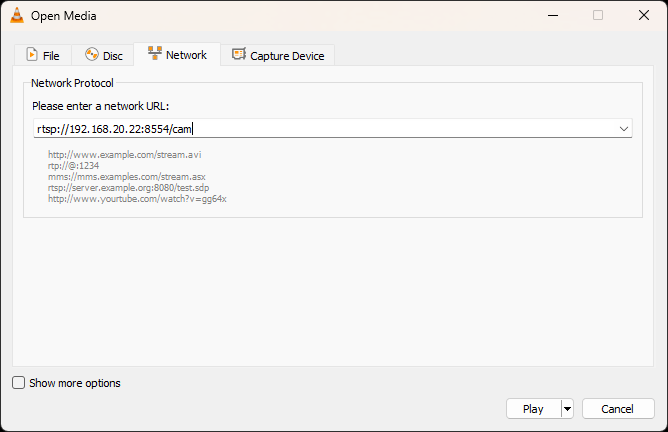
  14. In the “Please enter a network URL:” textbox, enter the following and press the “Play” button.
    rtsp://<Raspberry Pi Address>:8554/cam
    VLC Open Network Stream Dialog
  15. If everything is working, you should see the video from the camera.
    VLC showing video stream
  16. Once it is verified that everything is working properly, exit mediamtx by pressing the <Ctrl> and C keys on the keyboard.
  17. Now we want MediaMTX to start up when the Raspberry Pi reboots. To run MediaMTX on startup, a service file needs to be created. Run the following command to create and edit the service file.
    sudo nano /etc/systemd/system/mediamtx.service
  18. Add the following content to the file.
    [Unit]
    Description=MediaMTX service
    Wants=network.target
    
    [Service]
    ExecStart=/home/pi/mediamtx/mediamtx /home/pi/mediamtx/mediamtx.yml
    
    [Install]
    WantedBy=multi-user.target
  19. Save and close the file.
  20. To enable the service, the following two commands need to be run.
    sudo systemctl daemon-reload
    sudo systemctl enable mediamtx.service
  21. The following set of commands are useful for viewing the status, restarting, starting, and stopping the service.
    Yes, I know services are called daemons on Linux.
    • sudo systemctl status mediamtx
    • sudo systemctl restart mediamtx
    • sudo systemctl start mediamtx
    • sudo systemctl stop mediamtx

Connecting to the camera from Blue Iris

When adding a the camera to Blue Iris, the settings need to be entered properly. Below is a screenshot and the list of settings.

Blue Iris Network IP camera configuration dialog
  • Select “rtsp://” from the protocol dropdown list.
  • Enter the following for the URL.
    <IP Address>:8554/cam
  • Clear the “User” and “Password” textboxes.
  • Set the “Media/video/RTSP port” to 8554.
  • Leave the “Discovery/ONVIF port” to the default setting.
  • Keep the other options to the default values

After clicking the “OK” button, the video stream should be displayed in Blue Iris.

Blue Iris interface showing the video feed from the camera

References

I want to call a few resources that helped me get this setup.

Final Thoughts

I was able to get things working but I have seen the Raspberry Pi not able to serve up the stream occasionally but it is starting to look like it may be usable. I’m going to make a case for this so that it can mount on a window where I have the ESP32-CAM cameras mounted. If they run well for a month or so, I may replace the three ESP32-CAM cameras that I have. I’m thinking about adding the ability to move the camera’s as well using some servo motors. I will have to determine what would be required to do that with Blue Iris and the Raspberry Pi GPIO pins.