Categories
Raspberry Pi

PiBox and KubeSail Are No More

Unfortunately PiBox and KubeSail ended operations in September 2025. I had not used my PiBox too much, just as a scratchpad for WordPress. I decided to reflash it with Raspbian. Below are the steps that I took to reuse my PiBox.

Oddly, the only post that I could find about it was at https://lemmy.world/post/38039322. I did go to the PiBox and KubeSail websites and they appear to be gone.

Flashing Raspbian

I’m using a Windows PC to flash the PiBox. I followed the directions at https://docs.kubesail.com/guides/pibox/rpiboot/. One thing that was not clear is that rpiboot.exe should be run before plugging the PiBox into the PC. It looked like there were errors but it still works. The errors are about optional files for configuring the connection, so they may be ignored. The connection is slow even with a high quality USB-C to USB-C cable.

  1. Remove the cover from the PiBox and move the internal switch from “normal” to “rpiboot”.
  2. Remove the carrier board from the backplane
  3. Run rpiboot.exe on the PC.
  4. Plug the PiBox into the PC using a USB-C Cable.
  5. Open Raspberry Pi Imager.
  6. Click Storage and make certain that the PiBox is showing as “RPi-MSD- 0001”.
  7. Click “Choose Device” and select “No filtering”.
  8. Click Operating System and select the 64-bit version you wish to install.
  9. Click the “Next” button to write the image to the PiBox.
  10. Once the image is written and verified, unplug the PiBox from the PC.
  11. Move the internal switch from “rpiboot” to “normal”.
  12. Reassemble the PiBox.

Updating Raspbian

If SSH is enabled and the Wi-Fi settings are configured or it is connected via ethernet , you may open an SSH session to run commands. If not, you may need to connect a monitor and keyboard to continue.

sudo apt update
sudo apt upgrade

Setup SSD Drives

I have two 1TB Samsung SSDs installed. I wanted to wipe them and remount them to the PiBox. Below are the steps that I followed.

/dev/sda

  1. Run the parted tool
    sudo parted /dev/sda
  2. Change the units used by parted
    unit s
  3. Delete the existing partitions
    • Run the print command to list all the partitions.
      print
    • Remove each partition (Repeat if more than one partition is present.)
      rm 1
  4. Create a single partition for the whole drive
    mkpart primary ext4 0% 100%
  5. Exit parted
    quit
  6. Format the partition
    sudo mkfs.ext4 -L data1 /dev/sda1
  7. Create a mounts point for the drive (The rancher mount point is only so it will display on the LCD display.)
    sudo mkdir -p /var/lib/rancher

/dev/sdb

  1. Run the parted tool
    sudo parted /dev/sdb
  2. Change the units used by parted
    unit s
  3. Delete the existing partitions
    • Run the print command to list all the partitions.
      print
    • Remove each partition (Repeat if more than one partition is present.)
      rm 1
  4. Create a single partition for the whole drive
    mkpart primary ext4 0% 100%
  5. Exit parted
    quit
  6. Format the partition
    sudo mkfs.ext4 -L data2 /dev/sdb1
  7. Create a mount point for the drive
    sudo mkdir -p /mnt/data2

Update fstab

  1. Open text editor to edit fstab
    sudo nano /etc/fstab
  2. Add the following lines
    /dev/sda1 /var/lib/rancher ext4 defaults,nofail,noatime,discard,errors=remount-ro 0 0

    /dev/sdb1 /mnt/data2 ext4 defaults,nofail,noatime,discard,errors=remount-ro 0 0

Enabling PWM Fan Support

  1. Clone the PiBox OS Scripts
    git clone https://github.com/kubesail/pibox-os.git
  2. Change to the Fan folder
    cd pibox-os/pwm-fan
  3. Uncompress the Fan scripts
    tar zxvf bcm2835-1.68.tar.gz
  4. Change to the Fan scripts folder
    cd bcm2835-1.68
  5. Run the make command
    ./configure && make && sudo make install
  6. Go to the parent folder
    cd ..
  7. Make and run the installation
    make && sudo make install
  8. The fan should run quieter now.

Optimize system for EMMC

  1. Store system logs in memory, instead of writing to disk, and lower log verbosity
    sudo sed -i "s/#Storage.*/Storage=volatile/" /etc/systemd/journald.conf

    sudo sed -i 's/.MaxLevelStore.*/MaxLevelStore=info/' /etc/systemd/journald.conf

    sudo sed -i 's/.MaxLevelSyslog.*/MaxLevelSyslog=info/' /etc/systemd/journald.conf

    sudo systemctl restart systemd-journald.service
  2. Disable swapfile
    sudo swapoff -a
    sudo dphys-swapfile swapoff
  3. Mount /var/tmp as tmpfs filesystems to extend EMMC lifetime
    echo "tmpfs /var/tmp tmpfs defaults,noatime,nosuid,nodev,noexec,mode=0755,size=1M 0 0" | sudo tee -a /etc/fstab

Enabling the 1.3” LCD display

  1. Return to the home directory
    cd ~
  2. Install additional drivers for Raspbian / Pibox-OS
    sudo apt-get install raspberrypi-kernel-headers

    pushd pibox-os/st7789_module

    make

    sudo mv fb_st7789v.ko /lib/modules/"$(uname -r)"/kernel/drivers/staging/fbtft/fb_st7789v.ko

    popd

    sudo dtc --warning no-unit_address_vs_reg -I dts -O dtb -o /boot/overlays/drm-minipitft13.dtbo pibox-os/overlays/minipitft13-overlay.dts
  3. Update config.txt
    cat <> /boot/firmware/config.txt
    dtoverlay=spi0-1cs
    # dtoverlay=dwc2,dr_mode=host
    hdmi_force_hotplug=1
    dtoverlay=drm-minipitft13,rotate=0,fps=60
    EOF
  4. Download pibox-framebuffer binary
    curl -s https://raw.githubusercontent.com/kubesail/pibox-os/main/update-framebuffer.sh | sudo bash

Optional if you want the ability to control the top RGB LED

  • Install the RPi.GPIO library.
    sudo apt install python3-RPi.GPIO
  • Open Nano to create a script file.
    nano blinkLED.py
import RPi.GPIO as GPIO
import time

# Red 17
# Green 27
# Blue 23
leds = [17, 27, 23]

GPIO.setwarnings(False)
GPIO.setmode(GPIO.BCM)
for led in leds:
    GPIO.setup(led, GPIO.OUT)

for led in leds:
    for i in range(3):
        GPIO.output(led, GPIO.HIGH)
        time.sleep(0.5)
        GPIO.output(led, GPIO.LOW)
        time.sleep(0.5)

# Commented next line so the LED stays off.
# Added GPIO.setwarnings(False) at the start of the script
# to hide warnings that the channel is in use on future runs.
# GPIO.cleanup()
  • Run the script and observe the top LED on the front of the PiBox.
    python ./blinkLED.py

Categories
Home Assistant Raspberry Pi

Home Assistant on Raspberry Pi

I can’t believe I have not written up my Home Assistant setup. Perhaps that is a good thing as I needed to become comfortable with the setup and how to use it. I’ve been using it for nearly a year at this point. What prompted me to do a writeup now is I’m setting up another one for my mom so I can control some things remotely and to help her manage some things around the house.

My current installation was on a Raspberry Pi 4 setup to boot from a USB drive. This has been working well, but I’m setting up a Raspberry Pi 5 for mom’s installation with a NVMe SSD drive as the boot device.

Bill of Materials for this project

All product links are affiliate links to Amazon Products.

Installation Steps

  1. The first step is fitting the NVMe hat to the Raspberry Pi 5. I have found that the 3cm cable that came with my hat did not work properly. I purchased a set of cables to swap out and found that the 3cm cable in the new set had the same issue. I tried the longer 5cm cable and the hat worked well. I would have thought that a shorter cable would be better but I suspect that there is an impedance or timing mismatch with the shorter cable.
  2. Write the image to the NVMe drive using the steps outlined at https://www.martinrowan.co.uk/2024/02/installing-home-assistant-on-raspberry-pi-5-nvme-storage/.
  3. Once my Raspberry Pi rebooted, it was running Home Assistant.
    The Raspberry Pi boot screen for Home Assistant
  4. I opened a browser window and navigated to http://homeassistant.local:8123/. It took a couple of minutes before Home Assistant fully loaded.
    Home Assistant Browser Window - Retrying to connect
    Home Assistant Browser Window - Login Screen
  5. Click on the “Create my smart home” button.
  6. Create a user by enter the information and clicking the “Create account” button.
    Home Assistant Browser Window - Create User
  7. Set the home location. You may try using your address. If that does not work, use the latitude and longitude. Once entered, click the “Next” button.
    Home Assistant Browser Window - Home Location
  8. Select information that you are willing to share with the Home Assistant team and click the “Next” button.
    Home Assistant Browser Window - Help us help you
  9. Click the “Finish” button on the devices screen.
    Home Assistant Browser Window - We found compatible devices!

Home Assistant is now setup and ready to be configured.

Categories
Raspberry Pi

Disable On-Screen Keyboard

When using a touchscreen with your Raspberry Pi, depending on the screen size, you may soon be annoyed with the amount of screen real estate the on-screen keyboard utilizes. While it can be useful if you do not have a keyboard attached, it can make it difficult if not impossible to complete forms an know what you are entering.

You may want to connect a physical keyboard via USB or Bluetooth but find that the on-screen keyboard pops up anyway. How do you disable it? Follow the steps below to disable the on-screen keyboard for touch screens.

  1. Go to the Start Menu and select Preferences > Raspberry Pi Configuration.
    Menu - Raspberry Pi Configuration
  2. Go to the Display Tab, then select “Disabled” from the On-screen Keyboard option.
    Disable on-screen Keyboard
  3. Click the “OK” button.
  4. If prompted to reboot, select “Yes”
    Reboot confirmation

You will find that the on-screen keyboard no longer blocks the screen content.

Categories
Photography Raspberry Pi

Revisit Photobooth Project

I had built a Photobooth in 2019 based on Wyolum’s Raspberry Pi Photobooth project as posted in Make Magazine. Caroline Dunn made a YouTube video of her build, which explains different aspects of the project.

I had two events where the photobooths could be used, so I pulled them off the self and tested them. The first one started just fine, but the SD Card soon became corrupted and would no longer boot. I flashed the SD Card with the latest Raspbian OS and installed the software, but it would not run. There have been changes to Raspbian and in particular with Python on the latest Raspbian build which will not allow the previous code to run. The Wyolum TouchSelfie project has not been updated in 6 years, so there have been no updates to allow it to run on the latest Raspbian distribution. There is the option of using the older distribution, but I did not want to take that path.

I moved forward by attempting to make fixes to the software but ran into several issues, which led me to do a complete rewrite. Not all features are working at this time, but the important ones, such as taking the photo, creating collages & animated GIFs, adding frames with logos, and uploading the photos to a Google Album are working. I also have some ideas for taking the project further, which will be covered at the end.

Bill of Materials (BOM)

  • Raspberry Pi 3 or newer
    I would recommend a Raspberry Pi 4 or 5 as it may handle rendering of the photos better than the Raspberry Pi 3, although the Raspberry Pi 3 works well.
  • Raspberry Camera Module 2 or newer with cable
    NOTE: Raspberry Pi 5 requires a different cable than earlier versions.
  • Raspberry Pi 7″ touch screen
    NOTE: The original Raspberry Pi 7″ touch screen (800×600) was used but the new version 2 (720×1280) will work as well. Raspberry Pi 5 requires a different cable than earlier versions.
  • Power Supply
    NOTE: The official Raspberry Pi Power Adapter for the Raspberry Pi 3 was not sufficient. It required a 12W iPad charger to work. Amazon has some Anker 2-Pack Dual Port 12W USB A Charger Blocks that I purchased, which work as well.
  • (Optional) Waveshare Barcode Scanner Module
    Plugs into Raspberry Pi USB port and Acts like a keyboard. Makes it convenient to run specific commands or shortcuts without connecting a keyboard. Also may be used to enter email addresses for sending photos.
  • (Optional) GPS USB Dongle
    Allows geotagging of photos
  • 1/8″ plywood cut with the SVG files at https://github.com/richteel/Photobooth
    Path: /fabricate/Rich/

Write the Raspbian OS to an SD Card

  1. Write the latest Raspbian image to an SD Card using Raspberry Pi Imager.
    • Click the “Choose Device” button and select “Raspberry Pi 3” from the list.
      List of Boards in the Raspberry Pi Imager software
    • Click the “Choose OS” button and select “Raspberry Pi OS (64-bit)”.
      First list of Operating Systems in the Raspberry Pi Imager software
    • Click the “Choose Storage” button and select the SD Card from the list.
      List of available removable storage devices in the Raspberry Pi Imager software
    • Click the “Next” button and follow the prompts. Once the card is validated and you receive a confirmation message that the image has been written to the SD Card, remove the card from the computer and move it to the Raspberry Pi Zero 2 W board and power it on.
      Raspberry Pi Imager confirmation message
  2. Once the Raspberry Pi boots up, and finishes setting up, log into the Raspberry Pi. You may do this directly with an attached keyboard and monitor or by connecting with SSH.
  3. Connect to the Raspberry Pi or use a connected keyboard.
    • If you had edited the settings prior to writing the OS to the SD Card and the setting included the information to connect to your WiFi and enabled SSH, you may SSH into the Raspberry Pi to run the following commands.
    • If you did not setup those options or if wish to use Raspberry Pi Connect, you may connect a keyboard to the Raspberry or use the on-screen keyboard.
      Recommend using a connected keyboard if you working directly with the Pi.
    • Recommend Turning on Raspberry Pi Connect, Sign In, and work from another computer.

Update Raspbian and Install Packages

  1. Update the Raspberry Pi OS and install packages by running the following code.
    sudo apt update -y && sudo apt upgrade -y

    # Install ImageTk, Image from PIL
    sudo apt install python3-pillow
    sudo apt install python3-pil
    sudo apt-get install python3-pil.imagetk
    sudo apt install python3-numpy

    # Install ImageMagick for the 'Animation' mode
    sudo apt-get install imagemagick

    # Install picamera2 depenancies
    sudo apt install libcap-dev
    sudo apt install libcamera-dev
    sudo apt install libcamera-apps

    # Add support for Pi Camera ?
    sudo apt install python3-picamera2

    # Add support to write extended EXIF data
    sudo apt install python3-piexif

    # Create virtual environment for gdata
    python -m venv ~/photobooth
    source ~/photobooth/bin/activate

    # Install google data api and upgrade it
    pip install gdata
    pip install --upgrade google-api-python-client
    pip install --upgrade oauth2client

    # Install ImageTk, Image from PIL
    # Appears we need to do this in the virtual environment too.
    pip install pillow
    # pip install numpy

    # Leave the virtual environment
    deactivate

Setup Google API Access

  1. Open a web browser and log into your Google Account. If you do not have one, create one.
    NOTE: You may want to create a separate account, just for the photobooth to keep it separate from your main account.
  2. Go to the Google API Console
    • If you are not in the correct profile, select the correct profile.
  3. Create a project
    Click on the project selector near the top of the screen, then click the “New project” button in the dialog.
    Google API Console New Project
  4. Enter a name for the project and click the “Create” button.
    Google API New Project Name
  5. Make certain the project is the selected project in the Console. Look at the upper left corner. If the project is not displayed, click and select the project before continuing.
    Google API Select Project
  6. Add access rights to the services you need (namely Gmail Service and Google Photos Library Service)
  7. Click on the “+ Enable APIs and services” button
    Google API Enable APIs and Services
  8. Search for Gmail using the Search box and click on “Gmail API”
    GMail API
  9. Click the “Enable” button to enable the Gmail API
    Enable GMail access
  10. Return to the Google API Console, click the “+ Enable APIs and services” button, search for Photos, and click on “Google Photos Library API”
    Select Photos API
  11. Click the “Enable” button to enable the Google Photos Library API
    Photos API Enable
  12. Return to the Google API Console and select “Credentials” on the left menu.
  13. Click the “+ Create credentials” button on the top and select “OAuth client ID”
    Add OAuth
  14. If you are prompted to “Configure consent screen”, do that, then return to the next step.
    NOTE: The values entered are not important as you will be the only one authenticating to the app.
    • App Information
      • App Name: Only you will see this.
      • User support email: Enter a valid email.
    • Audience
      • External is the only option available
    • Contact Information
      • Enter a valid email
    • Finish
      • Check the checkbox and click the create button
  15. Select the “Desktop app” for Application type, enter a name, and click the “Create” button.
    OAuth Client Id
  16. Copy the Client ID, Client secret, and Download JSON. Keep the information in a safe place.
    OAuth keys
  17. Back to the Credentials, click on the OAuth Client ID that you created.
  18. Select “Audience” from the left panel, and click the “Publish app” button.
  19. Click on the “Confirm” link to publish the app.

Get the Code

  1. Grab the code from GitHub
    wget -P ~/ https://github.com/richteel/Photobooth/archive/refs/heads/main.zip
    unzip ~/main.zip
    mv ~/Photobooth-main ~/pb

    mv ~/pb/home/pi/TouchSelfie ~/
    mv ~/pb/home/pi/Desktop/Photobooth.desktop ~/Desktop/Photobooth.desktop
    mv ~/pb/home/pi/.config/autostart ~/.config/
    mv ~/pb/home/pi/*.sh ~/
    mv ~/pb/home/pi/*.py ~/

    # Clean up empty folders & zip file
    rm -r ~/pb/home
    rm ~/main.zip

    # Make BASH scripts and desktop files executable
    chmod +x ~/*.sh
    chmod +x ~/TouchSelfie/*.sh
    chmod +x ~/Desktop/*.desktop
    chmod +x ~/.config/autostart/*.desktop

    # cd ~/TouchSelfie
    # ./setup.sh

Disable On-Screen Keyboard (Optional)

This step is optional but highly recommended as the on-screen keyboard takes up a significant amount of available screen space, making it difficult to navigate and see the screen. This is especially true with the original Raspberry Pi Touch Screen.

  1. We will turn off the on-screen keyboard to get it out of the way.
    Screenshot of the Raspberry Pi Desktop with on-screen keyboard
    • Go to the Start Menu and select Preferences > Raspberry Pi Configuration.
      Menu - Raspberry Pi Configuration
    • Go to the Display Tab, then select “Disabled” from the On-screen Keyboard option.
      Disable on-screen Keyboard
    • Click the “OK” button.
    • When prompted to reboot, select “Yes”
      Reboot confirmation
    • When the Raspberry Pi reboot, the Photobooth application should be running.
      Photobooth application screenshot
    • Press <ctrl> + q to exit the application and click the “Yes” button on the dialog.
      Photobooth app showing quit dialog

    Authenticate to the Google APIs

    1. Copy the JSON file that was downloaded from the Google API Console and rename it to “google_client_id.json”.
      • If you did not download it, go to the Google API Console, go to Credentials, then click on the Client Id (link).
      • You may transfer the JSON file to the Raspberry Pi using an application such as WinSCP or other method and place it in the /home/pi/TouchSelfie/scripts/ folder.
    2. Copy the “google_client_id.json” file to “OpenSelfie.json”. You may copy it by running the following command in the terminal.
      cp ~/TouchSelfie/scripts/google_client_id.json ~/TouchSelfie/scripts/OpenSelfie.json

      NOTE: There should be two JSON files in the scripts folder, google_client_id.json and OpenSelfie.json.
    3. On the Raspberry Pi, open a terminal and type the following commands to run the setup application.
      cd TouchSelfie
      ./setup.sh

      Terminal window to run setup.sh
    4. The “TouchSelfie – Options” window opens. Select the options you wish to enable, then click the “Next” button.
      NOTES:
      – It is recommended NOT to enable the software keyboard if using the Raspberry Pi touchscreen as screen resolution is too small.
      – Image Effects is not implemented at this time so enabling it has no impact.
    5. The “TouchSelfie – Credentials” window opens. Click the “Get AppID” button.
    6. The “TouchSelfie – Credentials” second window opens. Click the “Launch browser” button.
    7. The browser will open prompting you to log into Google.
    8. Enter your Google Account and click the “Next” button.
    9. Enter your account password and click the “Next” button.
    10. If you have 2-step verification setup, then complete the 2-step verification process.
    11. You will see a page stating that Google hasn’t verified this app. Click the “Advanced” link at the bottom of the page.
    12. Click on the “Go to … (unsafe)” link at the bottom of the page.
    13. Check the “Select all” checkbox to select all the permissions, then click the “Continue” button.
    14. The browser window will state “The authentication flow has completed” and the TouchSelfie – Options screen will be displayed.
      NOTE: There is a new file in the /TouchSelfie/scripts/ folder named, google_credentials.dat.
    15. Modify any options if necessary and click the “Next” button.
    16. Enter the Google Account, verify that the Credentials have green checkmarks, and click the “Next” button.
    17. Enter an email address that you can check and change any items you wish for the test email. Click the “Send test email to test the Gmail API connection. Check your email for the test message, then click the “Next” button.

    18. The select Photo Album screen needs some work yet. The list must be navigated with the up/down keys on the keyboard and selection is done with the spacebar. This will be fixed in a future release. If you do not have an album, choose “<Create New>” and click tab to the “Select” button and press the spacebar. It will create a new album named “TouchSelfie” and add a small single colored small image to the album. Do not delete the image from the album unless you have uploaded another image. There must be an image in the album.
    19. Click the “Test Upload” button. You may go out to Google Photos to verify that the album has been created and the image was uploaded.

    20. If necessary, modify the options for snapshots, then click the “Save” button.
    21. You may now close the terminal window and browser.

    Customizing the frames for the photos and collages

    The \TouchSelfie\logos\ folder has the frames that are applied over the photos.

    • Single Photo: single_logo.png
    • 4 Collage Photo: collage_four_square_logo.png
    • 9 Collage Photo: collage_nine_square_logo.png

    There is a Frames.svg that may be used for creating or updating the photos. The folder also contains some examples from various events.

    Configuration File Settings

    The configuration file is in the /TouchSelfie/scripts/ folder and is named, configuration.json. It is a JSON file with several options.

    • archive_to_all_usb_drives
      • Type: boolean
      • Values: true or false
      • Allows archiving of photos to a USB drive if one is attached to the Raspberry Pi
      • NOTE: This functionality is not behaving properly. Some photos are archived but not all. All are written to the SD card though. This will be fixed in a later release.
    • cameraMake
      • Type: string
      • A quoted string value indicating the make of the camera. You may set this to any value you wish. The value is written to the image Exchangeable Image File Format (EXIF) data.
    • cameraModel
      • Type: string
      • A quoted string value indicating the model of the camera. You may set this to any value you wish. The value is written to the image EXIF data.
    • countdown_before_snap
      • Type: integer
      • The seconds between button press and taking the photo. There needs to be images in the /TouchSelfie/scripts/resources/ folder to support the count. Currently there are 5 images named count_down _1.png to count_down _5.png. The images are 128×128 pixels in size.
    • countdown_inter_snap
      • Type integer
      • The seconds between taking photos for collage images
    • email_body
      • Type: string
      • A quoted string value for the body of the emails being sent from the application.
    • email_subject
      • Type: string
      • A quoted string value for the subject of the emails being sent from the application.
    • enable_effects
      • Type: boolean
      • Values: true or false
      • Indicates if the effects button will be shown.
    • enable_email
      • Type: boolean
      • Values: true or false
      • Indicates if the mail button will be shown.
    • enable_email_logging
      • Type: boolean
      • Values: true or false
      • Indicates if emails will be logged to a file.
    • enable_hardware_buttons
      • Type: boolean
      • Values: true or false
      • Indicates if hardware buttons are available for application functions. Hardware buttons are not supported at this time.
    • enable_print
      • Type: boolean
      • Values: true or false
      • Indicates if the print button will be shown
    • enable_upload
      • Type: boolean
      • Values: true or false
      • Indicates if photos will be uploaded to a Google Album
    • full_screen
      • Type: boolean
      • Values: true or false
      • This is deprecated and may be removed from future releases.
    • gmail_user
      • Type: string
      • A quoted value for the Google Account email address.
    • google_photo_album_id
      • Type: string
      • A quoted text value that is the id of the Google Album. It is a Globally Unique Identifier (GUID) that is inserted by the setup program.
    • google_photo_album_name
      • Type: string
      • A quoted text value of the name of the Photo Album.
    • imageArtist
      • Type: string
      • A quoted string for the name of the artist/photographer. You may set this to any value you wish. The value is written to the image EXIF data.
    • imageComment
      • Type: string
      • A quoted string for the note or comment to be added to the EXIF data. You may set this to any value you wish. The value is written to the image EXIF data.
    • imageDescription
      • Type: string
      • A quoted string for the description to be added to the EXIF data. You may set this to any value you wish. The value is written to the image EXIF data.
    • imageKeyWords
      • Type: string
      • A quoted string for comma separated keywords to be added to the EXIF data. You may set this to any value you wish. The value is written to the image EXIF data.
    • local_archive
      • Type: boolean
      • Values: true or false
      • If true, photos are saved to the SD card in addition to being uploaded to the Google Album. Recommended to have this value set to true.
    • local_archive_dir
      • Type: string
      • A quoted string with the path to the local archive folder.
    • location_lat
      • Type: float
      • A quoted decimal value for the latitude. The value is written to the image EXIF data.
    • location_long
      • Type: float
      • A quoted decimal value for the longitude. The value is written to the image EXIF data.
    • logo_file
    • selected_printer
    • snap_caption
    • software
      • Type: string
      • A quoted string for the software to be added to the EXIF data. You may set this to any value you wish. The value is written to the image EXIF data.
    • test_email_address
      • Type: string
      • A quoted value for the test email address. This is only used in the setup.

    (Optional) Stop Execution File dialog box

    You may want to stop seeing the Execute File dialog when clicking on the Photobooth desktop icon. Below are the steps to stop displaying the dialog.

    1. Click on the File Manager at the top of the screen.
    2. From the menu, select Edit > Preferences
    3. With “General” selected on the left panel, check the “Don’t ask options on launch executable file” option.
    4. Close File Manager and click on the Photobooth icon on the desktop. The application will launch.

    Next Steps

    There are several things that need to be completed and some changes that plan to be made. Below is a list of those items.

    • The code is looking for the client id in two different JSON files. Modify the code so only one copy of the JSON file is needed. The two JSON files are:
      • google_client_id.json
      • OpenSelfie.json
    • Use connected GPS to geotag photos. Currently the configuration file has location_lat and location_long which are used to geotag photos, but that requires that the configuration file is updated when the photobooth is brought to a new location.
    • Add text to the buttons to make it easier for users to know what each button is used for. An alternative may be to add an info button.
    • Email photo(s) function. Would like the option to review and select photos to email.
    • Add effects back into the application.
    • Add support to print photos.
    • Improve the UI to let people know when a photo will be taken for each image of the collage and animation. Not certain how to make this intuitive.
    • Fix the issues with the setup application and add additional options.

    Categories
    Project Raspberry Pi

    Updated Raspberry Pi Camera Wi-Fi Monitor Script

    My Raspberry Pi cameras have been running well for a while now, but I’ve had one camera that seems to be having issues. I did have some issues earlier with two camera and believe it was due to using cheap Micro Center SD cards and having the Wi-Fi monitoring script write to the card every 5 minutes. I used new cards and did not include the Wi-Fi monitoring script. All was well until a couple of weeks ago, when one camera, that is closest to my Wi-Fi router, would not show up in Blue Iris. I unplugged it and plug it in to hard reboot it, but it still would not come back up.

    I finally pulled it out to take a look at it but it seemed to work just fine. It may be that the CD Card was not seated properly, but uncertain why it worked then did not work. If and only if the last state and current state are different, will it update the state file and create a log entry. Below is my resulting script. This is much better than my original version. It is easier to view the log and see when the Wi-Fi went down and when it reconnected.

    #!/bin/bash
    # Shell script to monitor Wi-Fi status and operating conditions
    #   and attempt Wi-Fi restart if down
    
    IWCONFIG="/usr/sbin/iwconfig wlan0"
    # The IP for the server you wish to ping (8.8.8.8 is a public Google DNS server)
    SERVER=192.168.1.1
    LOGFILE="/var/log/wifi.log"
    STATEFILE="/var/log/wifistate.txt"
    DATE=`date`
    I=$((`cat /sys/class/thermal/thermal_zone0/temp`/100))
    TEMP="Temp="$(($I/10))"."$(($I%10))" C"
    STATUS=`$IWCONFIG | grep level | awk '{$1=$1};1'`
    STATUS+=" "
    STATUS+=`$IWCONFIG | grep Rate | awk '{$1=$1};1'`
    CURRENTSTATE=""
    LASTSTATE=""
    
    if [ -f ${STATEFILE} ]; then
        LASTSTATE=$(cat ${STATEFILE})
    fi
    
    # Only send two pings, sending output to /dev/null
    ping -c2 ${SERVER} > /dev/null
    # If the return code from ping ($?) is not 0 (meaning there was an error)
    if [ $? = 0 ] 
    then
        CURRENTSTATE="UP"
        UPDOWN="\033[32m UP  \033[0m"
    else
        CURRENTSTATE="DOWN"
        UPDOWN="\033[31mDOWN \033[0m"
        STATUS+=" Attempting wlan0 restart"
        # Restart the wireless interface
        sh -c 'ifconfig wlan0 down; sleep 5; ifconfig wlan0 up'
    fi
    if [ "$CURRENTSTATE" != "$LASTSTATE" ]; then
        echo -e $CURRENTSTATE > $STATEFILE
        echo -e "WiFi @ $DATE: $UPDOWN $TEMP $STATUS" >> ${LOGFILE}
    fi
    echo -e "WiFi @ $DATE: $UPDOWN $TEMP $STATUS"
    
    
    # Check daemon
    # Name of the daemon to check
    DAEMON_NAME="mediamtx"
    LOGFILE="/var/log/mediamtx.log"
    STATEFILE="/var/log/mediamtxstate.txt"
    STATUS=""
    CURRENTSTATE=""
    LASTSTATE=""
    
    if [ -f ${STATEFILE} ]; then
        LASTSTATE=$(cat ${STATEFILE})
    fi
    
    # Check if the daemon is running
    if pgrep -x "$DAEMON_NAME" > /dev/null; then
        CURRENTSTATE="RUNNING"
        STATUS="$DAEMON_NAME is running"
    else
        CURRENTSTATE="NOT RUNNING"
        STATUS="$DAEMON_NAME is not running, restarting..."
        # Use appropriate command to restart the daemon
        sudo systemctl restart "$DAEMON_NAME"
    fi
    if [ "$CURRENTSTATE" != "$LASTSTATE" ]; then
        echo -e $CURRENTSTATE > $STATEFILE
        echo -e "MediaMTX @ $DATE: $STATUS" >> ${LOGFILE}
    fi
    echo -e "MediaMTX @ $DATE: $STATUS"
    
    Categories
    Project Raspberry Pi

    Raspberry Pi Camera Solution

    After looking at the stability issue with MediaMTX, Raspberry Pi Camera Module with Raspberry Pi Zero 2 W, and Blue Iris, I have uncovered what looks like a simple fix.

    I was doing some searching on my issue with the Pi Cameras and found a post with the rpiCameraBitrate set to 1,500,000 rather than 5,000,000, which is the default value. Instead of editing the rpiCameraBitrate value on line 591 of the mediamtx.yml file, I added a new line in the paths > cam block at the end of the file. The end of my mediamtx.yml file now looks like the following.

    paths:
      # example:
      # my_camera:
      #   source: rtsp://my_camera
    
      # Settings under path "all_others" are applied to all paths that
      # do not match another entry.
      cam:
        source: rpiCamera
        rpiCameraWidth: 1280
        rpiCameraHeight: 720
        rpiCameraFPS: 15
        rpiCameraBitrate: 1000000
      all_others:

    Run the following command to edit the mediamtx.yml file.
    nano /home/pi/mediamtx/mediamtx.yml

    My cameras have been stable now for several weeks.

    I did want to show the light sensitivity difference with the Raspberry Pi Cameral Module v3 and ESP32-CAM modules. The top row in the screen capture shows the Raspberry Pi cameras and the bottom row shows the ESP32-CAM modules. The scenes are the same top to bottom.

    Screen capture from Blue Iris software showing the Raspberry Pi Camera and ESP32-CAM video.
    Categories
    Project Raspberry Pi

    Raspberry Pi Camera Status

    I’ve been seeing that the Raspberry Pi Cameras are going offline quite often and it is quite annoying. I’ve done a few things in an attempt to improve the reliability of the cameras but have not been able to come up with a winning solution yet. If I was only having issues with the cameras that are some distance from my Wi-Fi router, I could blame the network, but the one camera that is closest to the router (11ft/3.3M with no obstructions) seems to be the worst offender.

    I have used some new USB Power supplies and cables to rule out power as an issue. I’ve also used new SD Cards, but that has not improved the situation. I also created a script to monitor the Wi-Fi connection and restart it if it appears down. I also added monitoring and restarting the MediaMTX daemon as well.

    Parts Used in this Project

    Here are some links to the items that I used in an attempt to rectify the issue with the cameras.

    The Amazon links are affiliate links that will provide me some income to offset the cost of this site and allow me to continue posting similar content.

    Steps to create monitoring script

    This script is modified from a post on the Raspberry Pi Forum at https://forums.raspberrypi.com/viewtopic.php?t=338723. There are a few errors in the posted code. Unfortunately, the thread is locked so I cannot reply with the corrected code. The main issues with the code as posted in the forum the author assumed that everyone’s terminal session has a white background with black text. Mine is the opposite, which is the default. I thought something was wrong with the script as there was nothing displayed after the status. Once I determined that the text was black on a black background, I was able to resolve that issue.

    The other issue is that ifdown and ifup are no longer used to bring the connection down and back up. There was also a minor bug with the call to iwconfig as the interface was not specified. The grep command was returning the loopback connection as well as the Wi-Fi connection.

    1. Open a SSH or terminal session to the Raspberry Pi
    2. Open the text editor to create the script file.
      sudo nano /usr/local/bin/wifi_monitor.bsh
    3. Add the following content to the file.
      #!/bin/bash
      # Shell script to monitor Wi-Fi status and operating conditions
      # and attempt Wi-Fi restart if down

      IWCONFIG="/usr/sbin/iwconfig wlan0"
      # The IP for the server you wish to ping (8.8.8.8 is a public Google DNS server)
      SERVER=192.168.1.1
      LOGFILE="/var/log/wifi.log"
      DATE=`date`
      I=$((`cat /sys/class/thermal/thermal_zone0/temp`/100))
      TEMP="Temp="$(($I/10))"."$(($I%10))" C"
      STATUS=`$IWCONFIG | grep level | awk '{$1=$1};1'`
      STATUS+=" "
      STATUS+=`$IWCONFIG | grep Rate | awk '{$1=$1};1'`

      # Only send two pings, sending output to /dev/null
      ping -c2 ${SERVER} > /dev/null
      # If the return code from ping ($?) is not 0 (meaning there was an error)
      if [ $? = 0 ]
      then
      UPDOWN="\033[32m UP \033[0m"
      else
      UPDOWN="\033[31mDOWN \033[0m"
      STATUS+=" Attempting wlan0 restart"
      # Restart the wireless interface
      sh -c 'ifconfig wlan0 down; sleep 5; ifconfig wlan0 up'
      fi
      echo -e "WiFi @ $DATE: $UPDOWN $TEMP $STATUS" >> ${LOGFILE}
      echo -e "WiFi @ $DATE: $UPDOWN $TEMP $STATUS"

      # Check daemon
      # Name of the daemon to check
      DAEMON_NAME="mediamtx"
      LOGFILE="/var/log/mediamtx.log"
      STATUS=""

      # Check if the daemon is running
      if pgrep -x "$DAEMON_NAME" > /dev/null; then
      STATUS="$DAEMON_NAME is running"
      else
      STATUS="$DAEMON_NAME is not running, restarting..."
      # Use appropriate command to restart the daemon
      sudo systemctl restart "$DAEMON_NAME"
      fi
      echo -e "MediaMTX @ $DATE: $STATUS" >> ${LOGFILE}
      echo -e "MediaMTX @ $DATE: $STATUS"
    4. If necessary, change the IP Address from 192.168.1.1 to an IP Address on your local network or a reliable public IP Address. I chose the local gateway address as I do not care if the Raspberry Pi has access to the internet.
    5. Save the file and exit the Nano editor.
    6. Make the script executable by running the following command.
      sudo chmod 744 /usr/local/bin/wifi_monitor.bsh
    7. Test the script by running the following command.
      sudo /usr/local/bin/wifi_monitor.bsh
    8. If everything is working as expected you should see output similar to the following.
      WiFi @ Mon 30 Dec 18:19:13 EST 2024:  UP   Temp=56.9 C Link Quality=40/70 Signal level=-70 dBm Bit Rate=52 Mb/s Tx-Power=31 dBm
      MediaMTX @ Mon 30 Dec 18:19:13 EST 2024: mediamtx is running
      

    Run the script on start/reboot

    1. Run the following command to bring up the CRON editor.
      sudo crontab -e
    2. Select the editor you would like to use.
      pi@PiCam01:~ $ sudo crontab -e
      no crontab for root - using an empty one
      
      Select an editor.  To change later, run 'select-editor'.
        1. /bin/nano        <---- easiest
        2. /usr/bin/vim.tiny
        3. /bin/ed
      
      Choose 1-3 [1]:
      
    3. At the end of the file, add the following line to run the script every 5 minutes.
      */5 * * * * /usr/local/bin/wifi_monitor.bsh
    4. The completed file should look like the following.
      ### CRON FILE ###
      # Edit this file to introduce tasks to be run by cron.
      #
      # Each task to run has to be defined through a single line
      # indicating with different fields when the task will be run
      # and what command to run for the task
      #
      # To define the time you can provide concrete values for
      # minute (m), hour (h), day of month (dom), month (mon),
      # and day of week (dow) or use '*' in these fields (for 'any').
      #
      # Notice that tasks will be started based on the cron's system
      # daemon's notion of time and timezones.
      #
      # Output of the crontab jobs (including errors) is sent through
      # email to the user the crontab file belongs to (unless redirected).
      #
      # For example, you can run a backup of all your user accounts
      # at 5 a.m every week with:
      # 0 5 * * 1 tar -zcf /var/backups/home.tgz /home/
      #
      # For more information see the manual pages of crontab(5) and cron(8)
      #
      # m h  dom mon dow   command
      */5 * * * * /usr/local/bin/wifi_monitor.bsh
    5. Save the file and exit the text editor.
    6. Wait 5-minutes or longer and run the following commands to view the logs and verify that the script was run from the CRON Job as expected.
      cat /var/log/wifi.log
      cat /var/log/mediamtx.log
    7. If the script is running as expected, the Raspberry Pi should reconnect to the Wi-Fi if it finds that it is not able to reach the IP Address defined in the script. It will also start the mediamtx daemon if it is not running.

    Final Thoughts

    I’m still not certain what is causing the Raspberry Pi cameras to randomly stop connecting to Blue Iris. I will continue working on this to see if I can determine the root cause.

    Categories
    Project Raspberry Pi

    Raspberry Pi Camera and Blue Iris

    I wanted to look at replacing some ESP32-CAM cameras that I have in my windows with some Raspberry Pi Cameras. My hope is that I can get better quality and potentially have some usable video at night. I looked at several options but none seem to be satisfactory but the most promising was the open source project, MediaMTX. It was simple to get setup as it just worked. The issue that I have is even tweaking it to only serve on RTSP stream at 640×480, it could still not deliver a continous smooth stream. I constantly received “write queue is full” warnings. I did serveral things in an attempt to allow it to run smoother, but nothing seemed to help. To be fair, I did start with a Raspberry Pi Zero 2 W, which may be underpowered for this task.

    Parts Used in this Project

    Here are some links to the items that I used in this project.

    The Amazon links are affiliate links that will provide me some income to offset the cost of this site and allow me to continue posting similar content. I have also provided links to PiShop.us in case items are out of stock at Amazon.

    Steps to setup the software

    1. Write the latest Raspbian image to an SD Card using Raspberry Pi Imager.
      • Click the “Choose Device” button and select “Raspberry Pi Zero 2 W” from the list.
        List of Boards in the Raspberry Pi Imager software
      • Click the “Choose OS” button and select “Raspberry Pi OS (other)”, then “Raspberry Pi OS Lite (64-bit)”.
        First list of Operating Systems in the Raspberry Pi Imager software Second list for other Operating Systems in the Raspberry Pi Imager software
      • Click the “Choose Storage” button and select the SD Card from the list.
        List of available removable storage devices in the Raspberry Pi Imager software
      • Click the “Next” button and follow the prompts. Once the card is validated and you receive a confirmation message that the image has been written to the SD Card, remove the card from the computer and move it to the Raspberry Pi Zero 2 W board and power it on.
        Raspberry Pi Imager confirmation message
    2. Once the Raspberry Pi boots up, and finishes setting up, log into the Raspberry Pi. You may do this directly with an attached keyboard and monitor or by connecting with SSH.
    3. Update the Raspberry Pi OS by running the following code.
      sudo apt update -y && sudo apt upgrade -y
    4. Download MediaMTX for the Raspberry Pi Zero 2 W by running the following command.
      wget https://github.com/bluenviron/mediamtx/releases/download/v1.10.0/mediamtx_v1.10.0_linux_arm64v8.tar.gz
    5. Make a new directory for the MediaMTX application by running the following command.
      mkdir mediamtx
    6. Unpack the MediaMTX application release into the application folder with the following command.
      tar -C mediamtx -xvzf mediamtx_v1.10.0_linux_arm64v8.tar.gz
    7. Change to the application directory.
      cd mediamtx
    8. Edit the YAML file.
      nano mediamtx.yml
    9. It is recommended to make the following changes to the file as well.
      • Find “protocols: [udp, multicast, tcp]” and change to “protocols: [tcp]”
        (~Line 230)
      • Find “rtmp: yes” and change yes to no
        (~Line 263)
      • Find “hls: yes” and change yes to no
        (~Line 283)
      • Find “srt: yes” and change yes to no
        (~Line 395)
    10. Add these lines at the end of the YAML file to provide a stream for the Raspberry Pi Camera.
      (~Line 698)
      paths:
      # example:
      # my_camera:
      # source: rtsp://my_camera

      # Settings under path "all_others" are applied to all paths that
      # do not match another entry.
      cam:
      source: rpiCamera
      rpiCameraWidth: 1280
      rpiCameraHeight: 720
      rpiCameraFPS: 15
      rpiCameraBitrate: 1500000
      all_others:
    11. Save the file and exit the Nano editor.
    12. Run MediaMTX by typing the following command.
      ./mediamtx
      • You should not see any errors.
      • Any Warnings may be ignored. Common Warning messages are the following.
        • WARN RPiSdn sdn.cpp:40 Using legacy SDN tuning – please consider moving SDN inside rpi.denoise
        • WAR [RTSP] [session 861b8faa] write queue is full
      • Note once you connect to the stream from VLC, Blue Iris, or other viewer, you should see a line similar to the following at the end of the output.
        2024/12/15 19:17:39 INF [RTSP] [session 861b8faa] is reading from path ‘cam’, with TCP, 1 track (H264)
        Terminal session output showing output from MediaMTX
    13. You may validate that the stream is working properly by opening VLC going to the “file “Media” menu and selecting “Open Network Stream…”
      NOTE: I’m running VLC on Windows
      Windows VLC Media Menu items
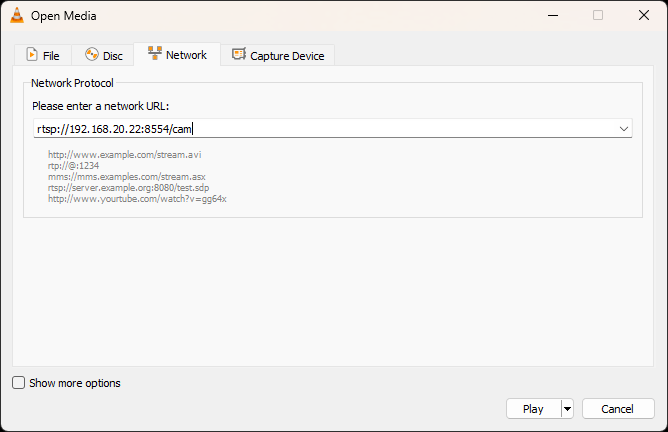
    14. In the “Please enter a network URL:” textbox, enter the following and press the “Play” button.
      rtsp://<Raspberry Pi Address>:8554/cam
      VLC Open Network Stream Dialog
    15. If everything is working, you should see the video from the camera.
      VLC showing video stream
    16. Once it is verified that everything is working properly, exit mediamtx by pressing the <Ctrl> and C keys on the keyboard.
    17. Now we want MediaMTX to start up when the Raspberry Pi reboots. To run MediaMTX on startup, a service file needs to be created. Run the following command to create and edit the service file.
      sudo nano /etc/systemd/system/mediamtx.service
    18. Add the following content to the file.
      [Unit]
      Description=MediaMTX service
      Wants=network.target
      
      [Service]
      ExecStart=/home/pi/mediamtx/mediamtx /home/pi/mediamtx/mediamtx.yml
      
      [Install]
      WantedBy=multi-user.target
    19. Save and close the file.
    20. To enable the service, the following two commands need to be run.
      sudo systemctl daemon-reload
      sudo systemctl enable mediamtx.service
    21. The following set of commands are useful for viewing the status, restarting, starting, and stopping the service.
      Yes, I know services are called daemons on Linux.
      • sudo systemctl status mediamtx
      • sudo systemctl restart mediamtx
      • sudo systemctl start mediamtx
      • sudo systemctl stop mediamtx

    Connecting to the camera from Blue Iris

    When adding a the camera to Blue Iris, the settings need to be entered properly. Below is a screenshot and the list of settings.

    Blue Iris Network IP camera configuration dialog
    • Select “rtsp://” from the protocol dropdown list.
    • Enter the following for the URL.
      <IP Address>:8554/cam
    • Clear the “User” and “Password” textboxes.
    • Set the “Media/video/RTSP port” to 8554.
    • Leave the “Discovery/ONVIF port” to the default setting.
    • Keep the other options to the default values

    After clicking the “OK” button, the video stream should be displayed in Blue Iris.

    Blue Iris interface showing the video feed from the camera

    References

    I want to call a few resources that helped me get this setup.

    Final Thoughts

    I was able to get things working but I have seen the Raspberry Pi not able to serve up the stream occasionally but it is starting to look like it may be usable. I’m going to make a case for this so that it can mount on a window where I have the ESP32-CAM cameras mounted. If they run well for a month or so, I may replace the three ESP32-CAM cameras that I have. I’m thinking about adding the ability to move the camera’s as well using some servo motors. I will have to determine what would be required to do that with Blue Iris and the Raspberry Pi GPIO pins.

    Categories
    Raspberry Pi Pico

    Raspberry Pi Pico 2

    Last week, the Raspberry Pi announced the release of the Pico 2 and the RP2350 chip. It is exciting to see that Raspberry Pi has released this upgraded chip and board. I can’t wait to give it a go but will probably wait a while before buying one. I still have quite a few 1st generation Pico’s and they have plenty of storage and computing power for my projects. I am interested in one big improvement that Jeff Geerling mentioned in his YouTube review of the Pico 2.

    Jeff mentioned that the Pico 2 uses less power in idle and deep sleep than the original Pico. I have yet to build a low power device, but it is a skill that I would like to master. Currently if I need a battery powered device to last longer, I throw a larger battery at it rather than optimizing the power draw.

    I have not seen anything mentioning the ADC functionality to see if there have been improvements. The original Pico has some peculiarities with the ADC when measuring voltages but as long as you are aware of the limitations, you can work around them. I would like to know if the Pico 2 was redesigned to improve ADC measurements.

    Most likely I will wait until the wireless boards are available and I have a project in mind to make use of the new features. I would like to know if you plan to get a Pico 2 anytime soon and what projects you plan to create with the Pico 2.

    Categories
    Arduino Project Raspberry Pi Pico RTOS Software Development

    TPMS Reception

    I was on travel this weekend and tested the Tire Pressure Monitoring System (TPMS) project on the long road trip. The sensitivity of the receiver is not what it needs to be to pickup all four tires. Previously I was able to pickup the signal from all four tires with a longer antenna, however during this trip only two tires seemed to be received consistently while the other ones would only be received once in a while, but most of the time were not received at all.

    I suspect that the reason for the difference may be due to the tires being rotated and the two older sensors may be in the rear, and further away from the receiver or it may be that the placement of the receiver was different enough to cause the signal to not be heard. I plan on digging into this a bit more but will continue to focus on rewriting the code for the TPMS project then attempt to resolve the issue with signal strength. It may simply be that the configuration of the radio needs to be adjusted to improve the gain of the received signal.